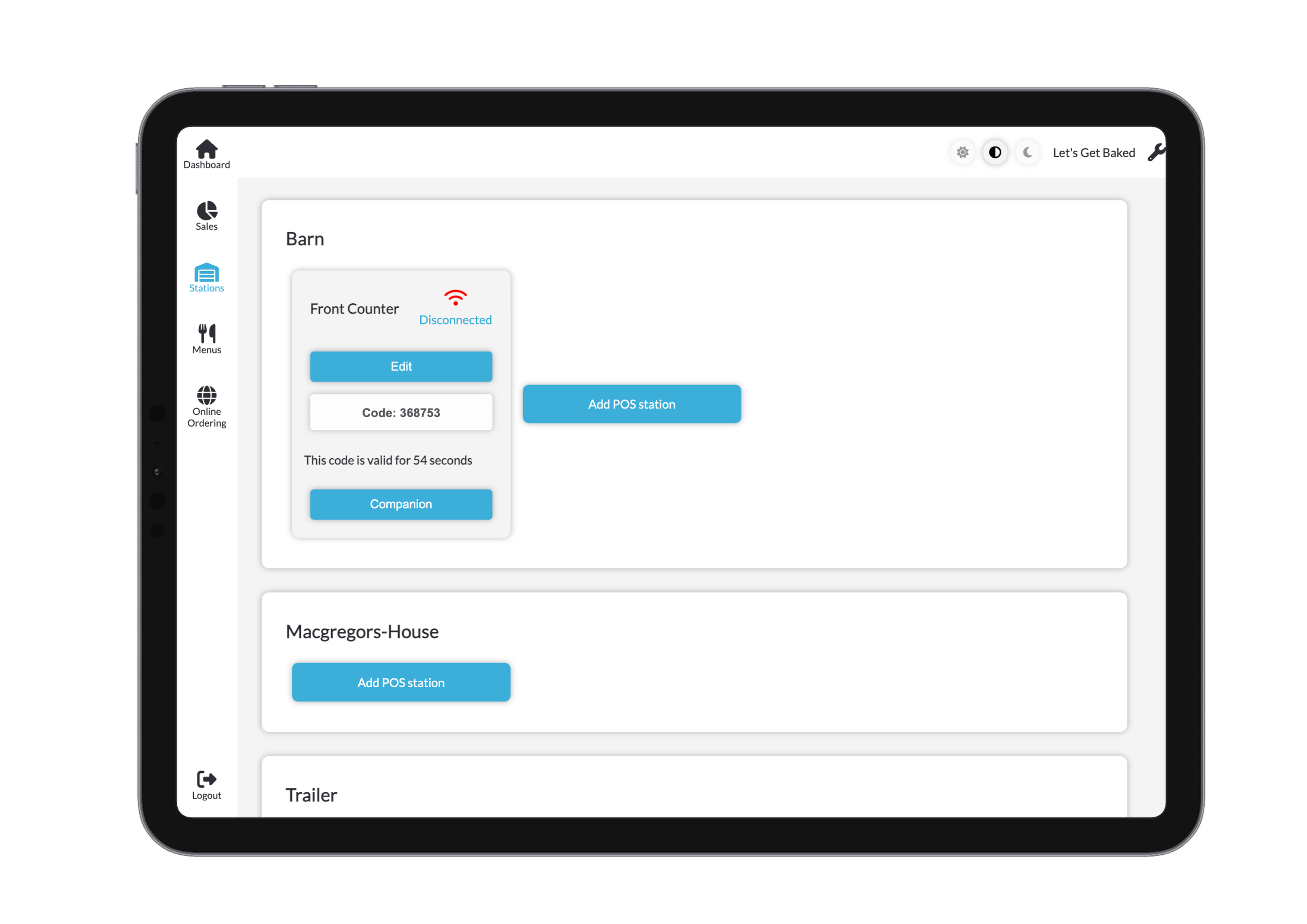
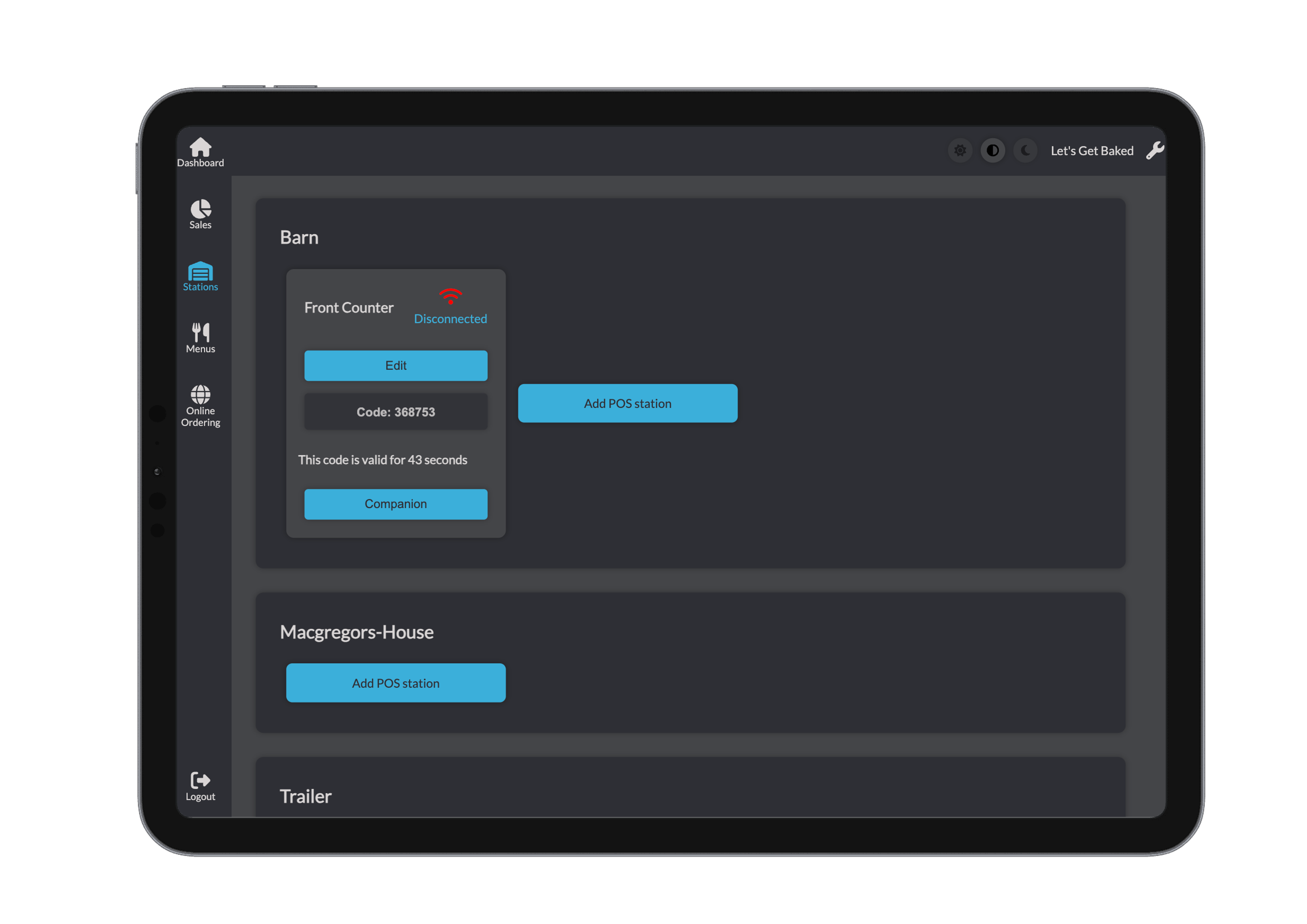
KDS Station Management
Each KDS (Kitchen Display System) station can be configured to track specific categories of items such as coffee, food, or drinks. This allows each station to display only the relevant orders for its role (e.g., a barista station shows only coffee orders).
Station Overview
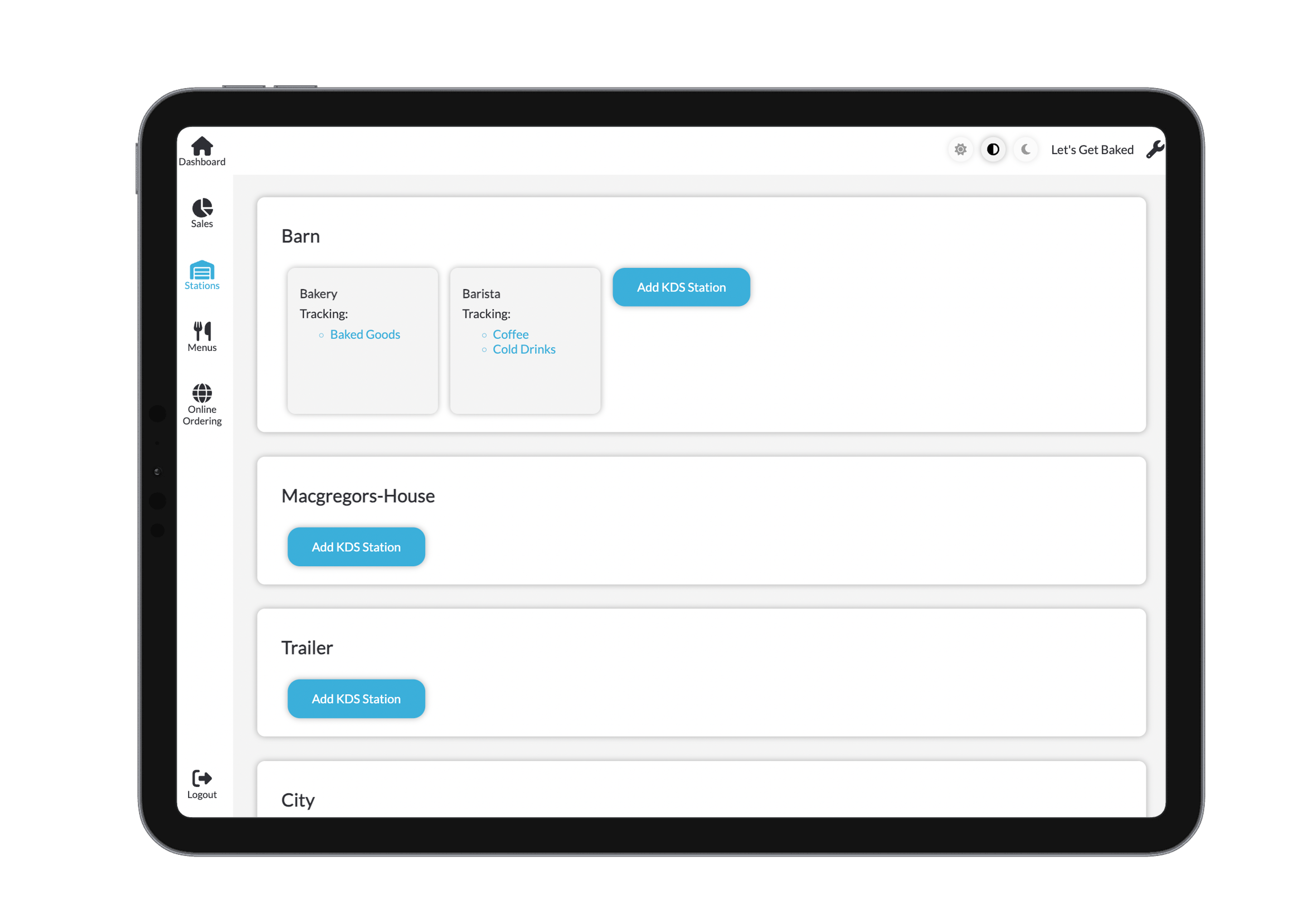
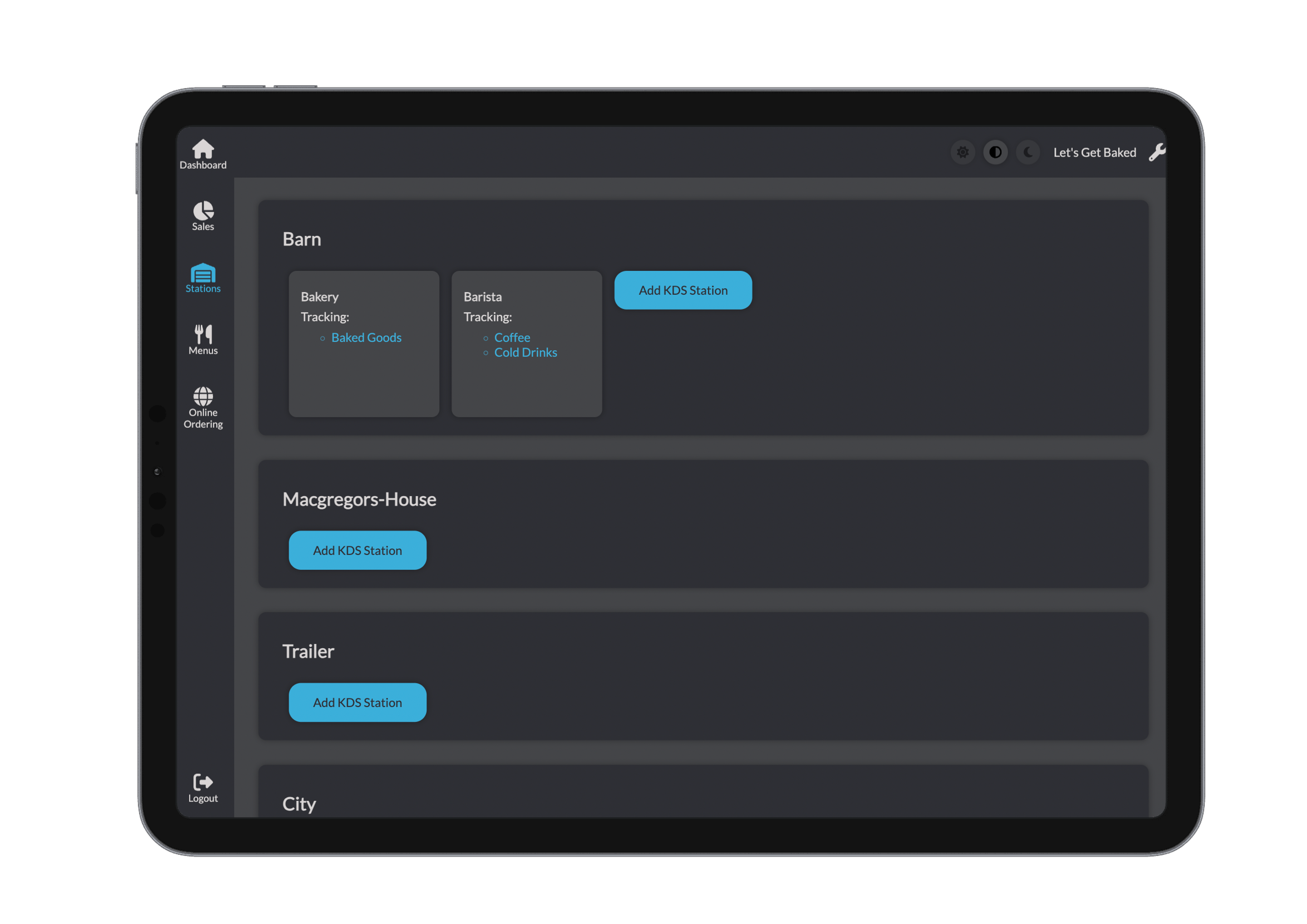
The main KDS management screen displays all configured stations, showing:
- Station Name – The name identifying the KDS station.
- Tracked Categories – A summary of the item categories this station is monitoring.
Creating a New POS Station
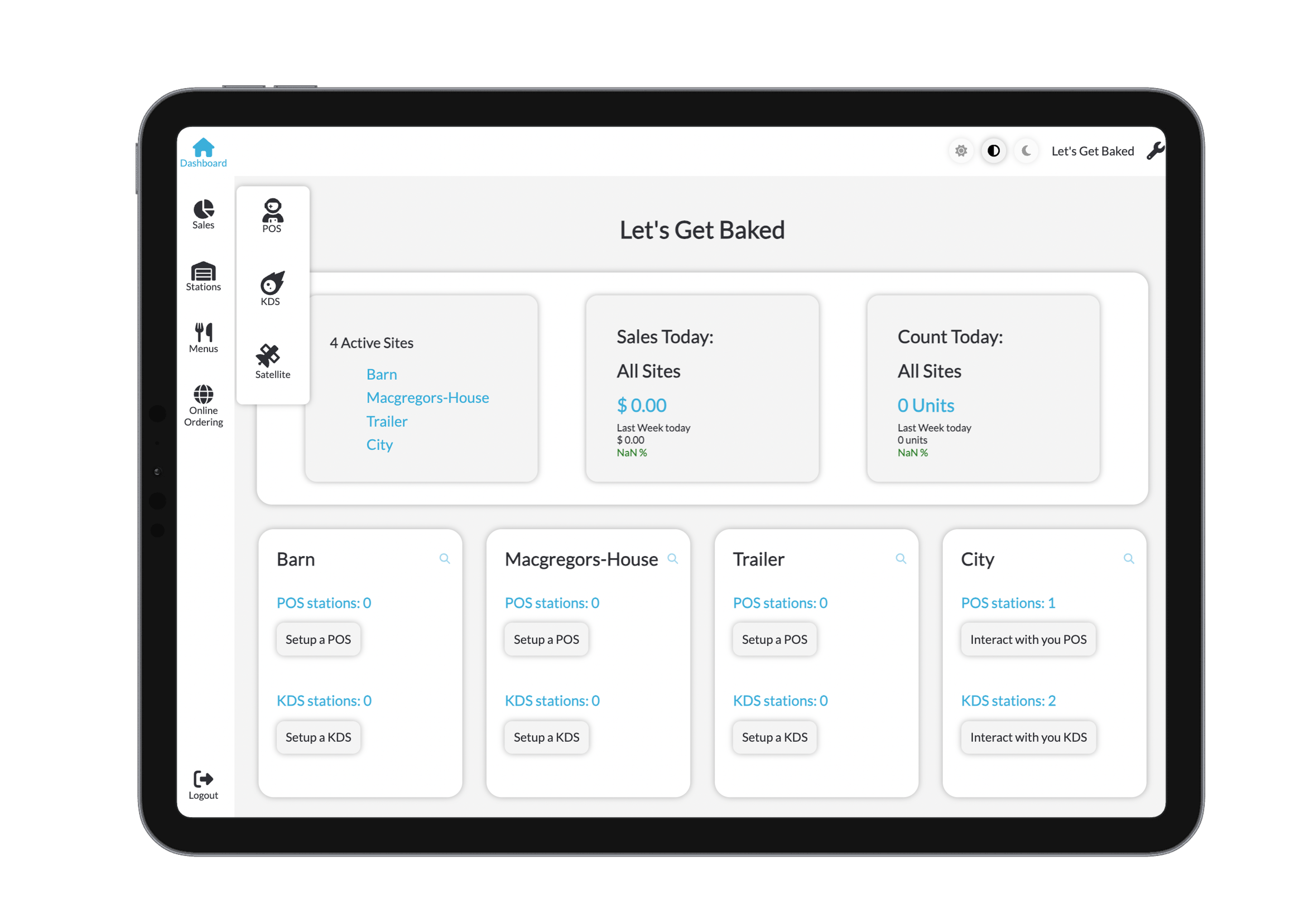
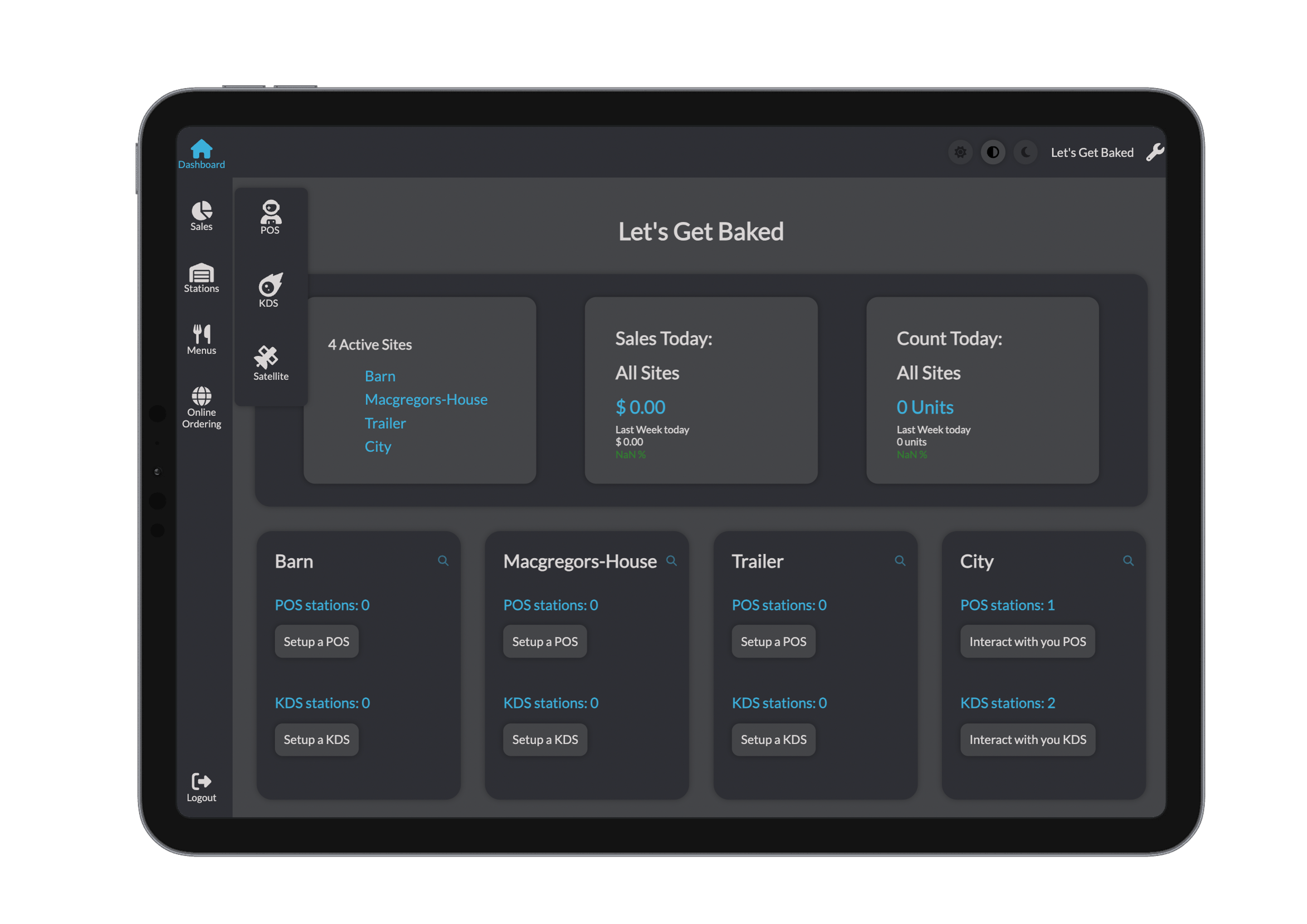
To add a new POS station:
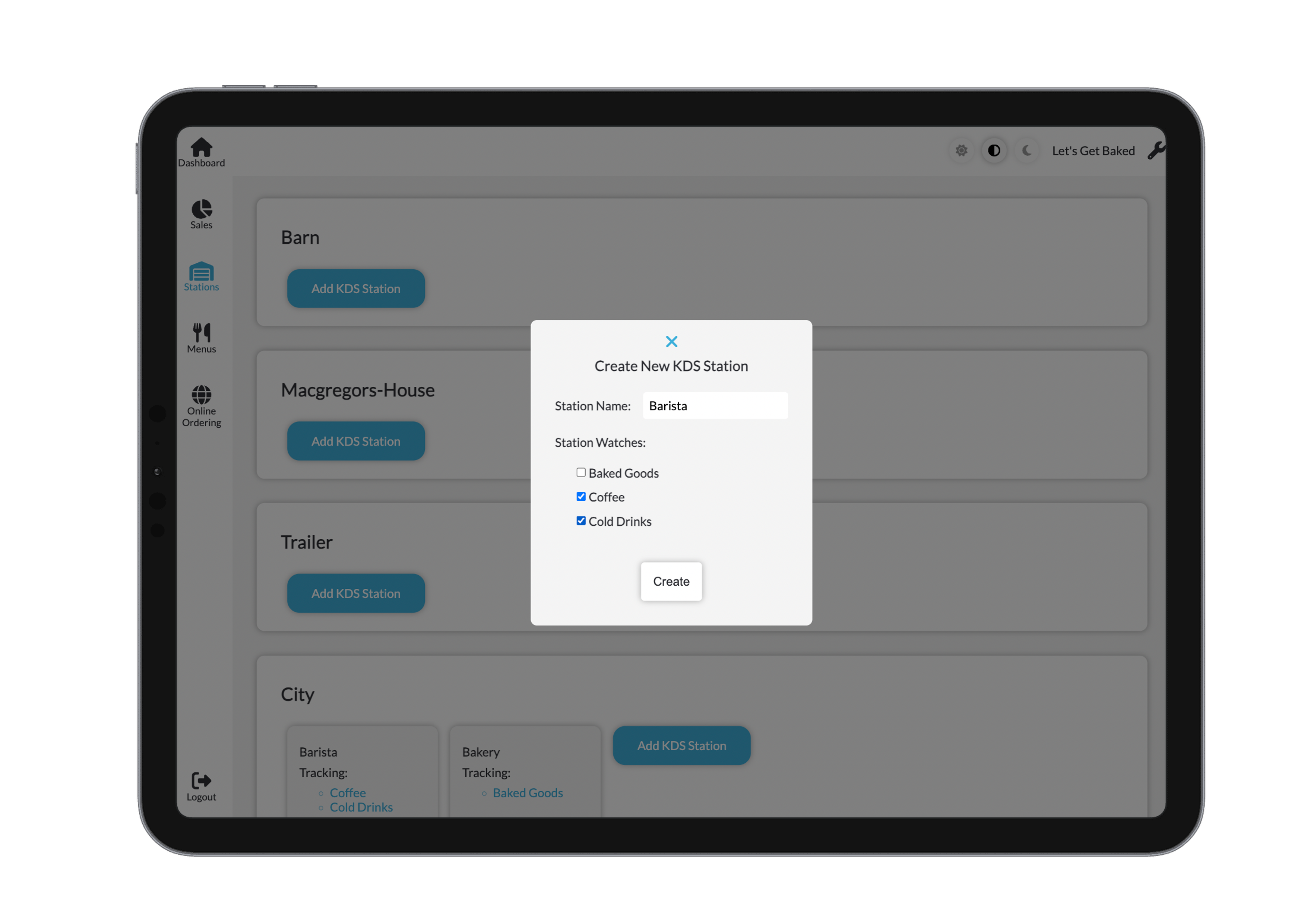
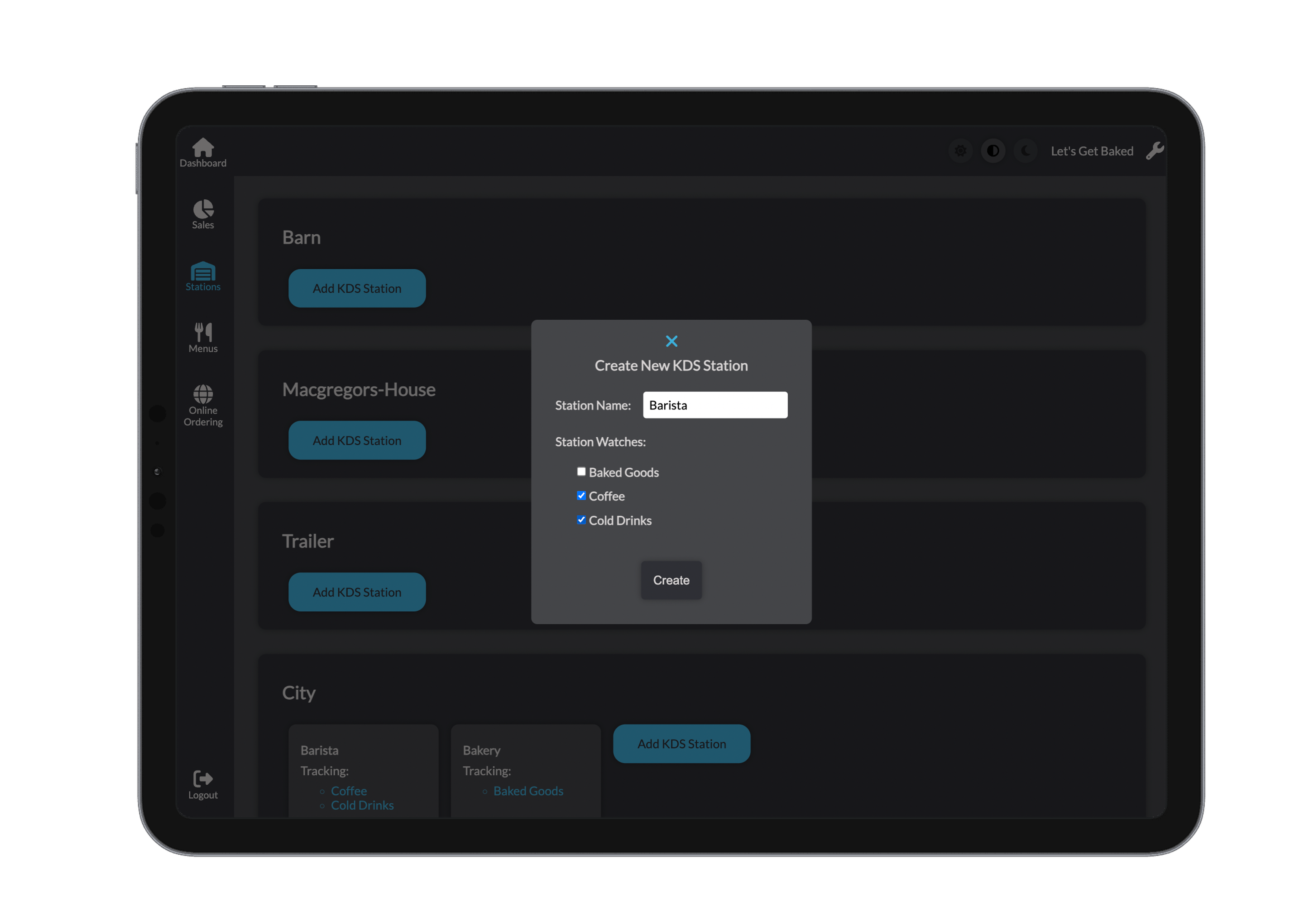
- Click the Create New KDS Station button.
- Enter the station name
- Select all relevant categories to be tracked.
- Click Create to finalise and add the station to the list.
Editing a KDS Station
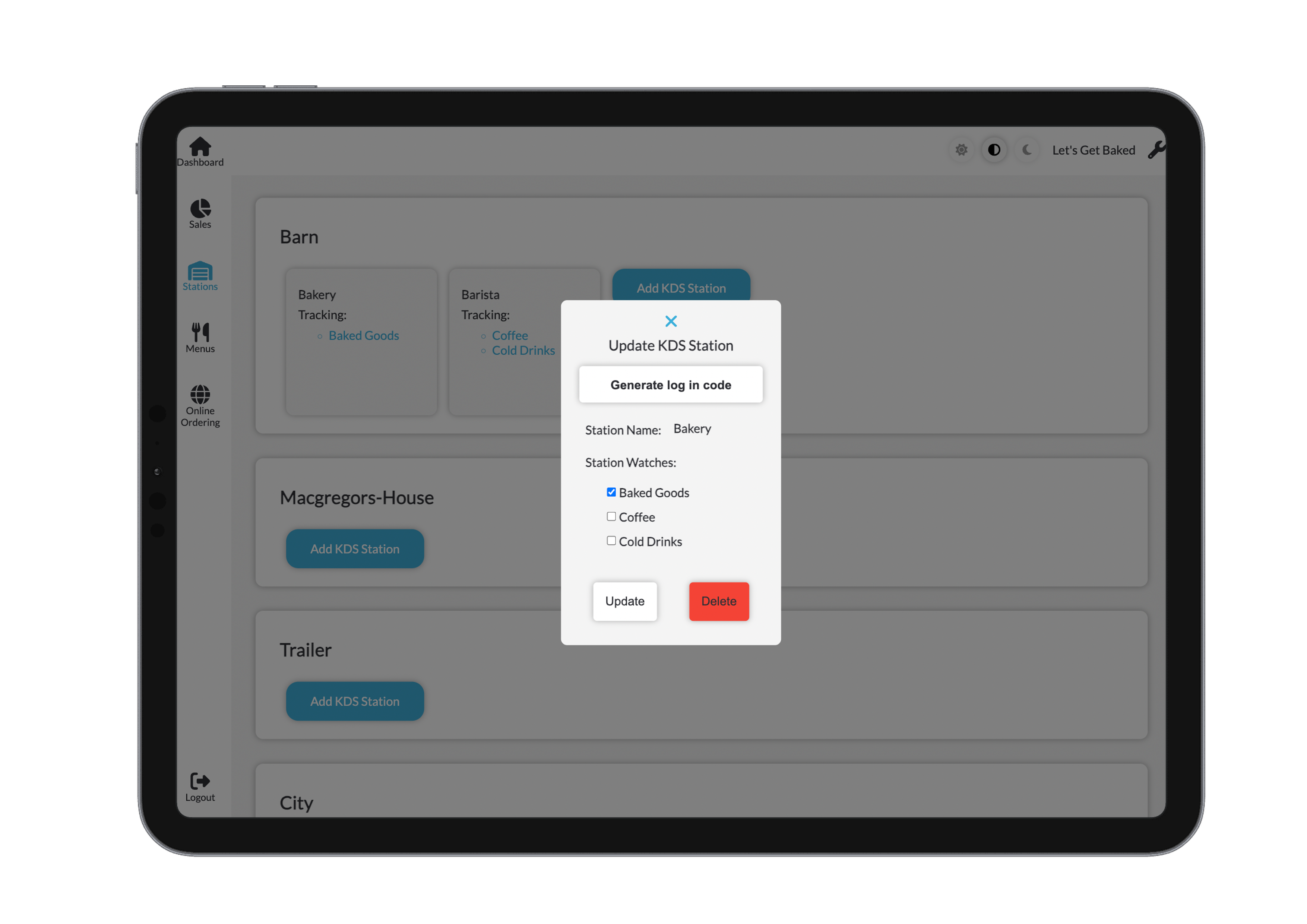
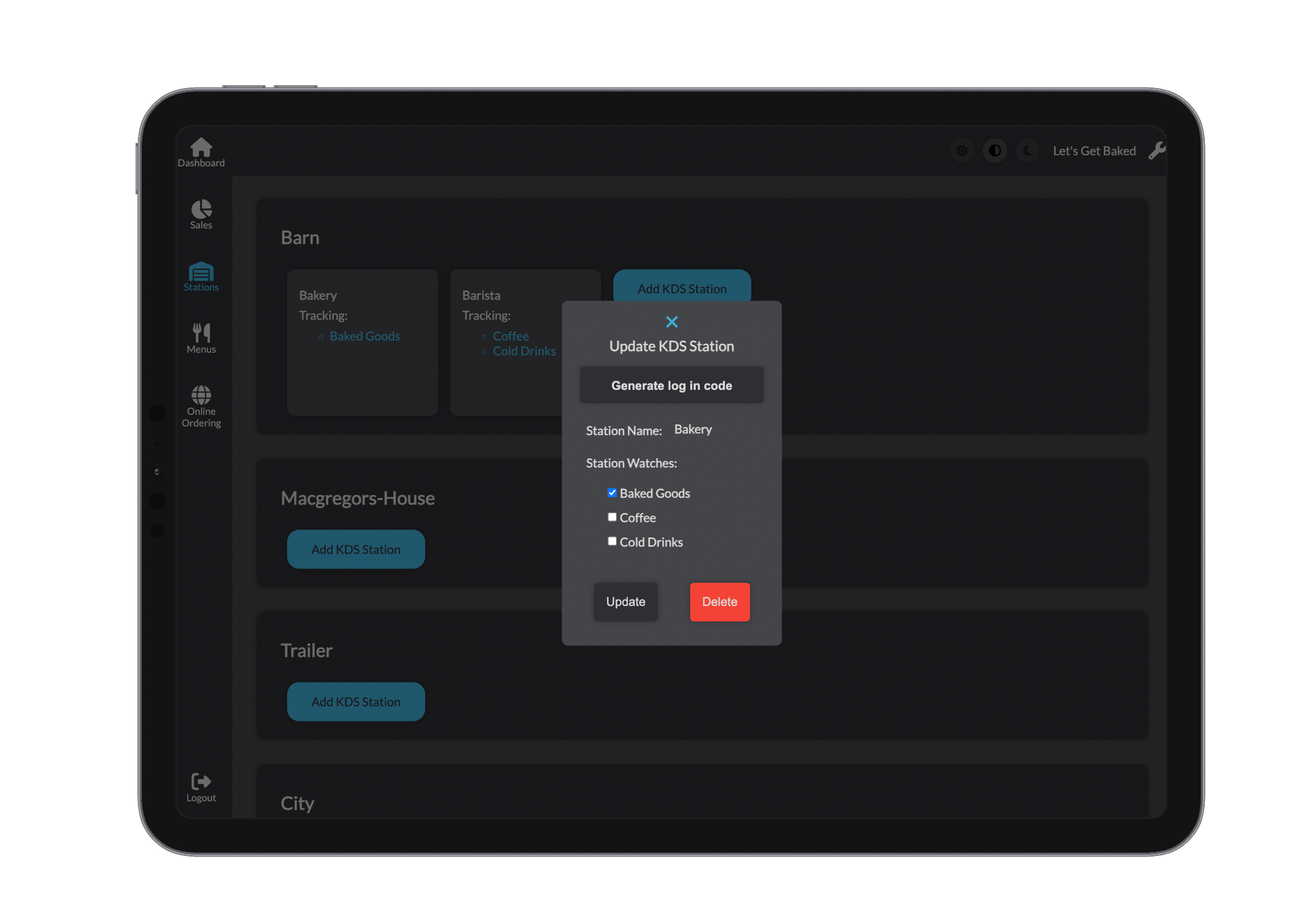
Click on a station to configure or update its settings. This will open a detailed view with the following options:
- Generate Login Code – Create a login code specific to the KDS station.
- Station Name – Displays the name of the current station.
- Tracked Categories Selector:
- Use checkboxes or dropdowns to select which categories the KDS should display.
- For example, choose only coffee to configure a station for the barista.
- Select multiple categories if the station handles a broader range of items.
- After making changes, click Update to save or Delete to remove the station.
Generating a KDS Login Code
To provide access to a KDS station:
- Click the Generate Login Code button from the station's detail view.
- A unique code will be created, allowing the station to log in securely.