EFTPOS New Zealand
Connecting to the Terminal
Once you have navigated to the Payment Terminal Settings page:
- Select the EFTPOS New Zealand option (look for the EFTPOS NZ logo).
- Press Confirm.
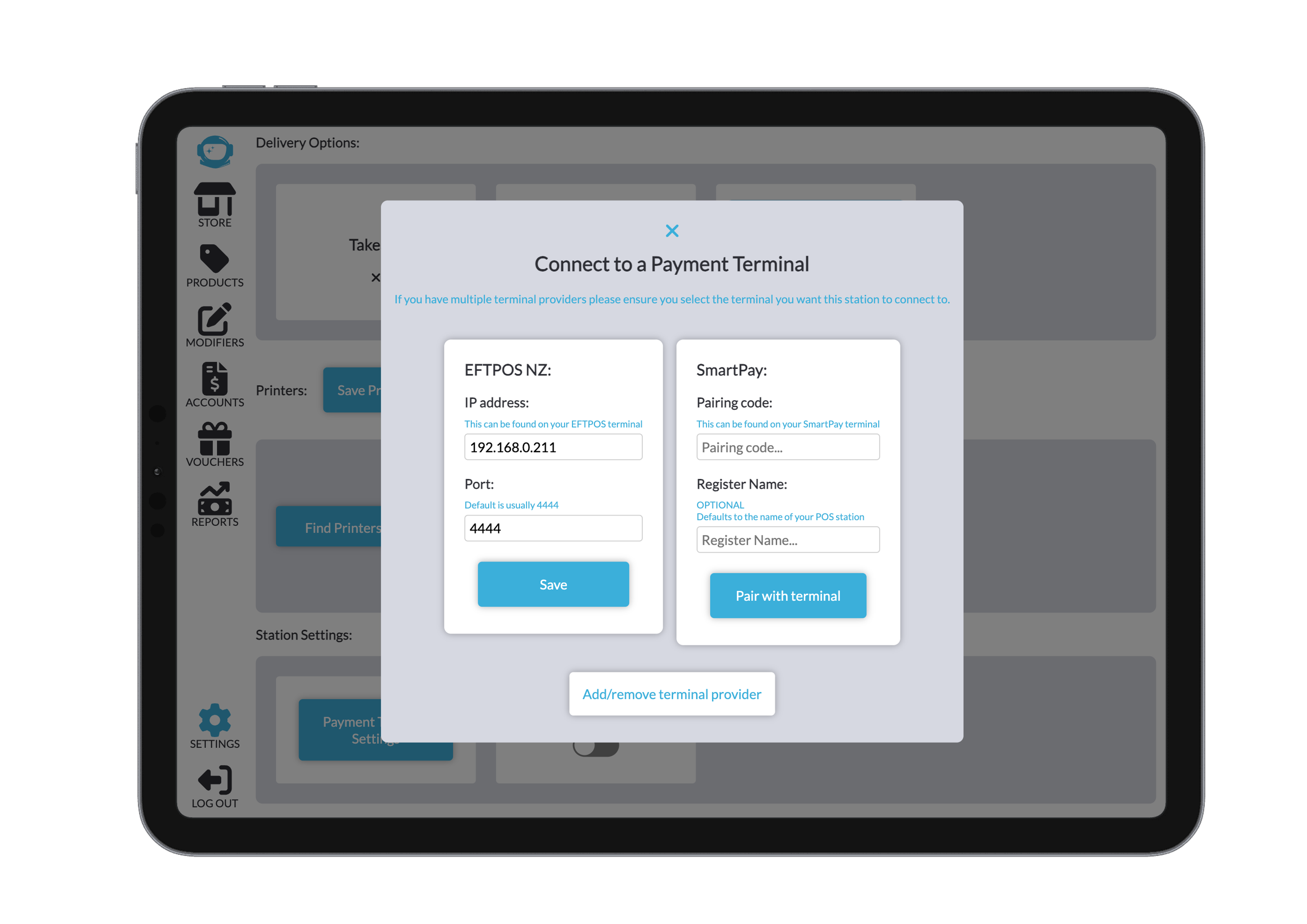
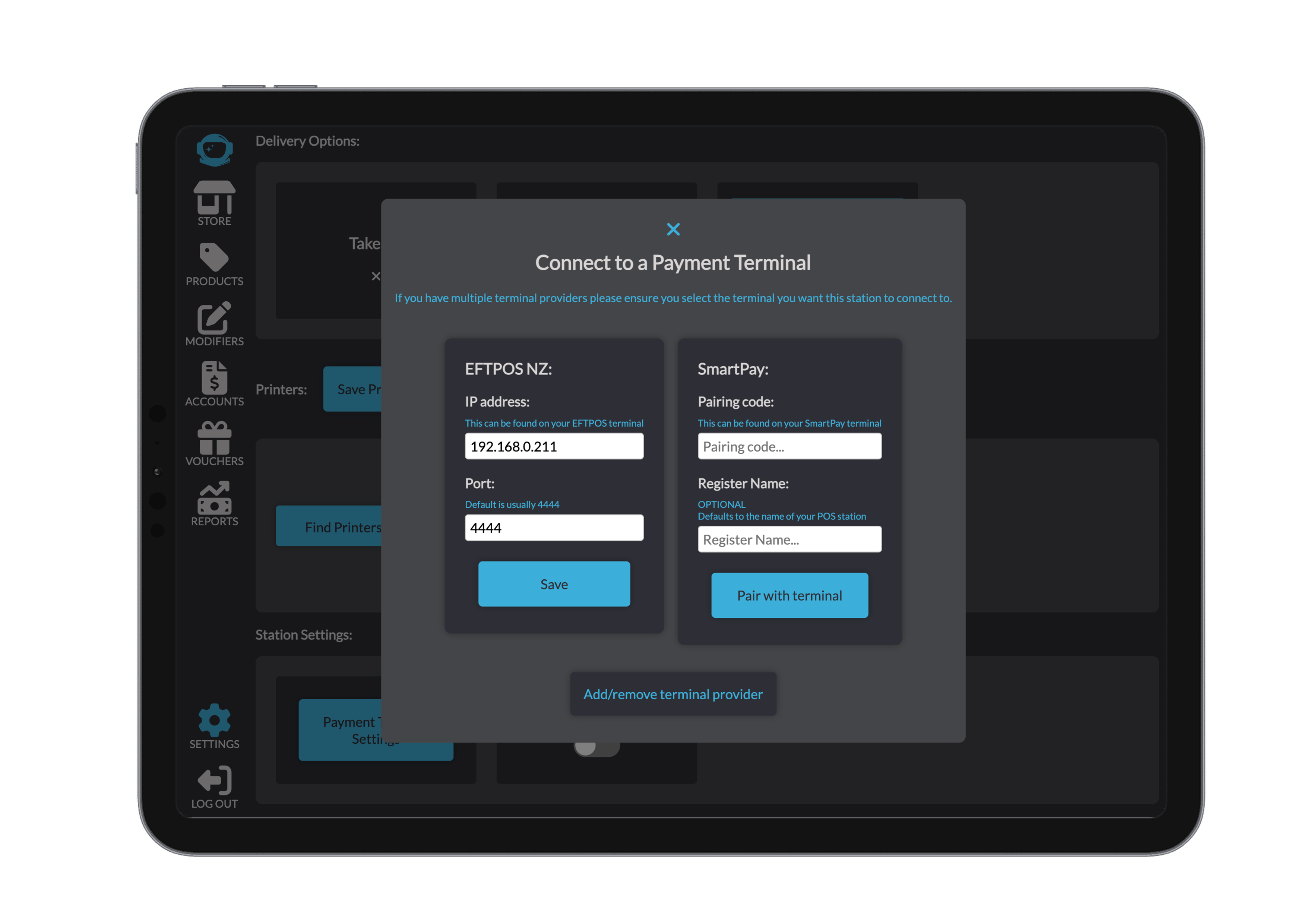
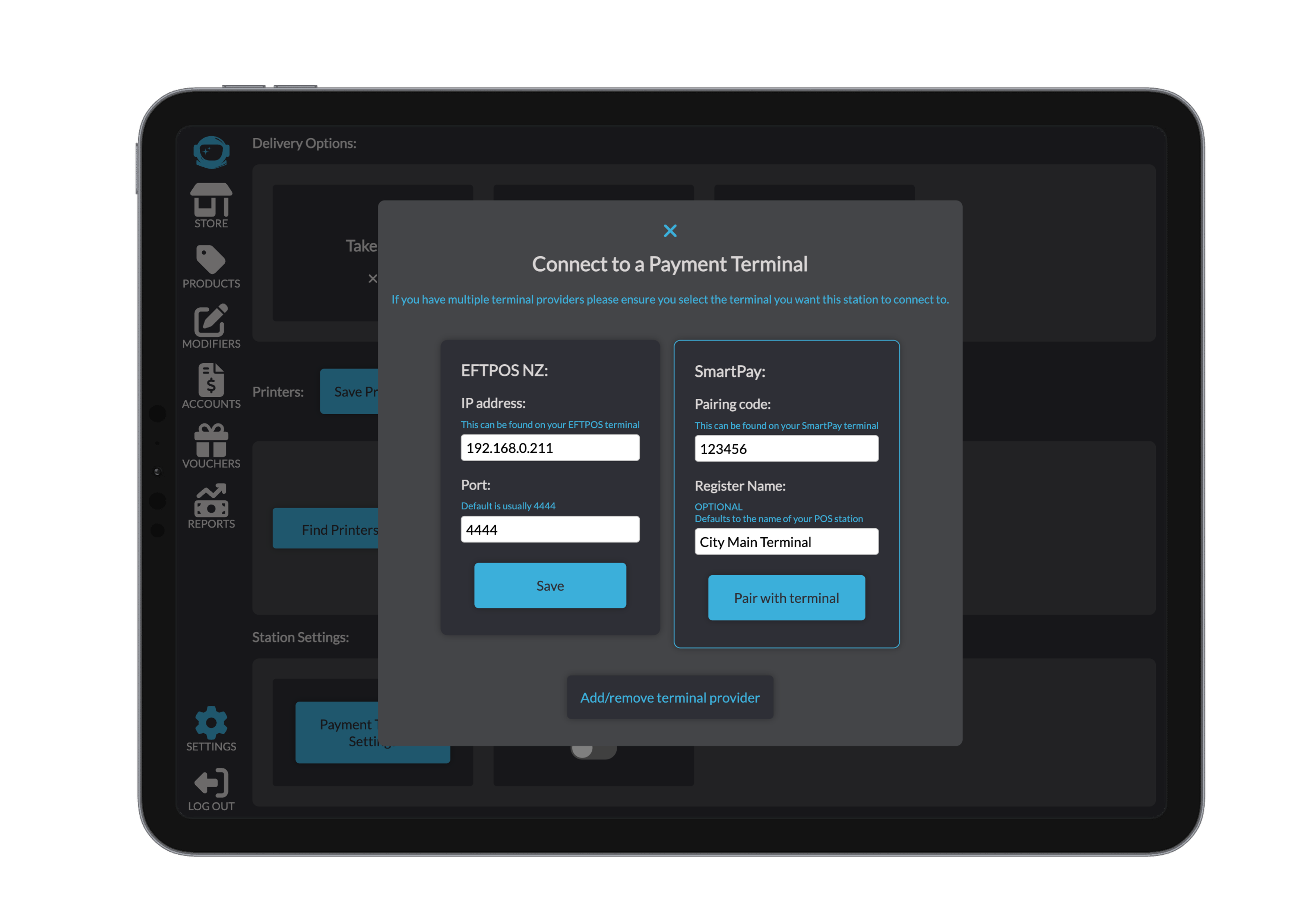
- A settings window will appear showing the required EFTPOS New Zealand terminal inputs.
- Enter the following details:
- IP Address:
This must be the IP address displayed on your Verifone terminal.
(See EFTPOS NZ documentation for steps to locate this on your model.) - Port:
Also found on the terminal.
The default is often 4444, but you must match the exact port shown on your device.
- IP Address:
- After entering all details, click Save.
Important:
The terminal you want to use must be the last one selected before exiting the modal.
Beamy will attempt to connect to whichever terminal configuration was selected most recently.

Resetting EFTPOS
If your EFTPOS machine disconnects from Beamy or stops responding, follow these steps:
1. Restart the Beamy App
- Fully close the app (remove from Recents).
- Reopen it to force a fresh terminal connection.
2. Check the EFTPOS Device
- Swipe down from the top of the terminal screen.
- Ensure the device is connected to the correct Wi-Fi network.
- If Wi-Fi is disconnected or on the wrong network, reconnect it.
3. Verify the IP Address
You must ensure that the IP address saved in Beamy matches the current IP address of the Verifone terminal.
- On the POS app, open Settings → Payment Terminal Settings and check the IP.
- On the Verifone terminal, open the PoslinkAd app (green Android icon) to view the IP address.
- If the IPs do not match, update the Beamy settings to match the EFTPOS terminal IP.
- Press Save before exiting.
Tip:
Some networks assign dynamic IP addresses, which may change when the terminal reconnects.
If this happens often, you may want to request a static IP reservation from your internet provider or IT team.
4. Still Not Working?
If everything matches but the terminal still won’t connect:
- Restart the EFTPOS terminal.
(Note: Verifone terminals may take ~5 minutes to reboot.) - Manually enter payment totals on the terminal if needed and notify your manager.
- Check for nationwide outages or service disruptions on the
EFTPOS NZ status page.