KDS Settings
The KDS settings allow you to customise how your kitchen station operates, from printer pairing to visual order timings, helping streamline workflows and improve service speed.
Accessing Settings
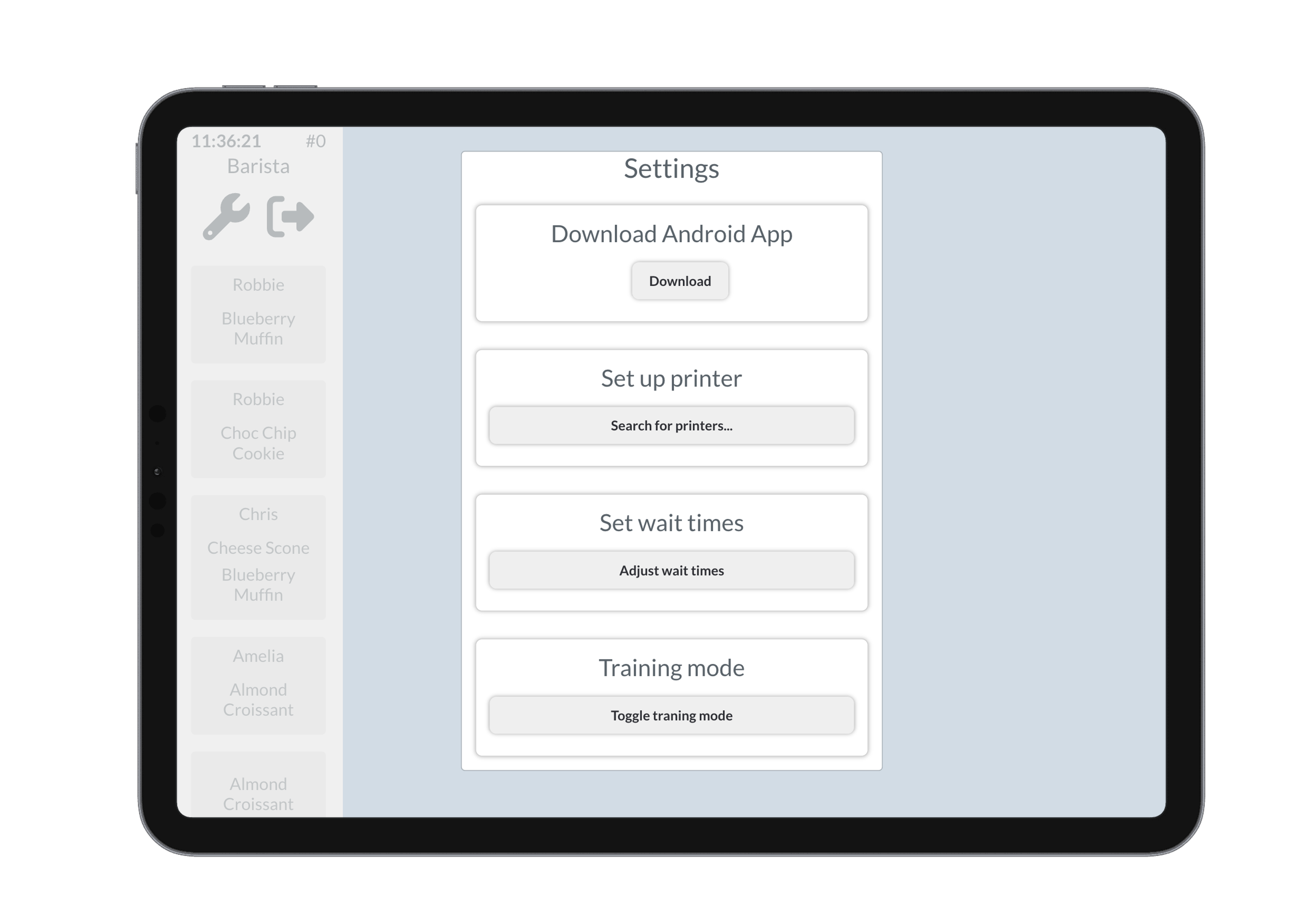
Tap the spanner icon on the KDS screen to open the Settings panel.
From here, you can:
- Set printer connections
- Configure order wait times
- Enable training mode
- Log out using the arrow icon at the top of the screen
Setting Up a Printer
To connect a compatible printer (e.g. Brother label printer):
- Tap Search for Printer
- Make sure the printer and your KDS device are on the same Wi-Fi network
- Once the printer is found, select it to pair
This is essential for takeaway orders that require printed labels.

Configuring Wait Times
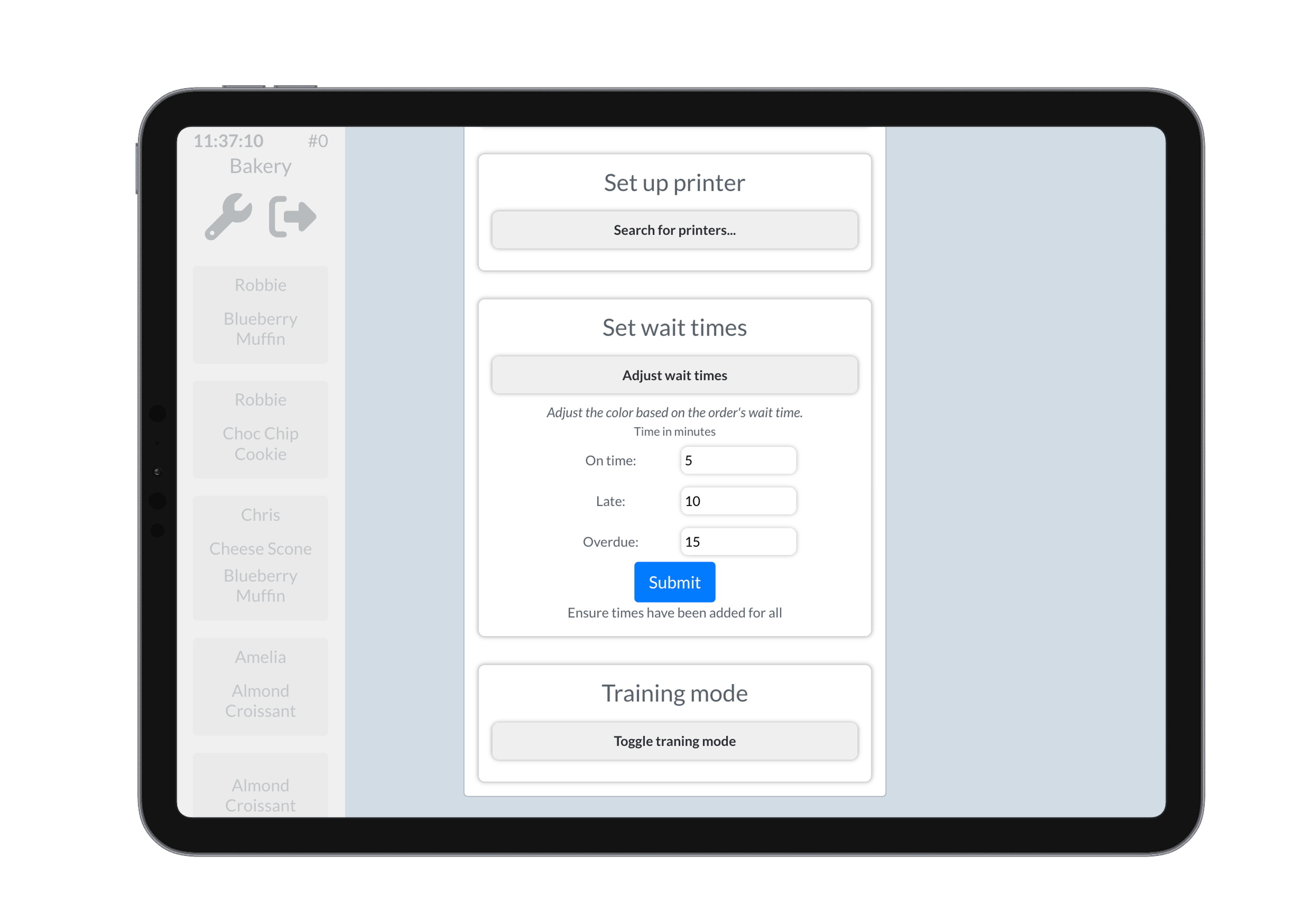
You can set how long an order stays in each status color:
- On Time (Yellow)
- Late (Orange)
- Overdue (Red)
- Enter wait time thresholds in minutes for each status
- Tap Submit to save your changes
These settings determine how quickly orders change color on the KDS screen, helping your team prioritise accordingly.
Training Mode
Toggle Training Mode to enable learning materials directly within the KDS.
- Helpful for onboarding new staff
- May include walkthroughs or instructional videos
Videos and training material must be included and added in the menu manager through bridge.
Check out Bridge Bridge for more details on training mode videos.
When active, training content may be shown throughout the interface to guide users.
Logging Out
To log out of the KDS:
- Tap the arrow icon located in the top corner of the screen
This will return the device to the login screen, allowing another team member to sign in if needed.
You may also be prompted to download the Android KDS App for improved compatibility and performance on some devices.