Payments
Beamy supports a range of payment methods and terminal integrations to keep your checkout fast and reliable. This guide covers supported terminals, connecting your device, and how payment flows work inside Beamy.
Supported Payment Terminals
EFTPOS New Zealand
Beamy integrates with Verifone terminals through EFTPOS New Zealand for seamless in-store EFTPOS transactions.
Click here to learn more about EFTPOS NZ integration.
Smartpay
Beamy supports Smartpay terminal integration for both countertop and mobile terminals.
Click here to learn more about Smartpay integration.
Centrapay
Centrapay allows customers to pay directly through the Payap app using a secure QR code.
Click here for the Centrapay integration guide.
Stripe
Stripe is not currently supported, but integration is in active development.
Payment Workflow
Below is the standard workflow for processing payments in Beamy.
1. Checkout
- Click Checkout in the cart.
- Apply any discounts.
- Choose the payment method.
2. Payment Methods
EFTPOS
- Payment request is sent directly to the EFTPOS terminal.
- Customer completes the payment on the device.
Possible results:
- Success → POS receives confirmation and closes the sale.
- Declined → POS displays failure; try again or choose another method.
- Cancelled → POS receives a cancellation message.
Cash
Full Cash:
Staff collects the full amount and completes the transaction (till opens manually if applicable).Partial Cash:
Click the pencil icon to enter a partial amount.
The remaining balance will prompt selection of another payment method.
Pay Later
- Defers the full amount.
- Transaction is marked as complete with no immediate payment.
Voucher
- Search for the voucher by ID.
- Select the correct voucher.
Outcomes:
- Sufficient Funds → Payment completes; value deducted.
- Insufficient Funds → Voucher is deducted fully; remaining balance requires another method.
- Cancelled → Funds may return to the voucher (behaviour may vary by provider).
Centrapay
- A QR code is sent to the companion device.
- Customer scans using their phone or the Centrapay/Payap app.
Outcomes:
- Success → Payment completes in POS.
- Timeout (15s) → Payment resets; retry available.
- Declined → Retry from POS or companion app.
3. Complete Transaction
Click Complete Transaction to finalise and close the sale.
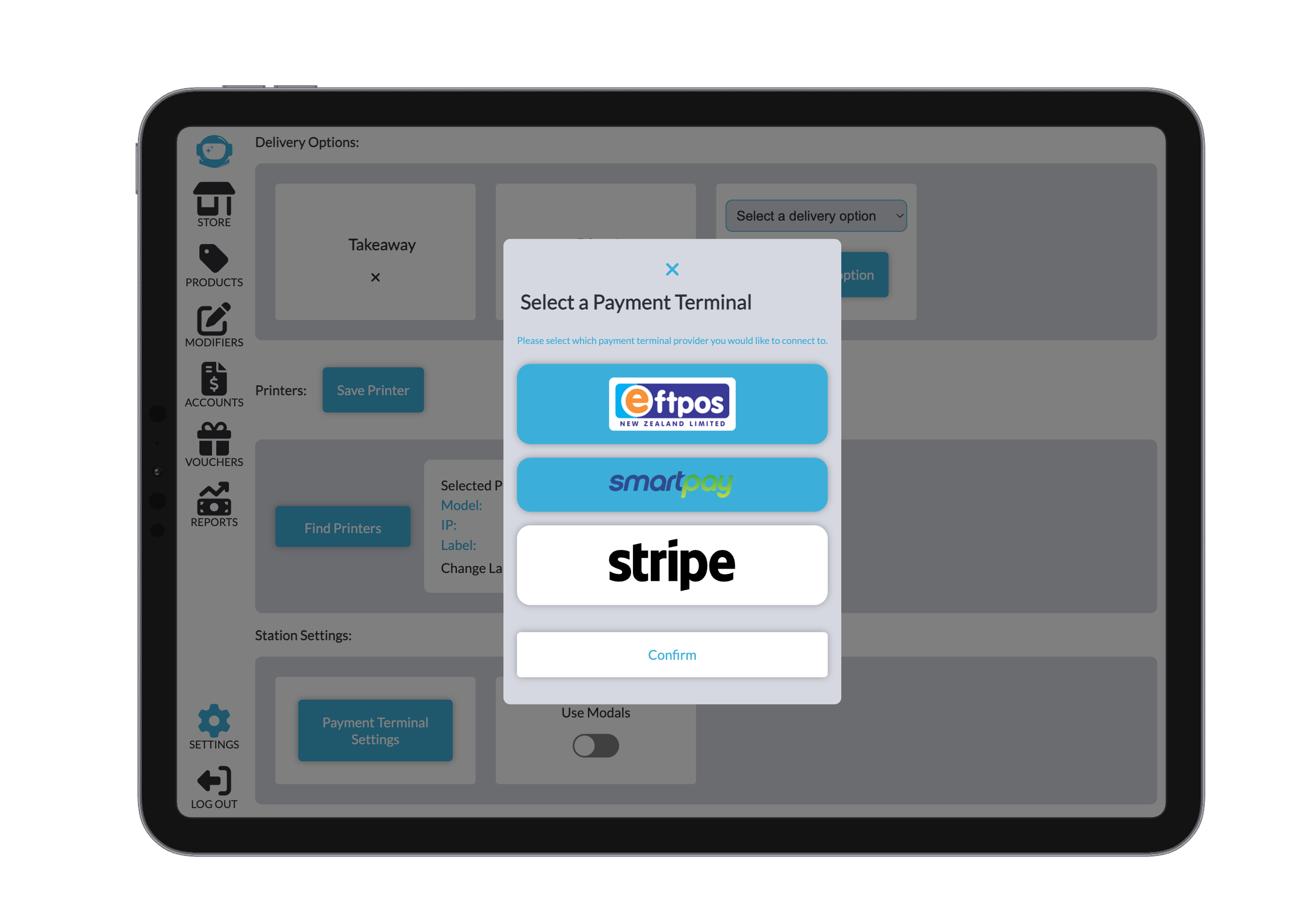
Connecting to a Payment Terminal
To connect a payment terminal:
- Open the Point of Sale app.
- Navigate to Settings.
- Find your Station Settings.
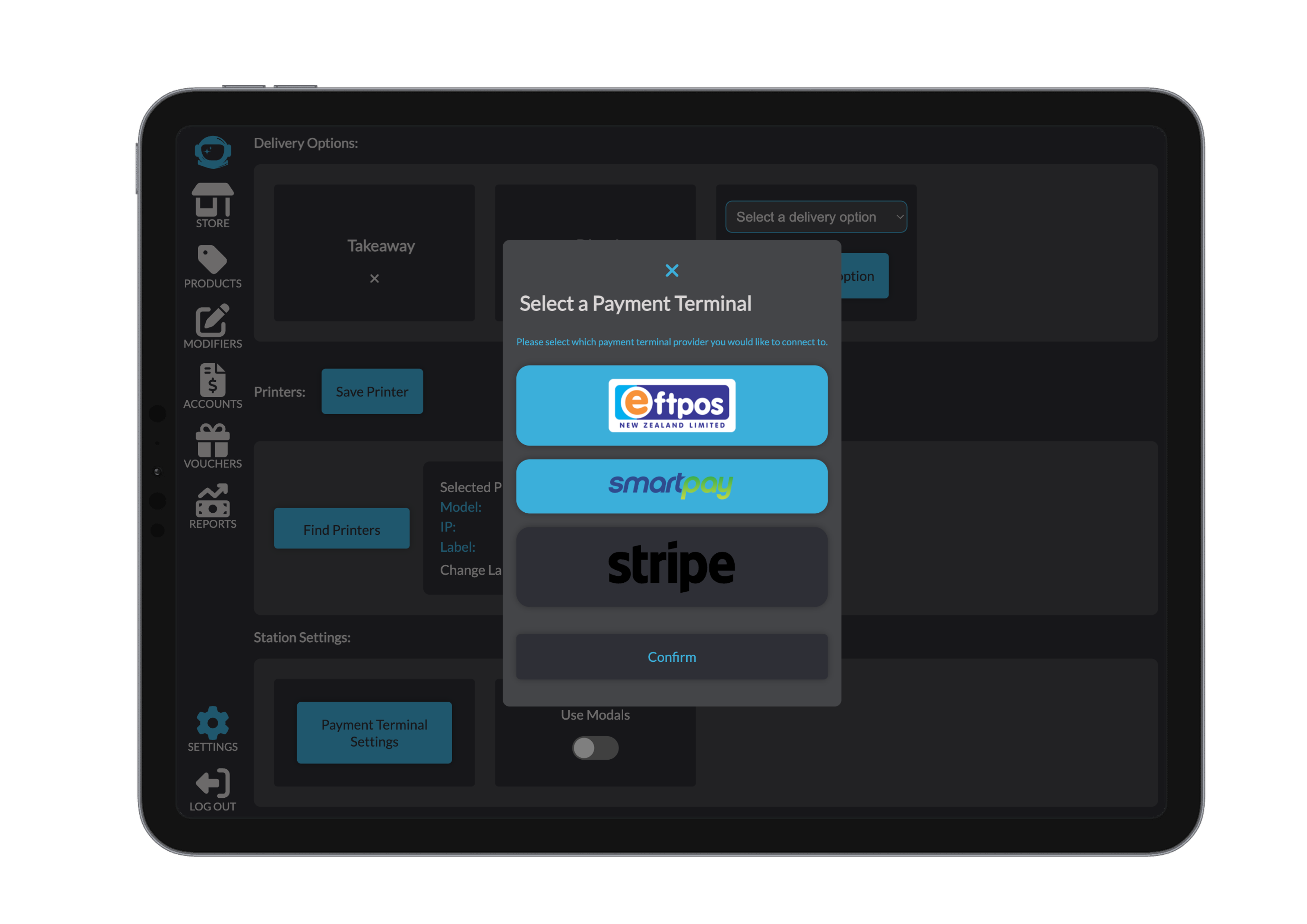
- Open Payment Terminal Settings.
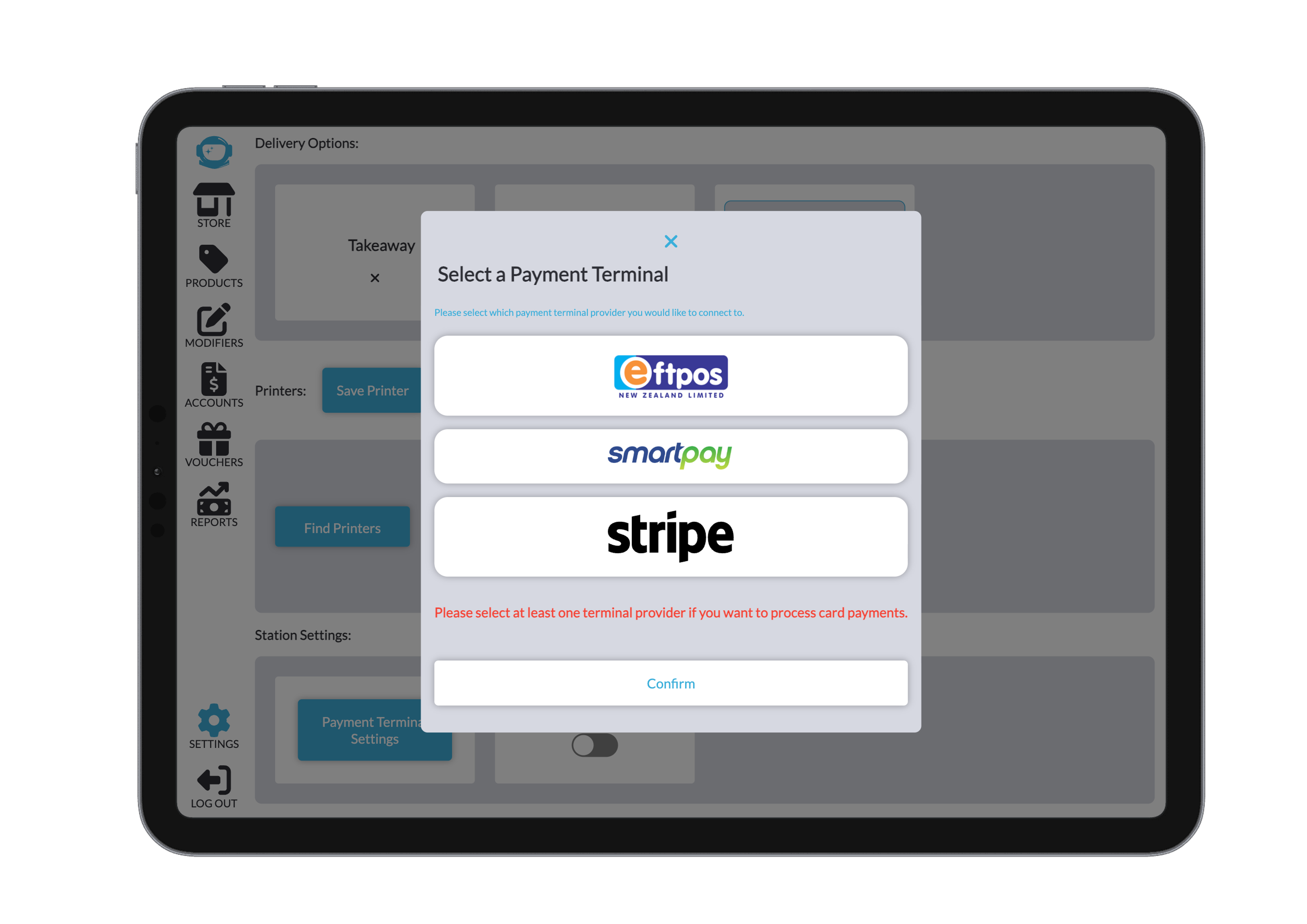
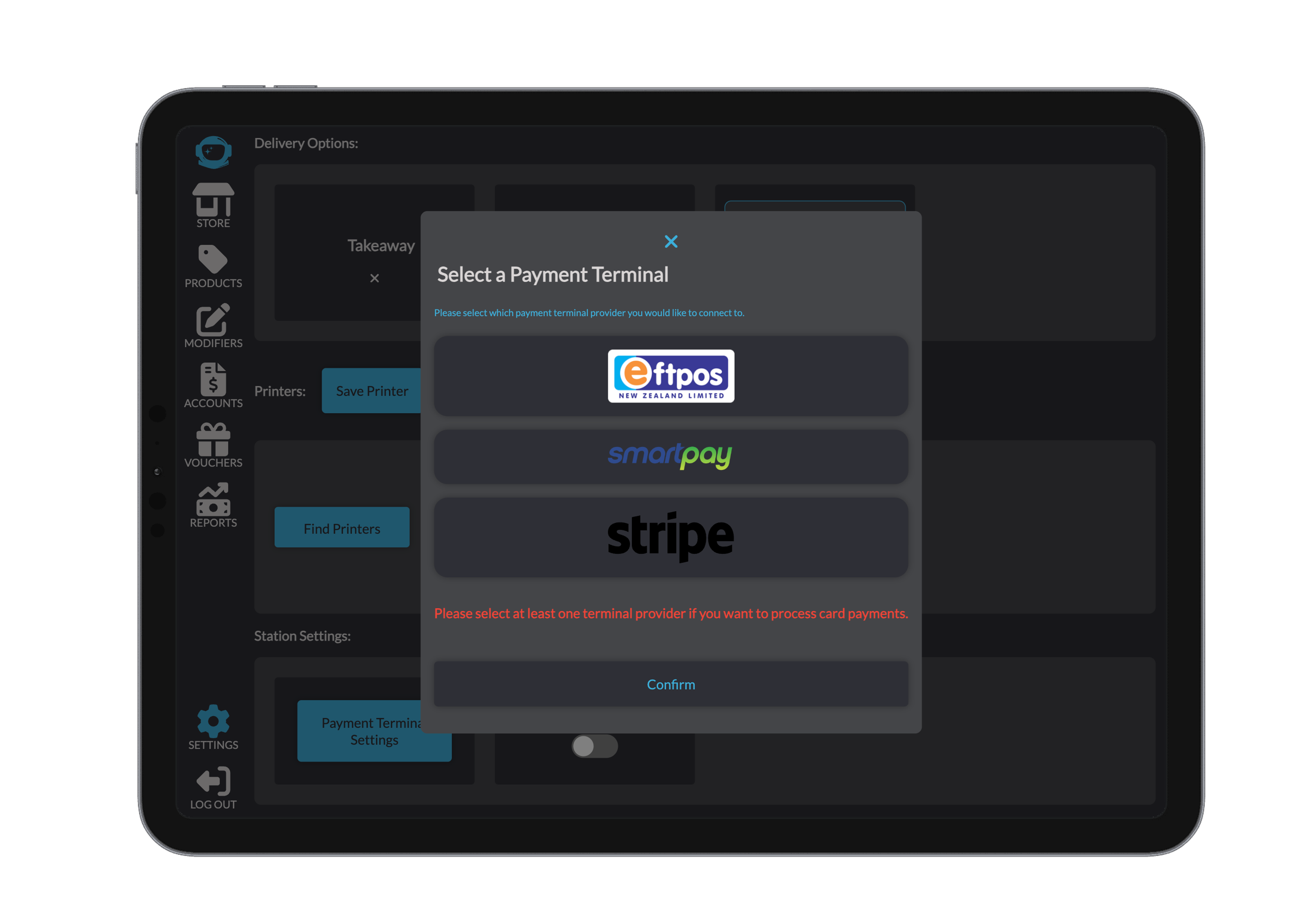
- Select the terminal type you want to use and fill in the required details
(IP address, port, merchant ID, etc.—see specific guides below). - Clicking on the terminal will select the terminal as selected.
You can add or remove terminals using the Add/Remove Payment Terminal button.
- You may have multiple terminals saved, but the active terminal must match the station you are operating from.
- If no terminals are selected, Beamy cannot process EFTPOS payments.
- Removing a terminal will delete the data attached, you will need to re-enter details if added again
Terminal-Specific Guides
For configuration details for each terminal type, see the dedicated pages: