POS Station Management
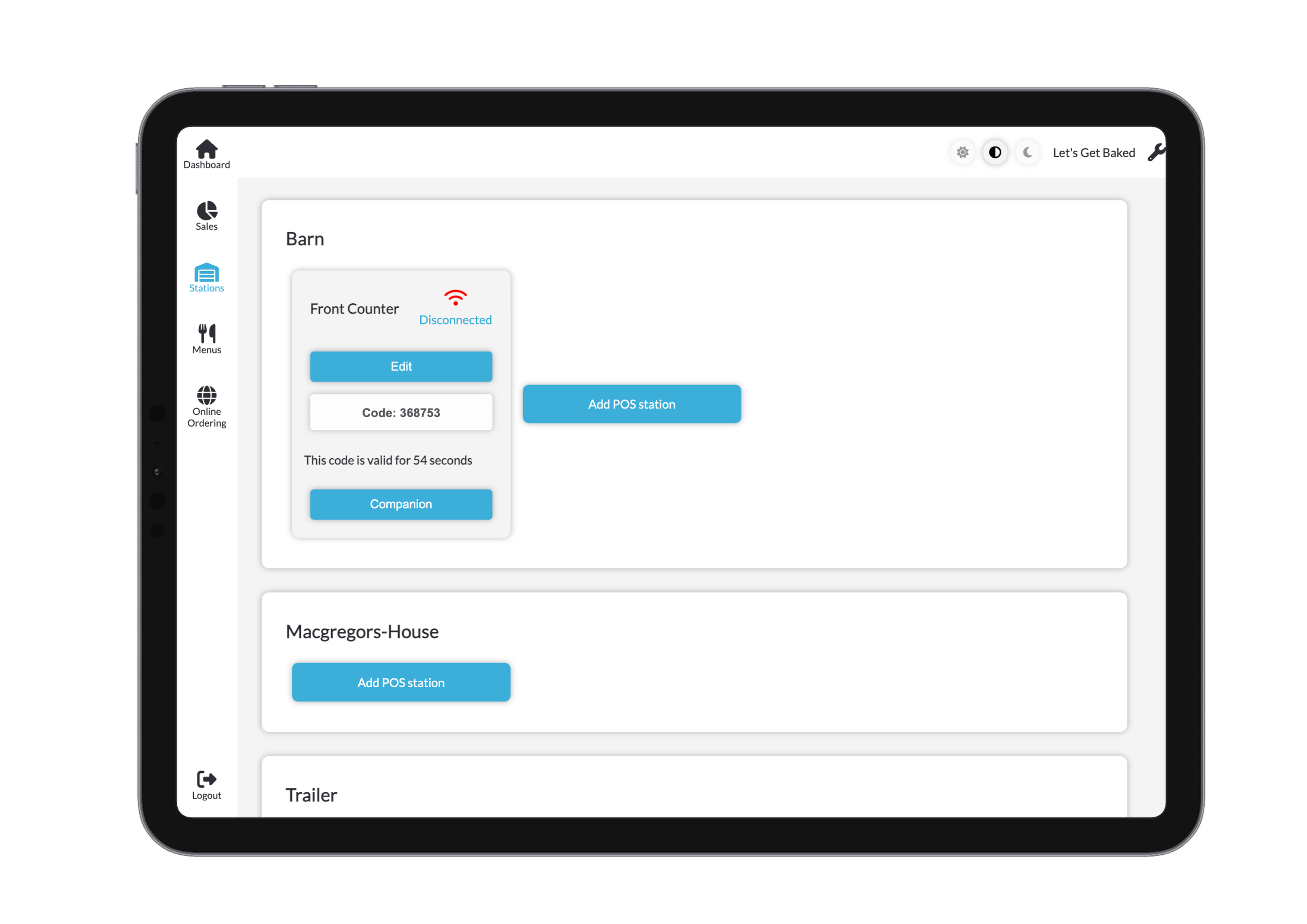
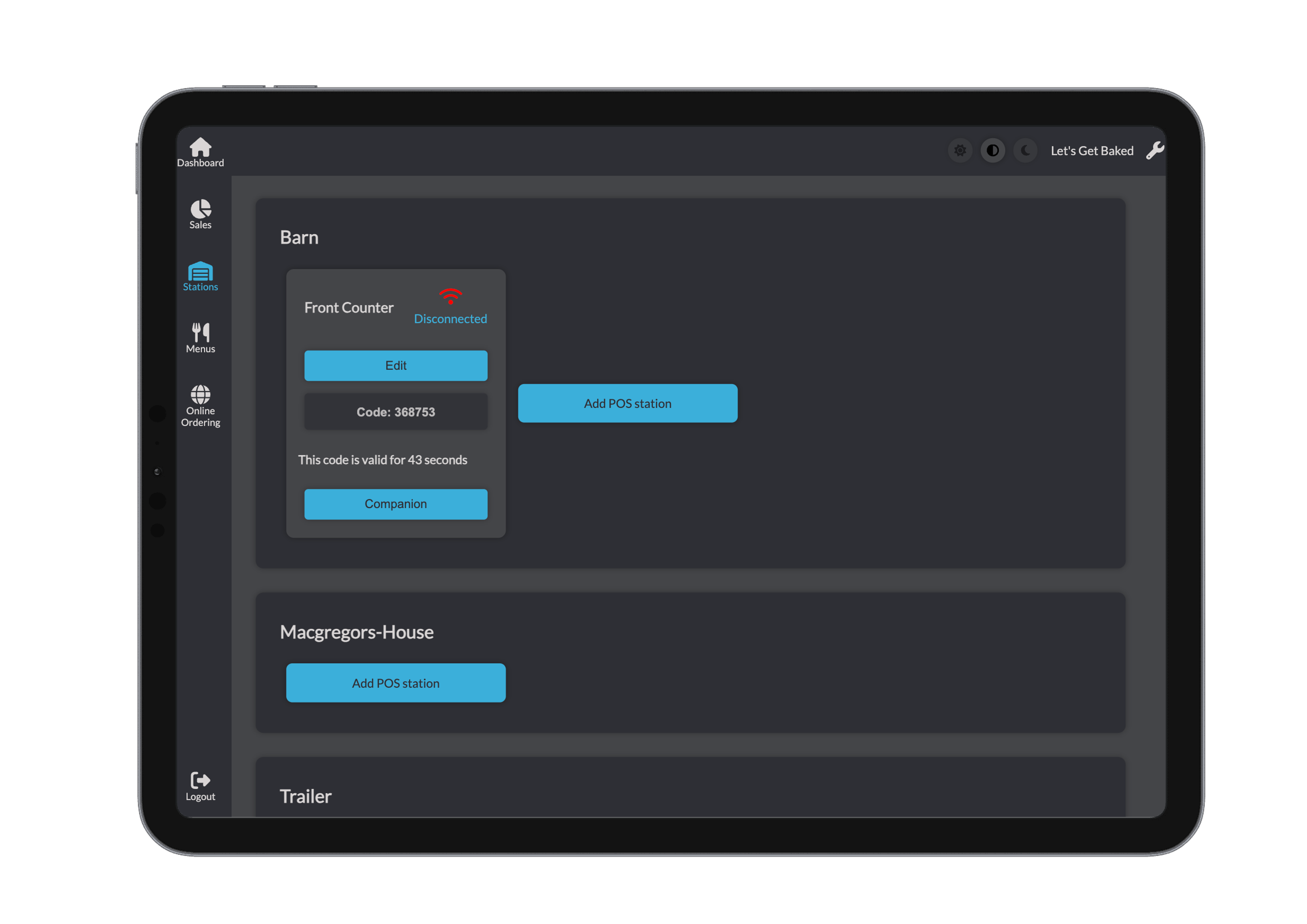
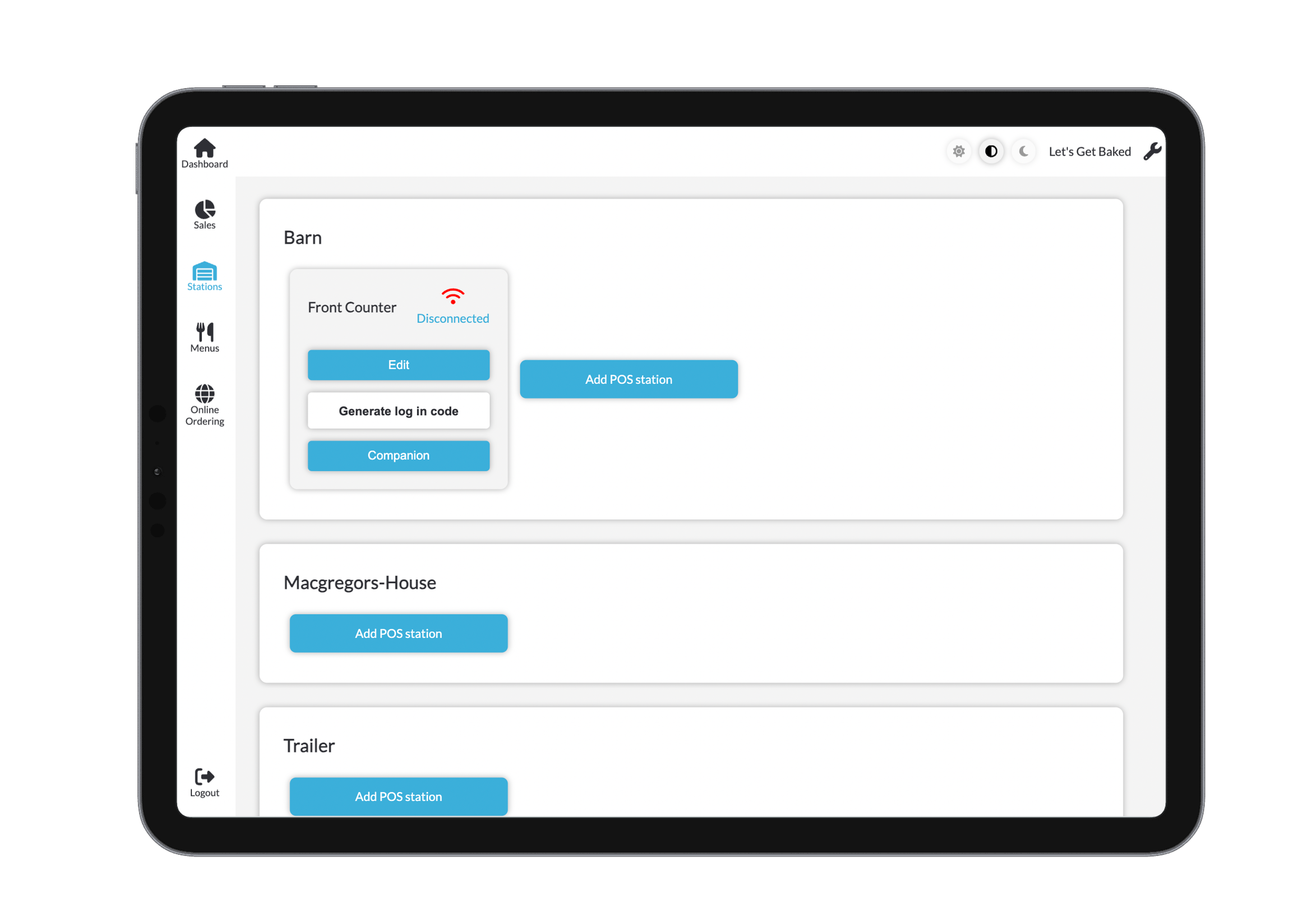
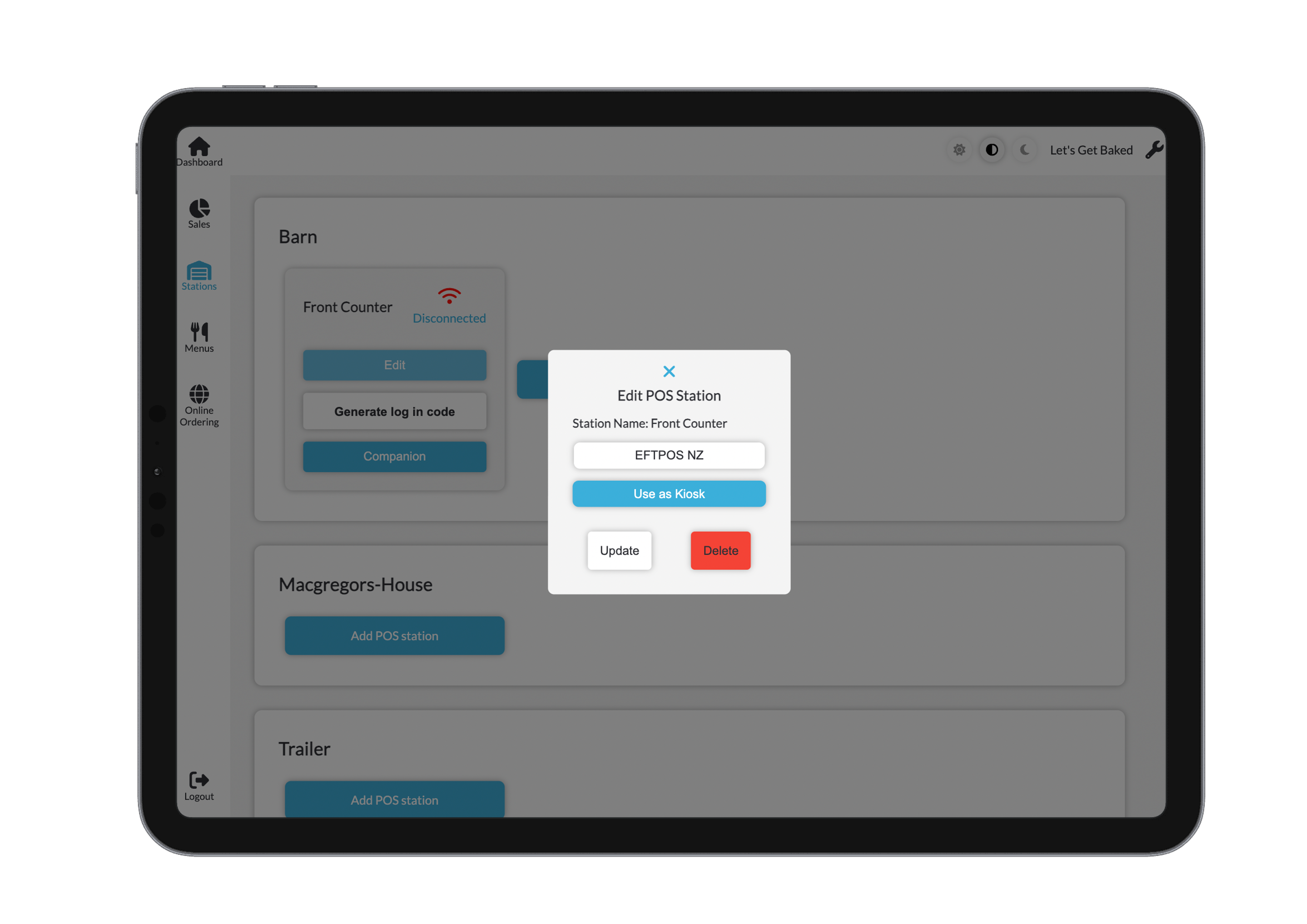
Each site has a dedicated section for managing its connected POS (Point of Sale) stations.
Overview
For every POS station listed under a site, the following information and actions are available:
- Station Name – Identifiable name of the POS station.
- User Status – Indicates whether a user is currently active on the station.
Only one user can be active per station at a time to ensure session integrity and prevent data conflicts.
- Login Code Generation – Generate a secure login code for a specific POS station.
- Editable Fields:
- IP Address – Update the network address of the station.
- Port Number – Modify the communication port.
- Actions:
- Update – Save any changes to station details.
- Delete – Permanently remove the station from the list.
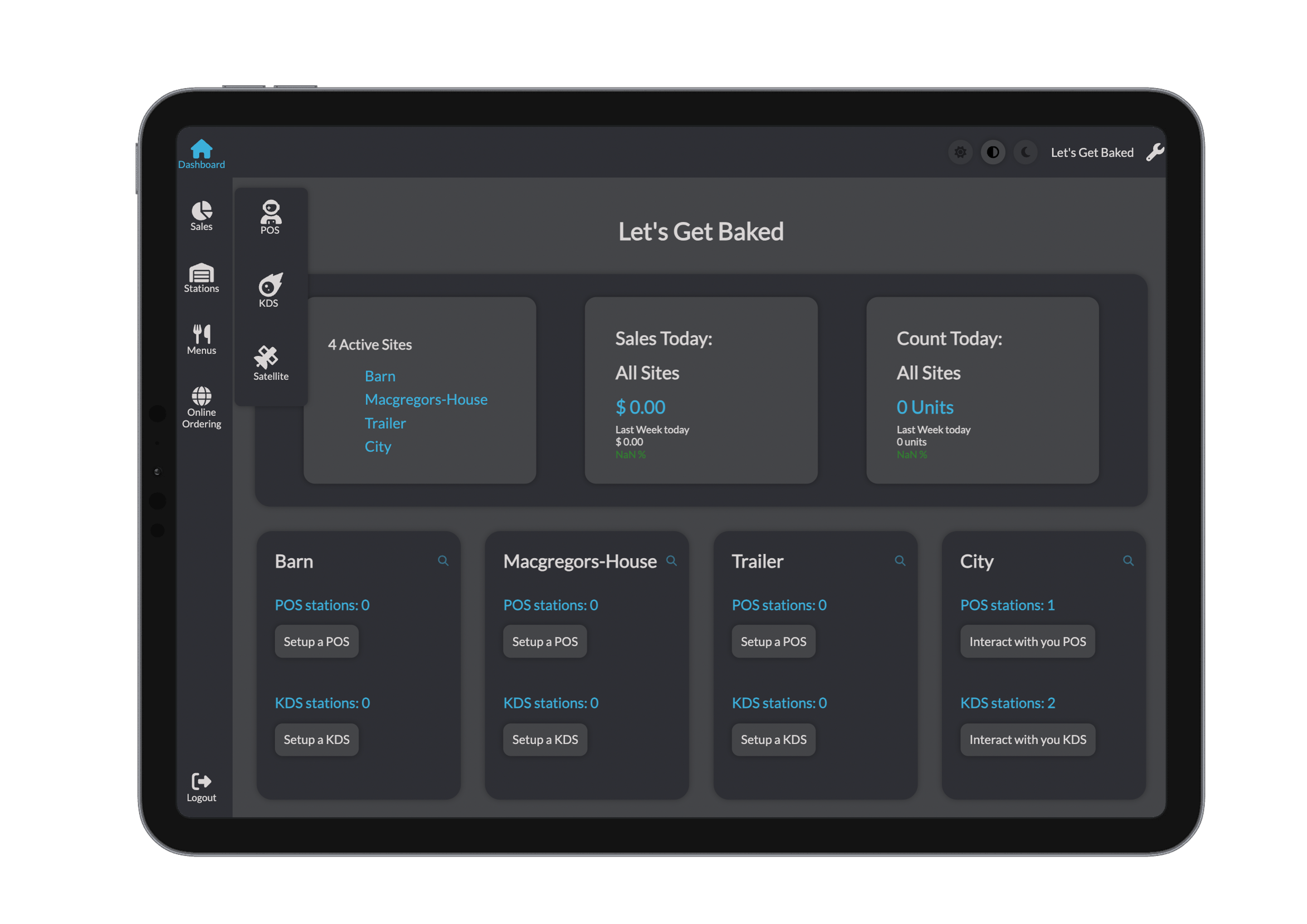
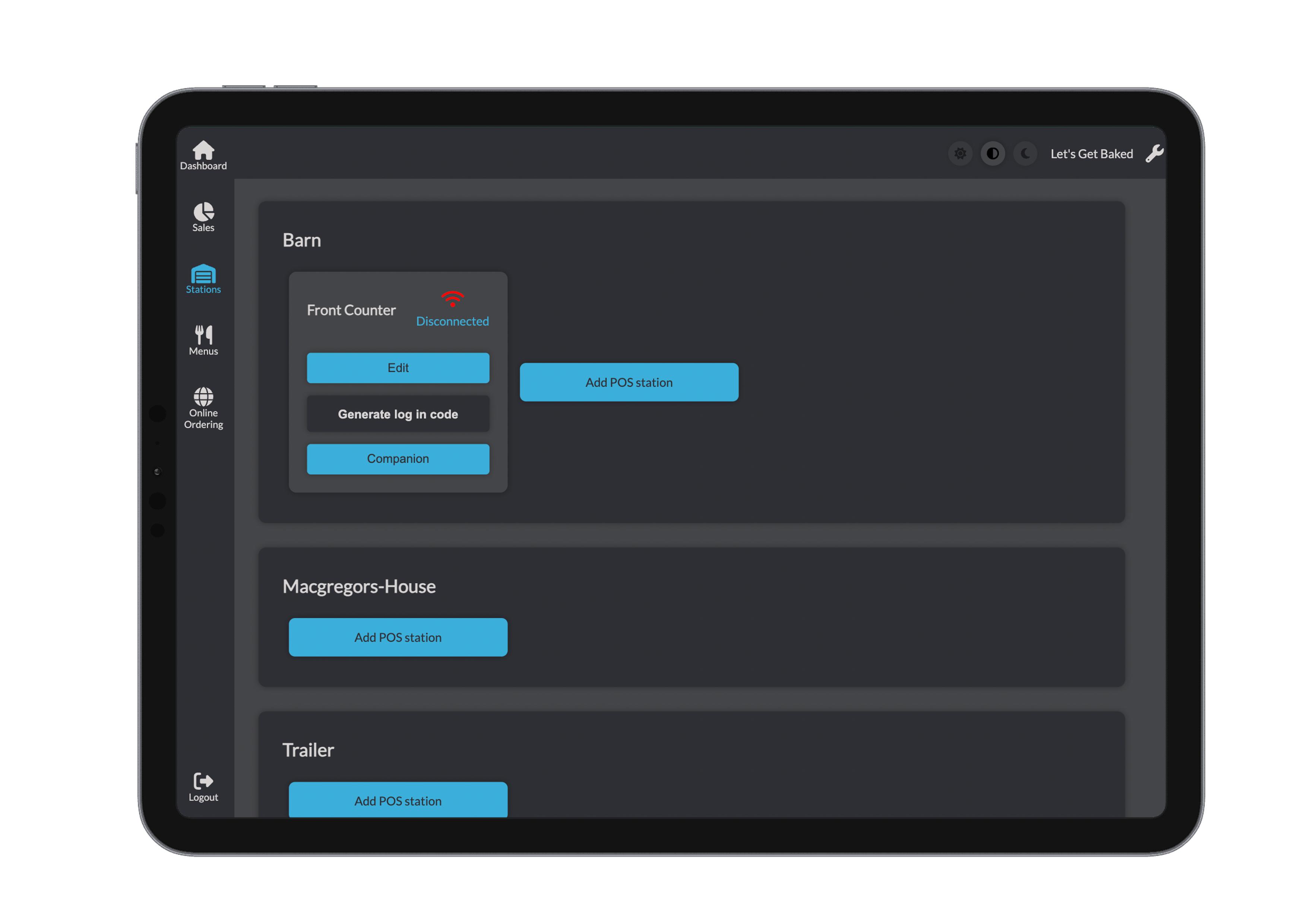
Click on the Stations button and then the POS button to get more informatino on the POS Stations 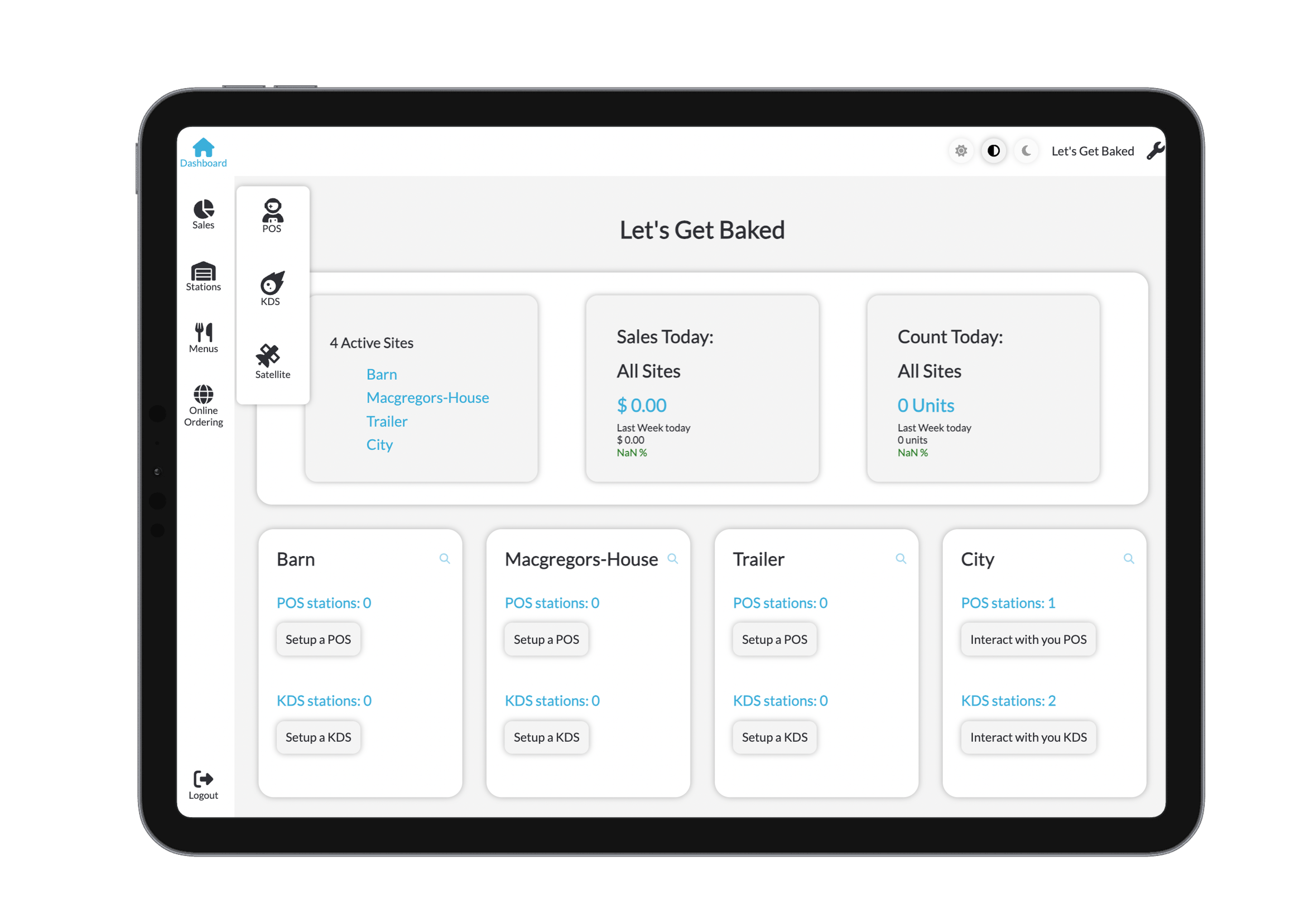
Creating a New POS Station
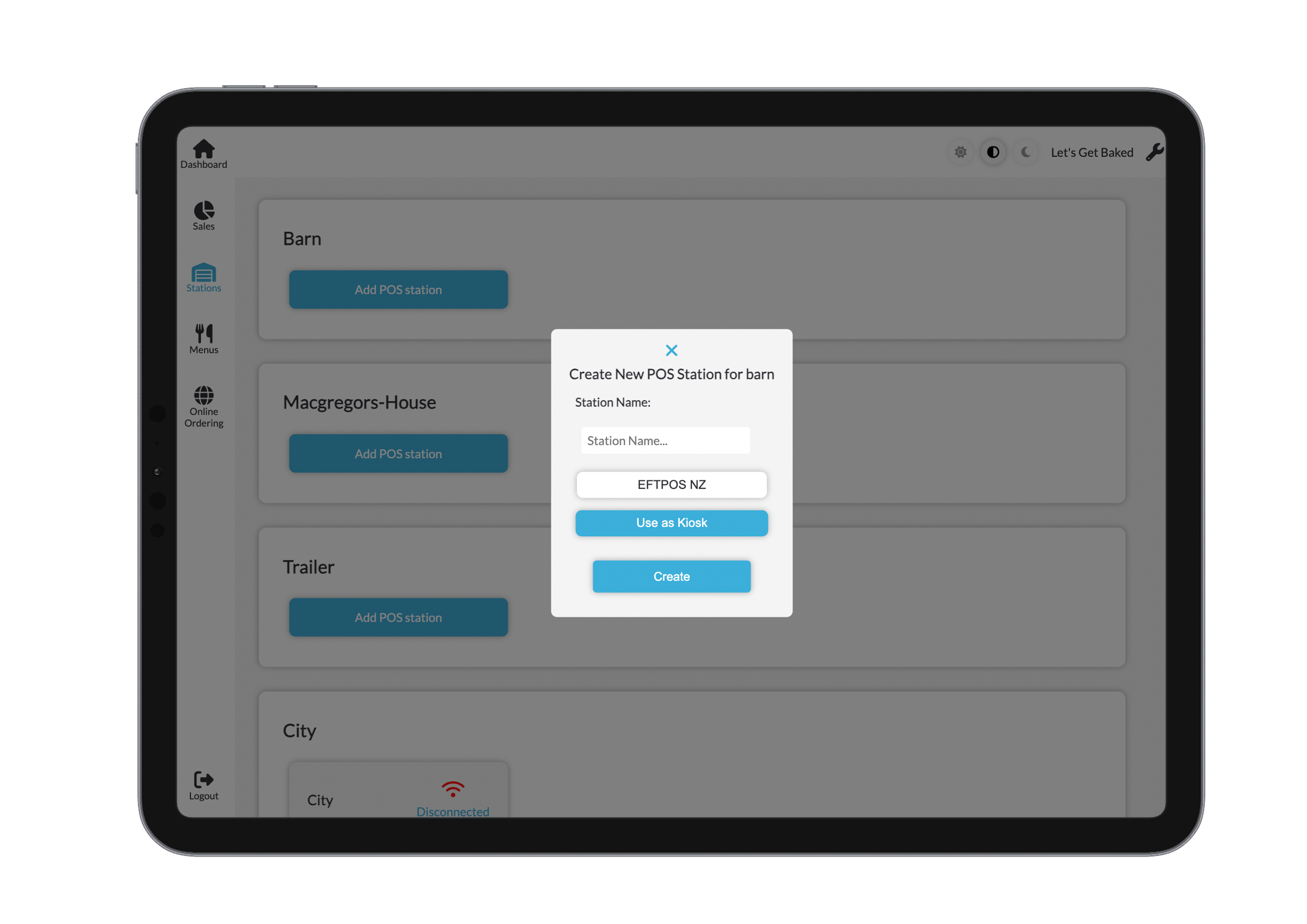
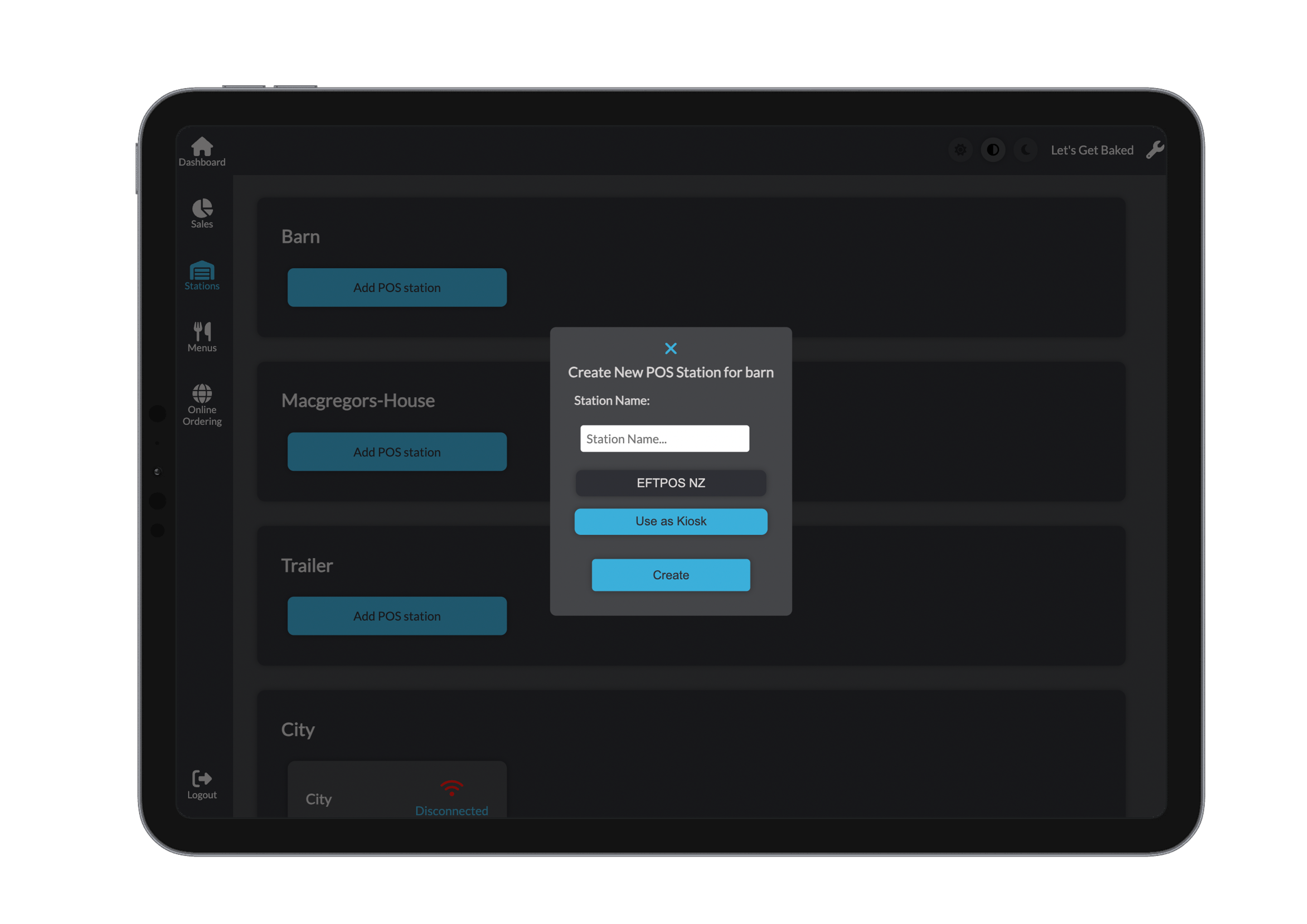
To add a new POS station:
- Click the Create New POS Station button.
- Enter the required details:
- Station name
- IP address
- Port number
- Click Create to finalise and add the station to the list.
Editing an Existing POS Station
To update an existing station:
- Click the Update button on to the station.
- Modify the IP address or port as needed.
- Click Update to apply the changes.
Generating a POS Login Code
For secure and simplified access, you can generate a login code for a specific POS station:
- Click the Generate Login Code button.
- Use the generated code for user login on the designated POS.