Vouchers
The Vouchers page allows you to search for, view, and manage store vouchers easily.
The voucher system streamlines how you manage store credit, offering a simple interface for both tracking and using vouchers. Whether you're issuing a new voucher, topping up an existing one, or applying it to a payment, the workflow is fast and intuitive.
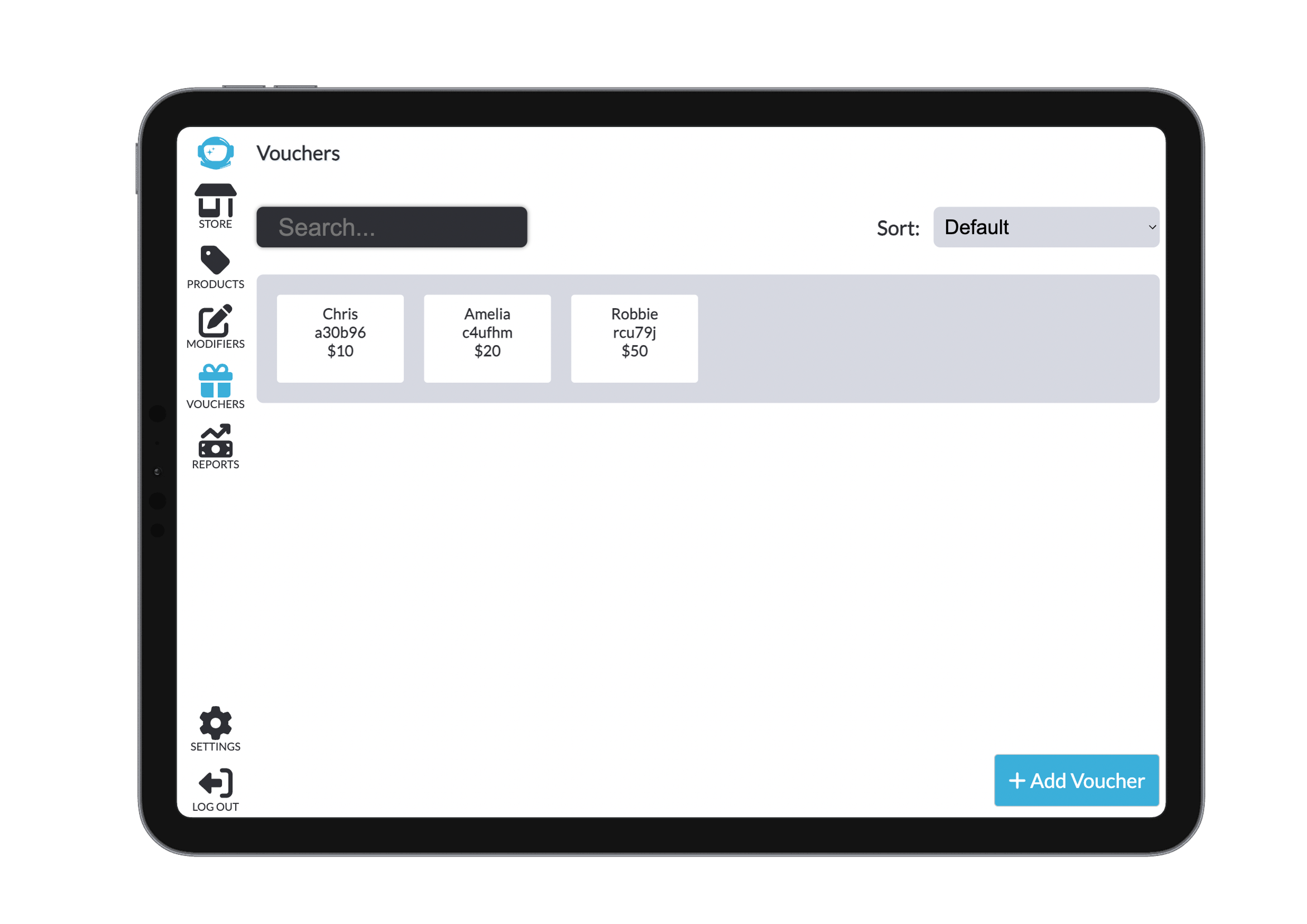
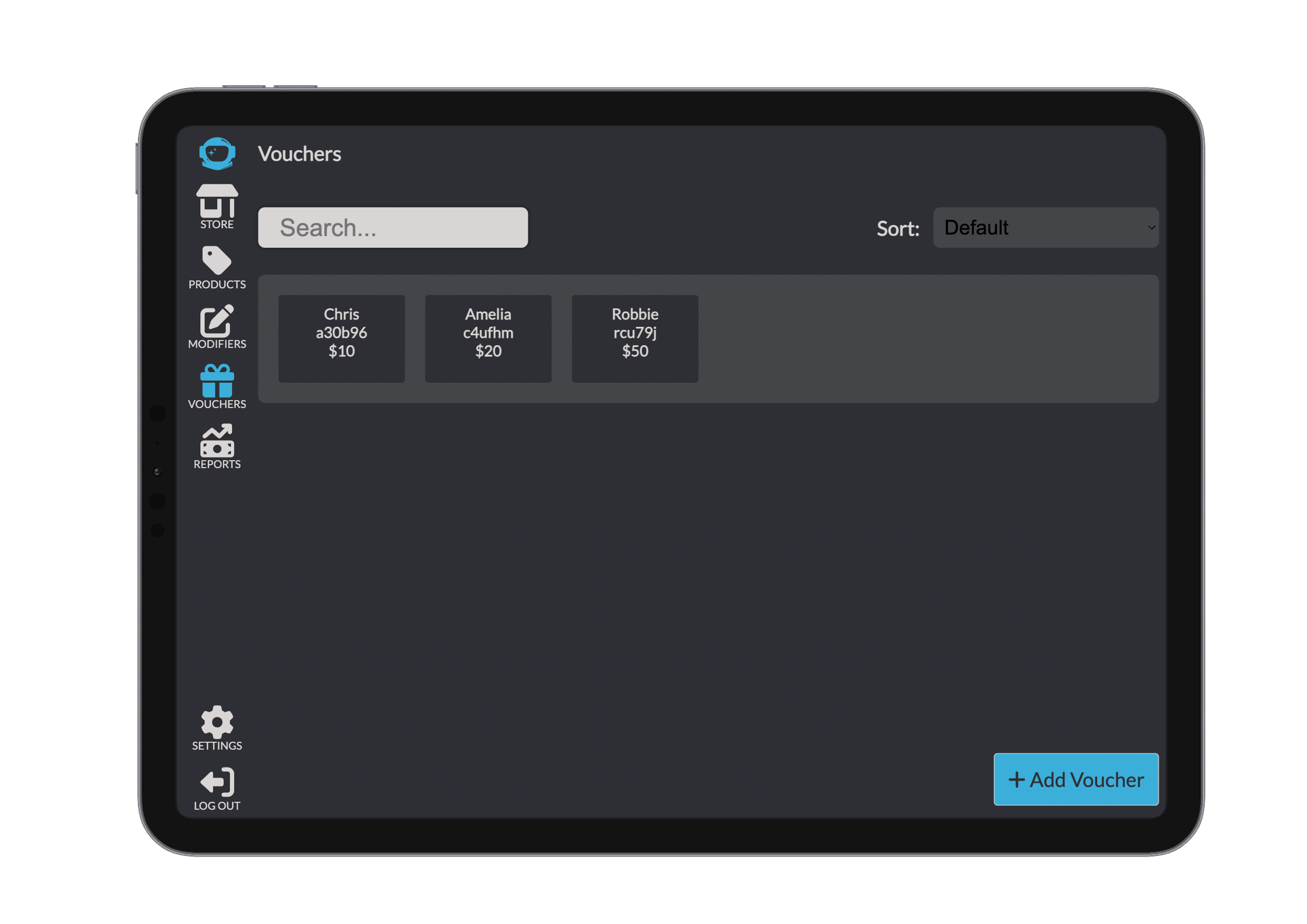
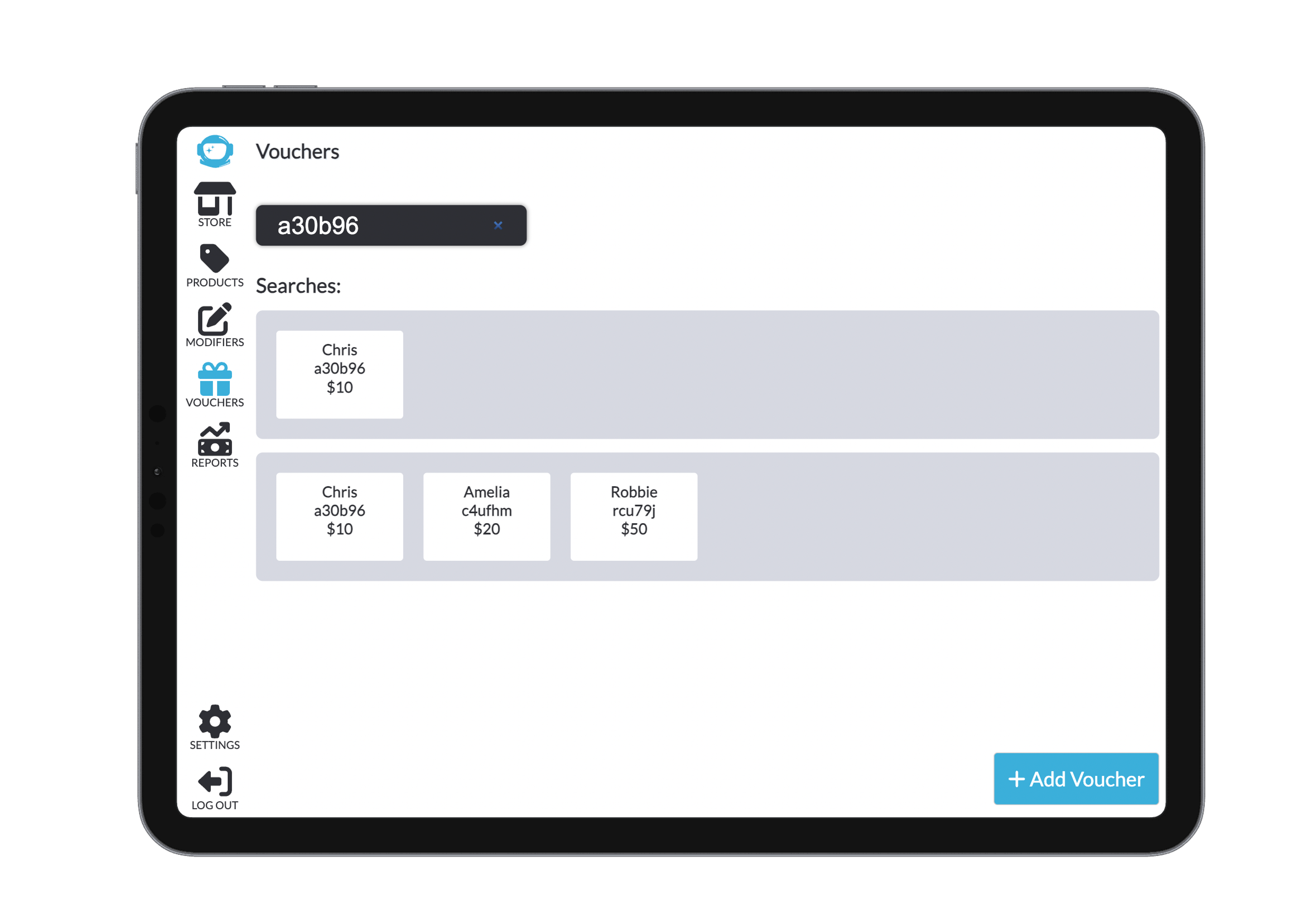
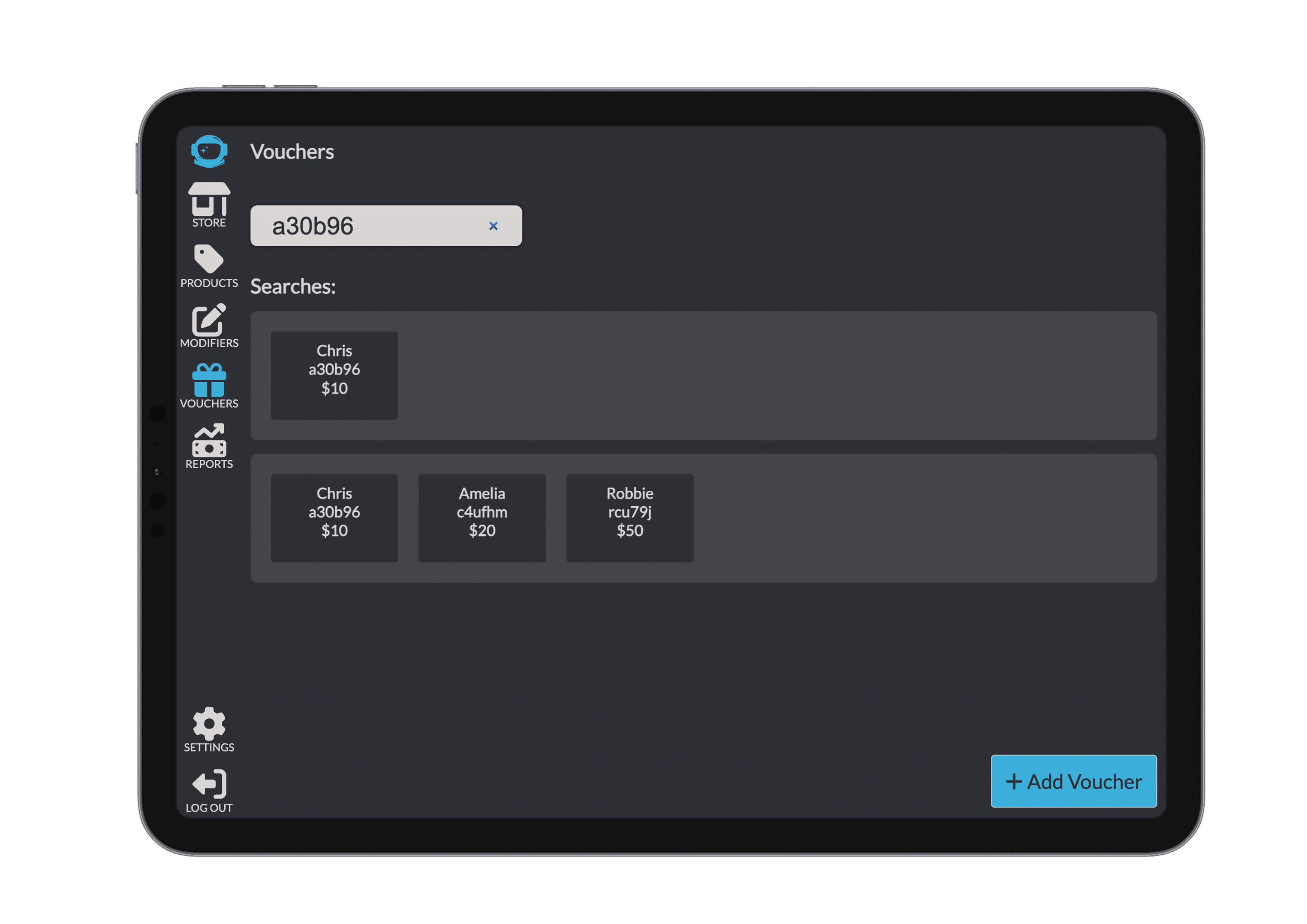
At the top of the screen, there’s a search bar where you can enter either a customer’s name or voucher ID. As you type, matching vouchers are returned instantly.
You can also sort the voucher list by several criteria: name, ID, or balance — each of which can be sorted in ascending or descending order. The default view shows all vouchers unsorted.
Viewing a Voucher
Each voucher has its own details screen showing the voucher’s name, ID, transaction history (including payments and dates), and remaining balance.
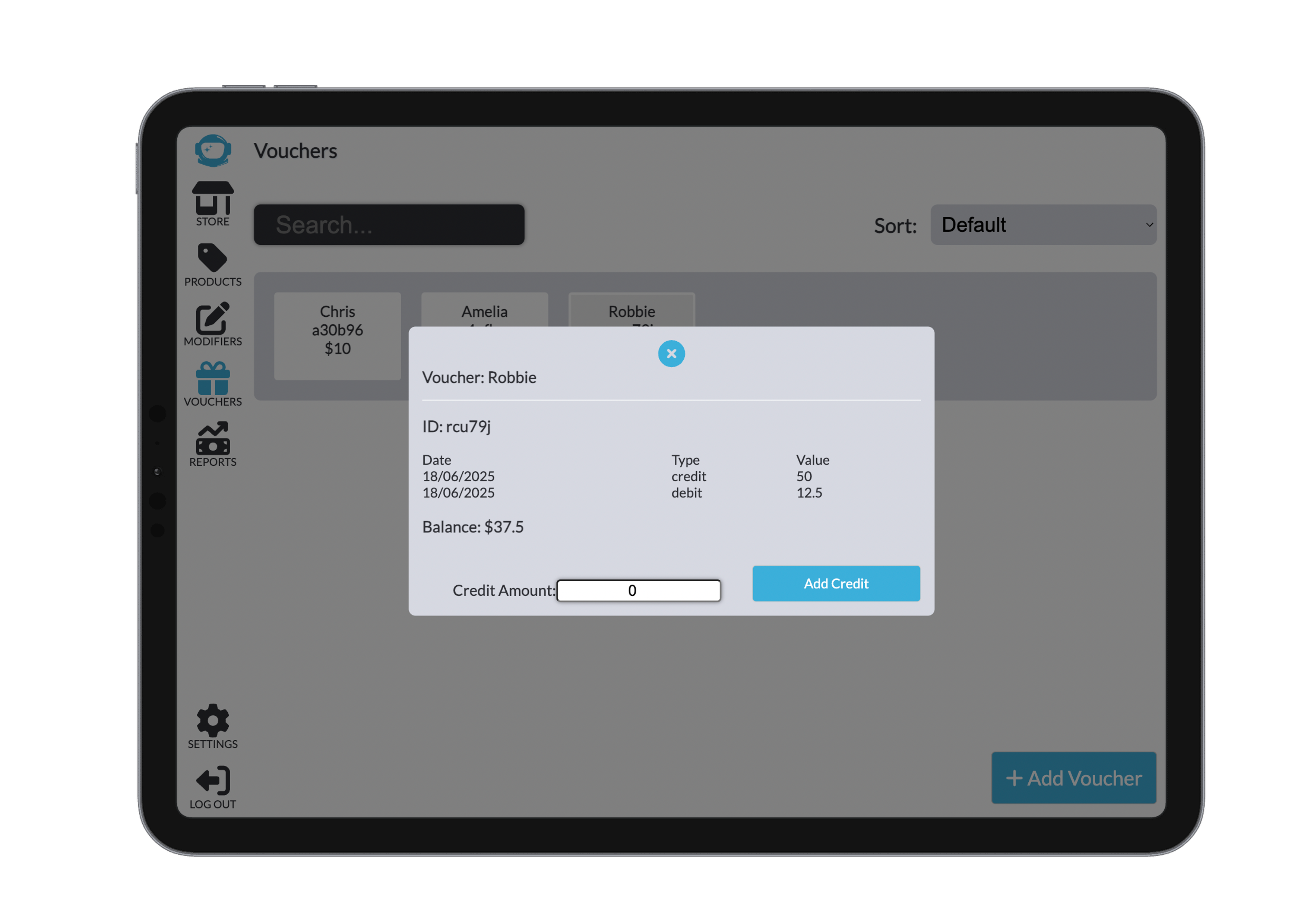
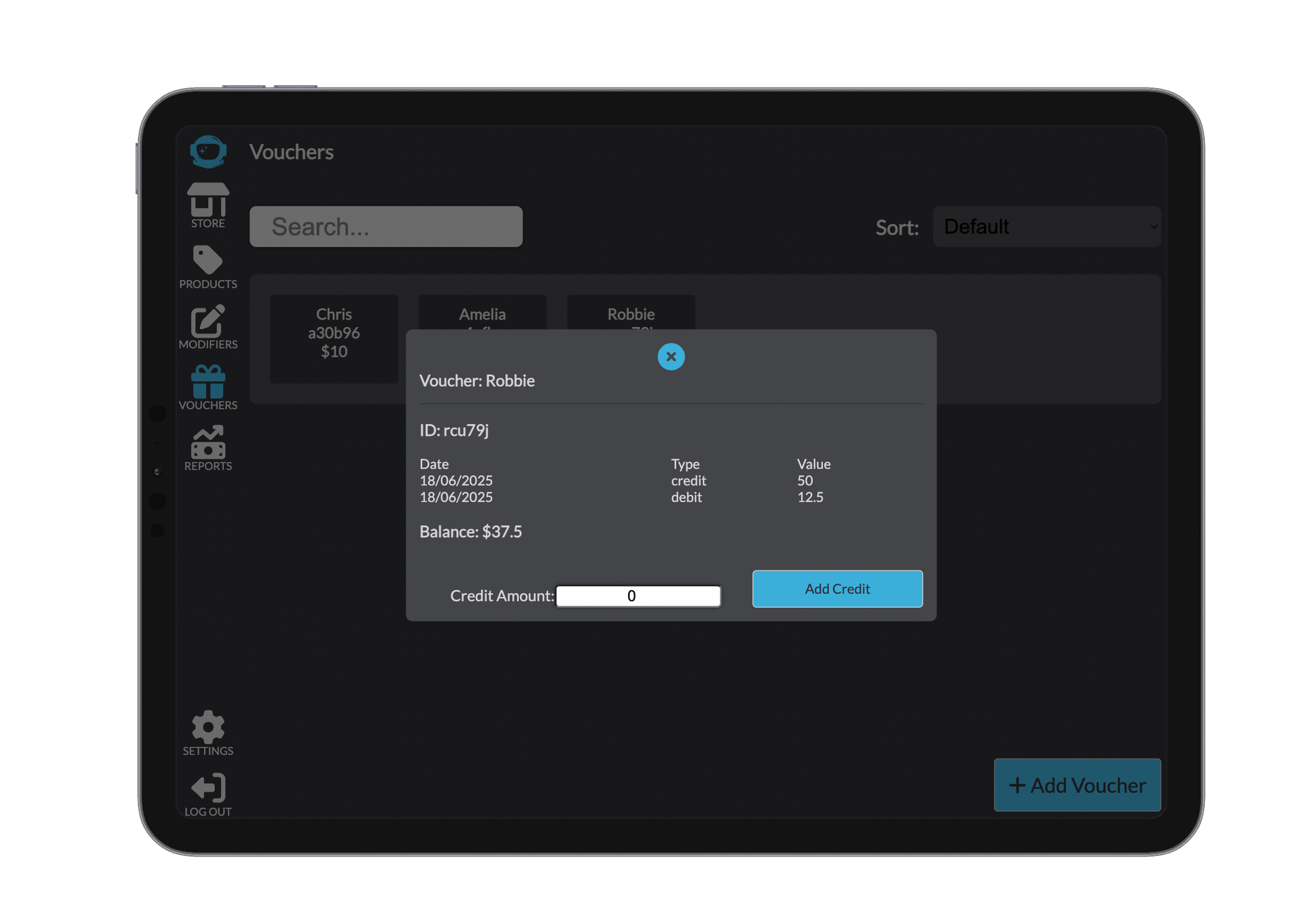
From here, you can also add credit to the voucher. Simply enter the amount and confirm by clicking Add Credit.
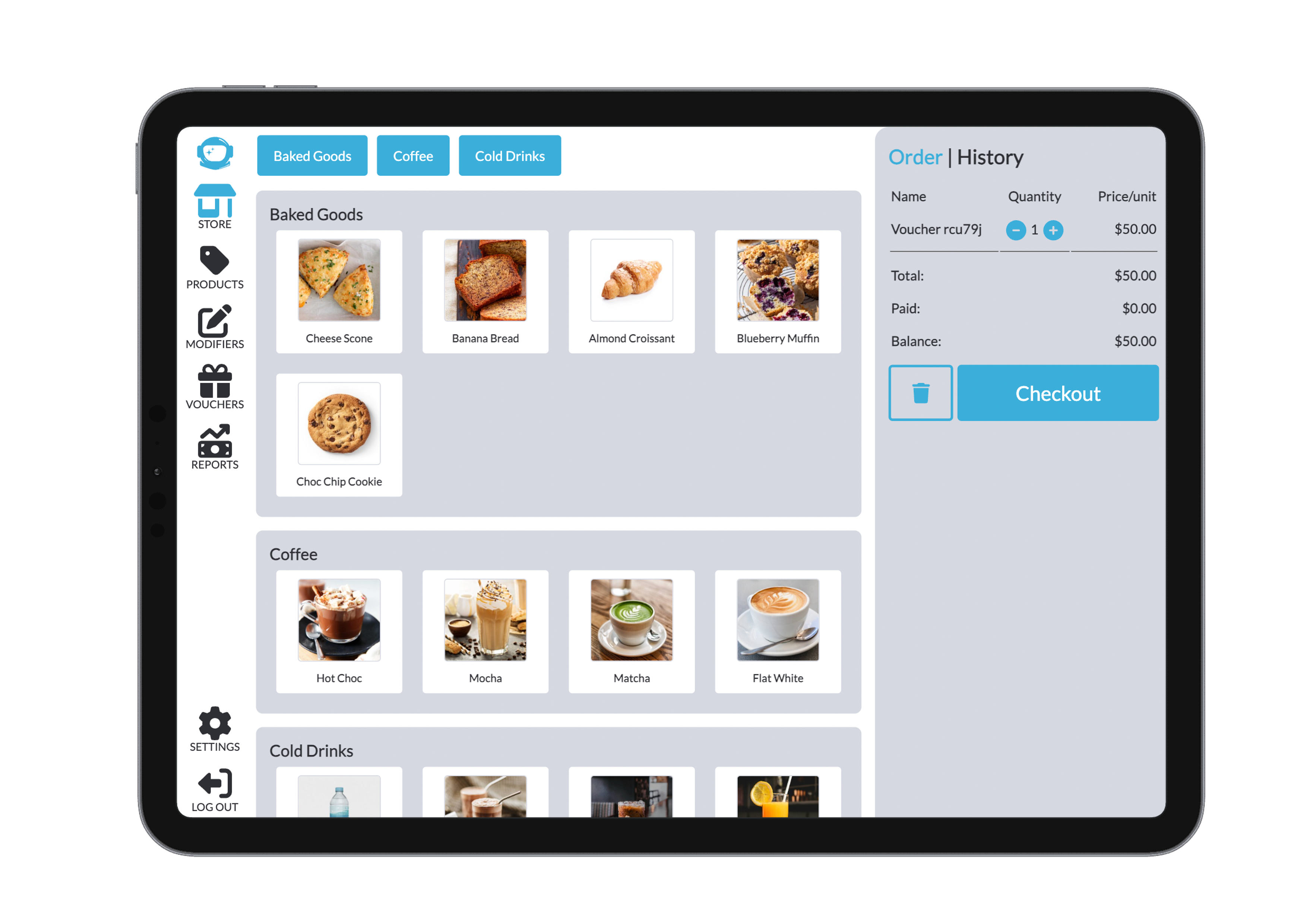
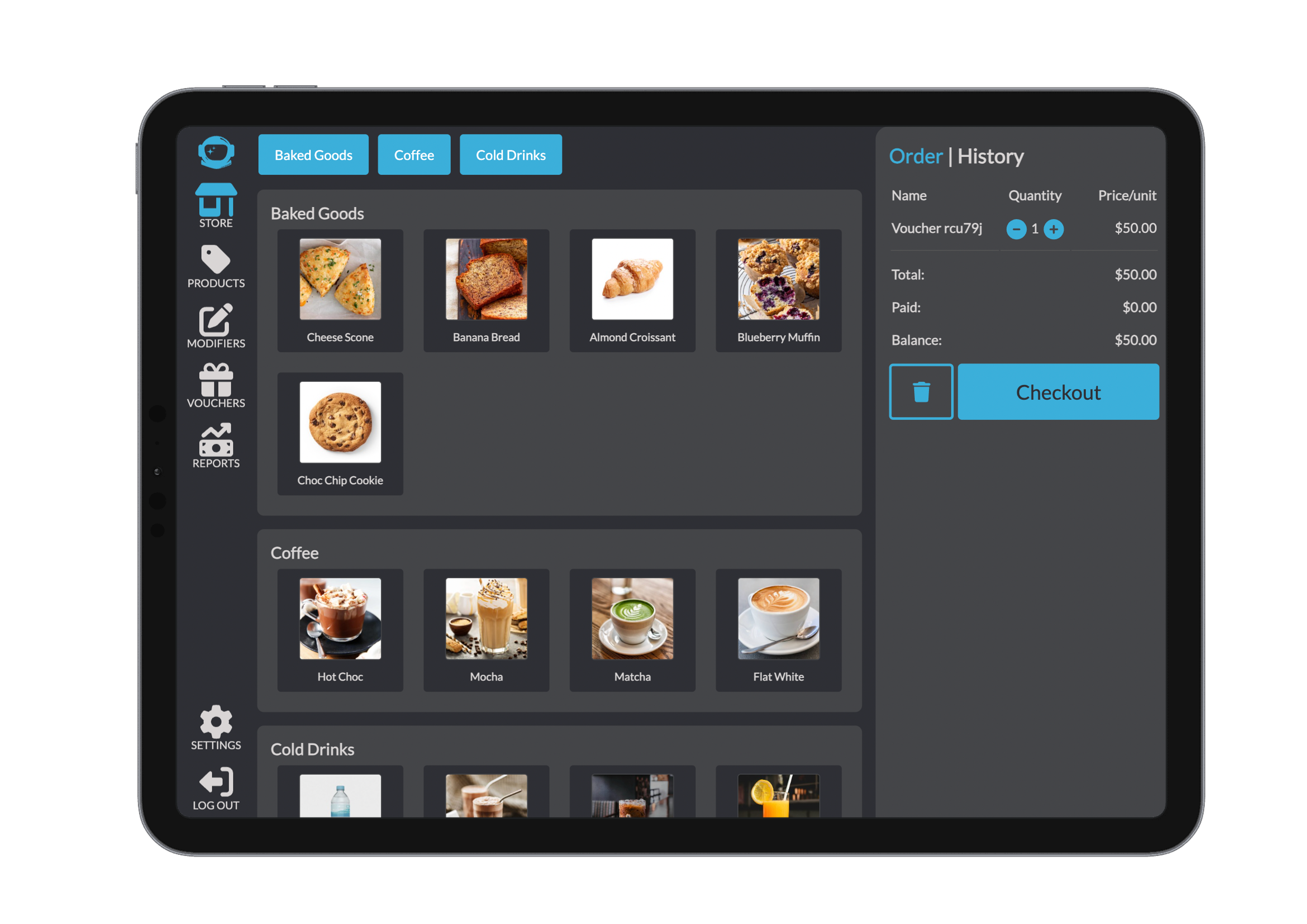
Used Vouchers
We have a checkbox field that allows you to see vouchers that have no credit left. Checking this box allows you to veiw and search all vouchers. Without this button, only vouchers with credit left can be viewed and searched for.
If you can't find your voucher, make sure to check the box and browse all vouchers in the database.
Creating a New Voucher
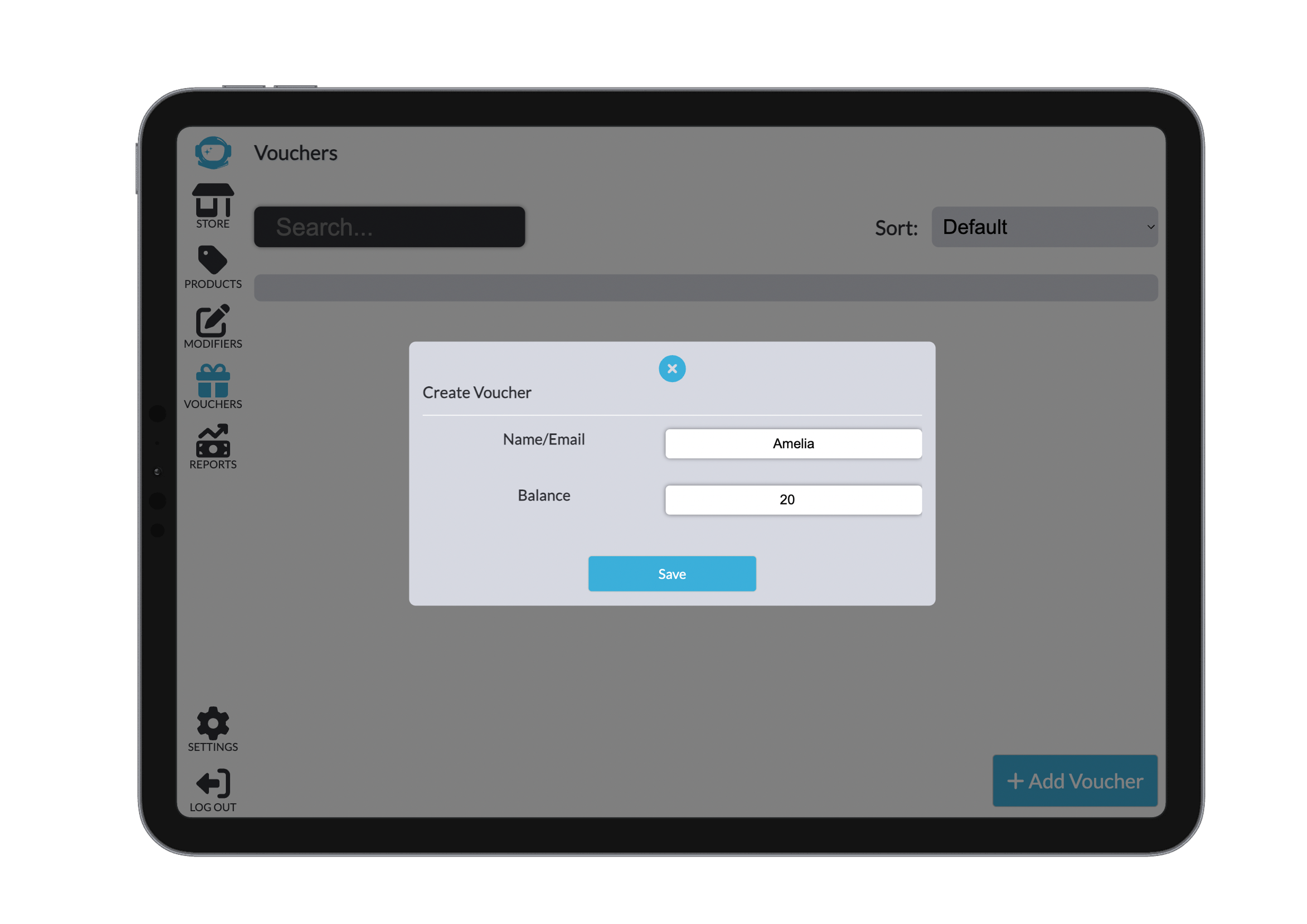
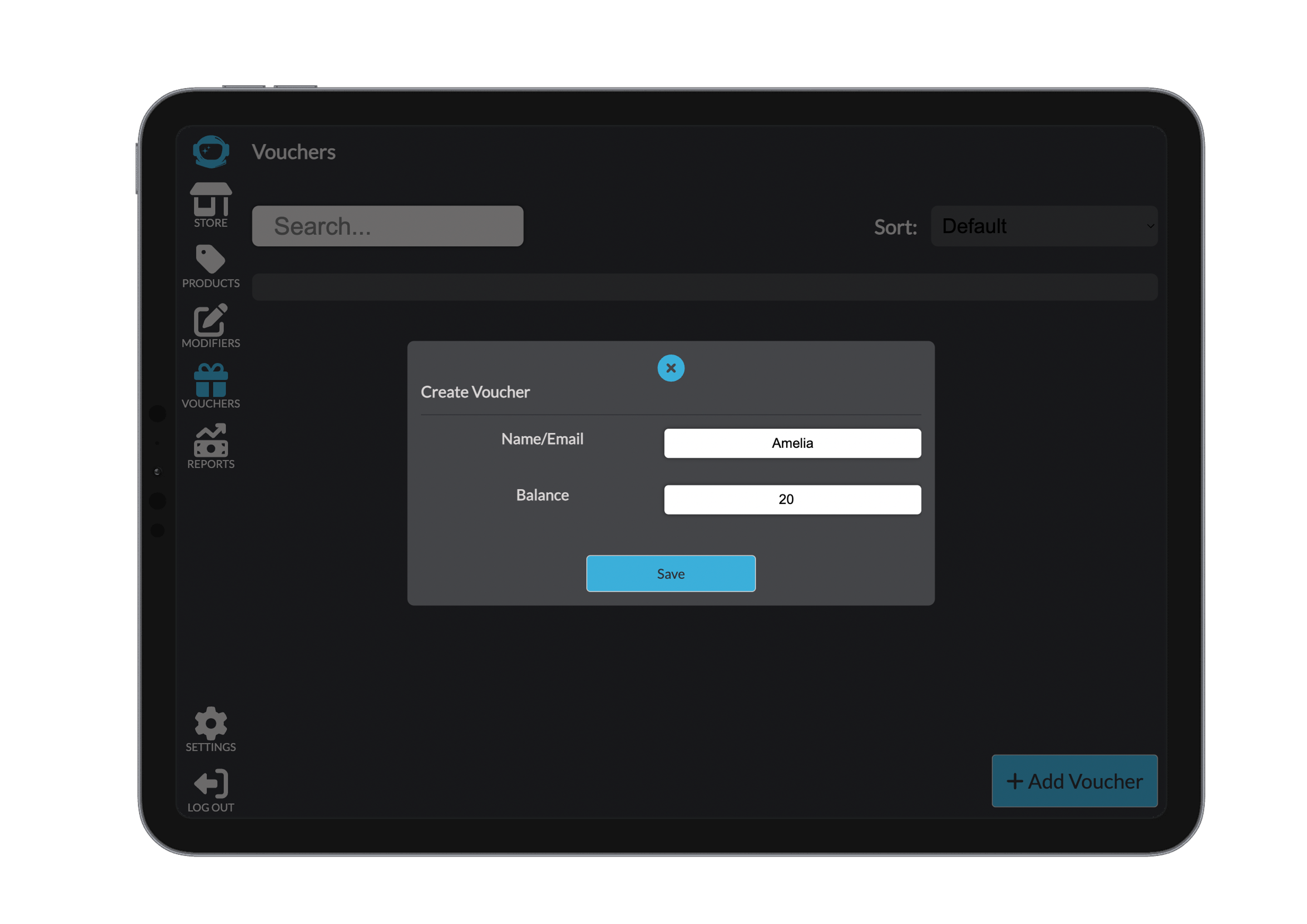
To create a new voucher, use the Add Voucher button. You’ll be prompted to enter either a name or email address, assign an initial balance, and then save it to complete the process.
Paying by Voucher
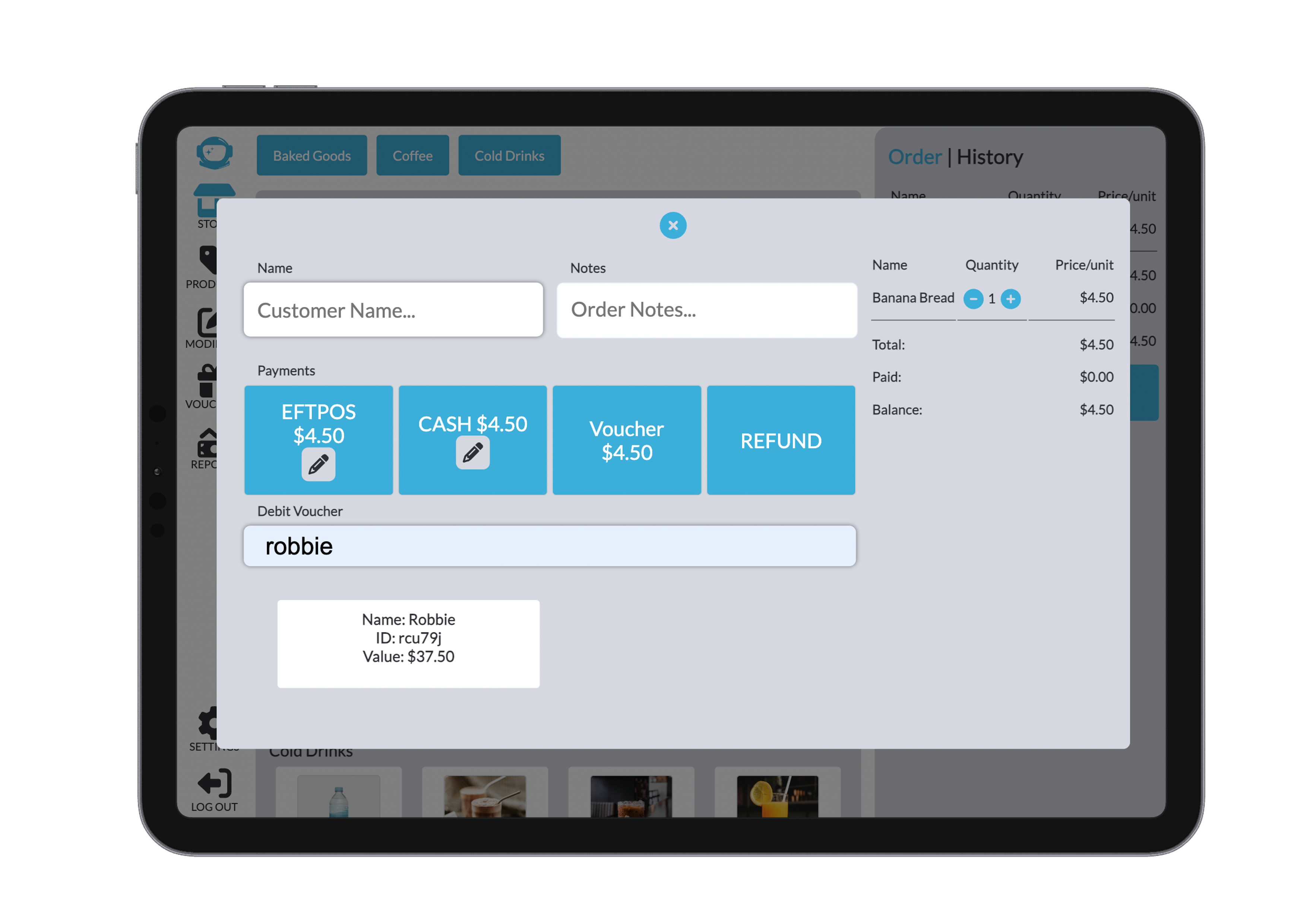
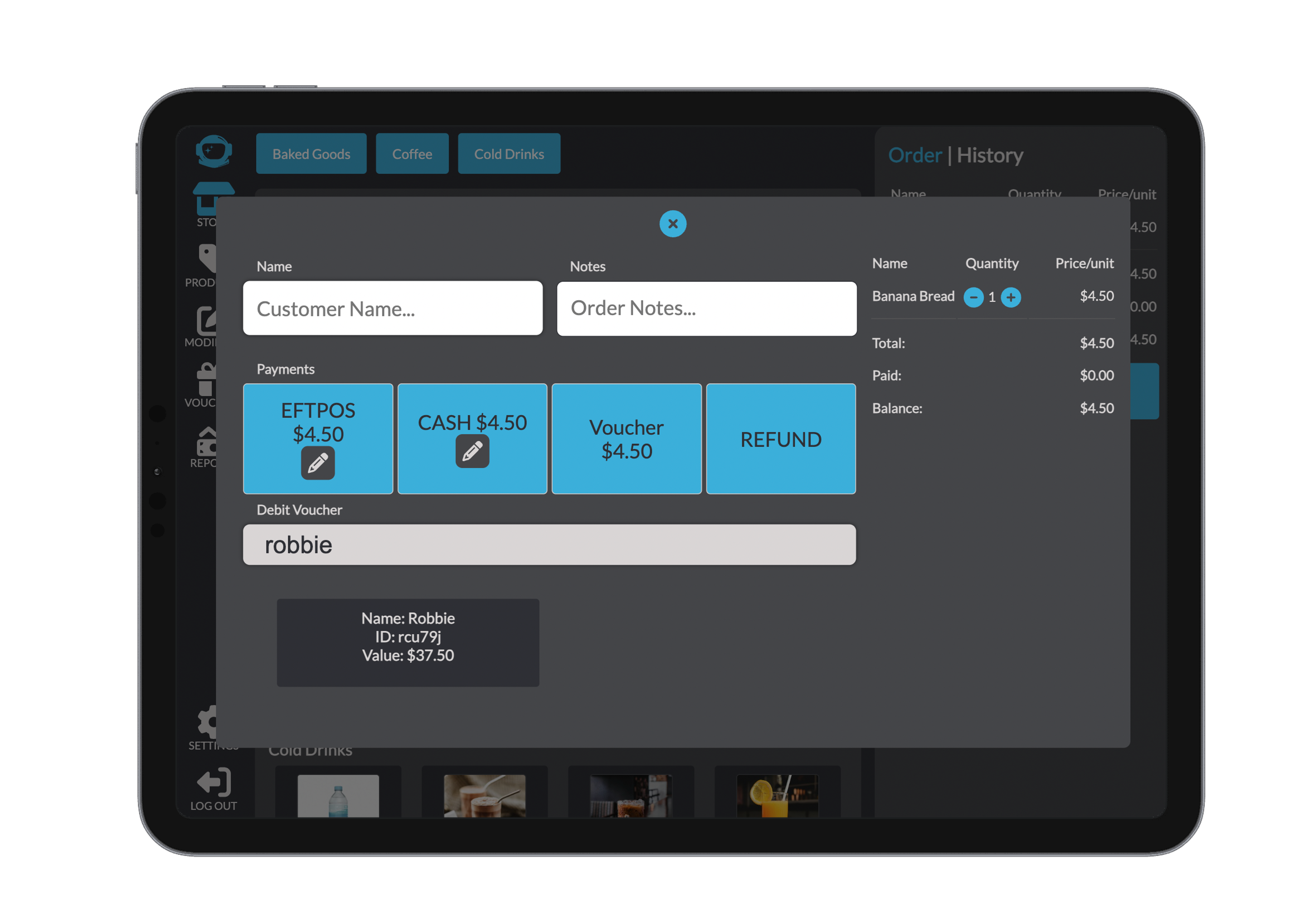
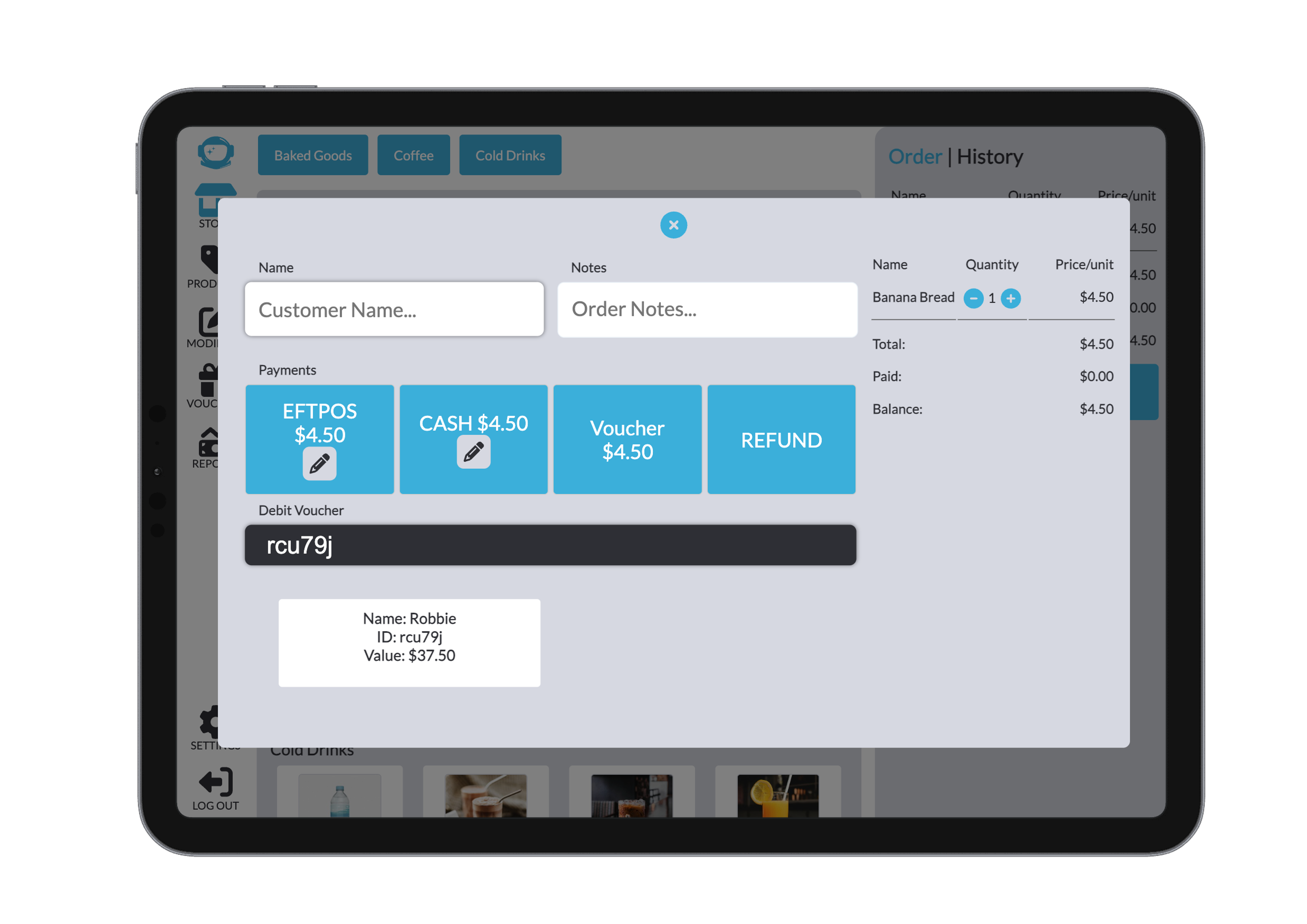
Vouchers can also be used during transactions as a form of payment. When checking out, select Pay by Voucher to deduct the transaction amount from the customer’s voucher balance.
Expiry
Our vouchers have a built in expiry that is customisible from our settings. In the POS settings, you can turn on and off the ability to use vouchers for a payment. Turning this on and off does not clear the data of your saved voucherd, it will only disallow the ability to pay via vouchers. Found beside this setting, is a drop down allowing you to choose an amount of months/years that the voucher will expire with the defualt having no expiry.
When completing an order with a voucher, the expiry date will be shown during the search. This is displayed in red but does not impact the ability to use the voucher and is at the users choice to use for a transaction. The expiry is also displayed on the voucher page and is taken from the date of creation.
To start the expiry from a new date we suggest creating a new voucher similar to a physical voucher.