KDS Orders
The Kitchen Display System (KDS) streamlines back-of-house operations by showing live order updates, reducing paper clutter, and improving order accuracy. Whether you're operating a coffee cart or a full kitchen, the KDS helps staff prepare and complete orders efficiently.
INFO
KDS is designed for use in landscape orientation, with a user interface optimized for this layout - much like traditional paper-based order chits laid out in a line. This ensures better readability and workflow efficiency in busy kitchen environments.
About
Increase Kitchen Efficiency and Reduce Your Paper Trail
Our modern Kitchen Display System keeps operations smooth with real-time order visibility. Orders are displayed instantly, allowing your team to stay on top of prep and minimise wait times.
The KDS integrates with Brother label printers to streamline takeaway orders and includes flexible settings such as custom wait times and printer pairing to support any kitchen layout or workflow.
Logging In
When first launching the KDS, you'll need to log in. You can do this either with your email and password or a login code generated from the Bridge device.
Next, select:
- Site – This refers to the physical location, such as “City” or "Trailer".
- Station – This identifies where in the kitchen the KDS is located (e.g. Coffee, Grill, Bar).
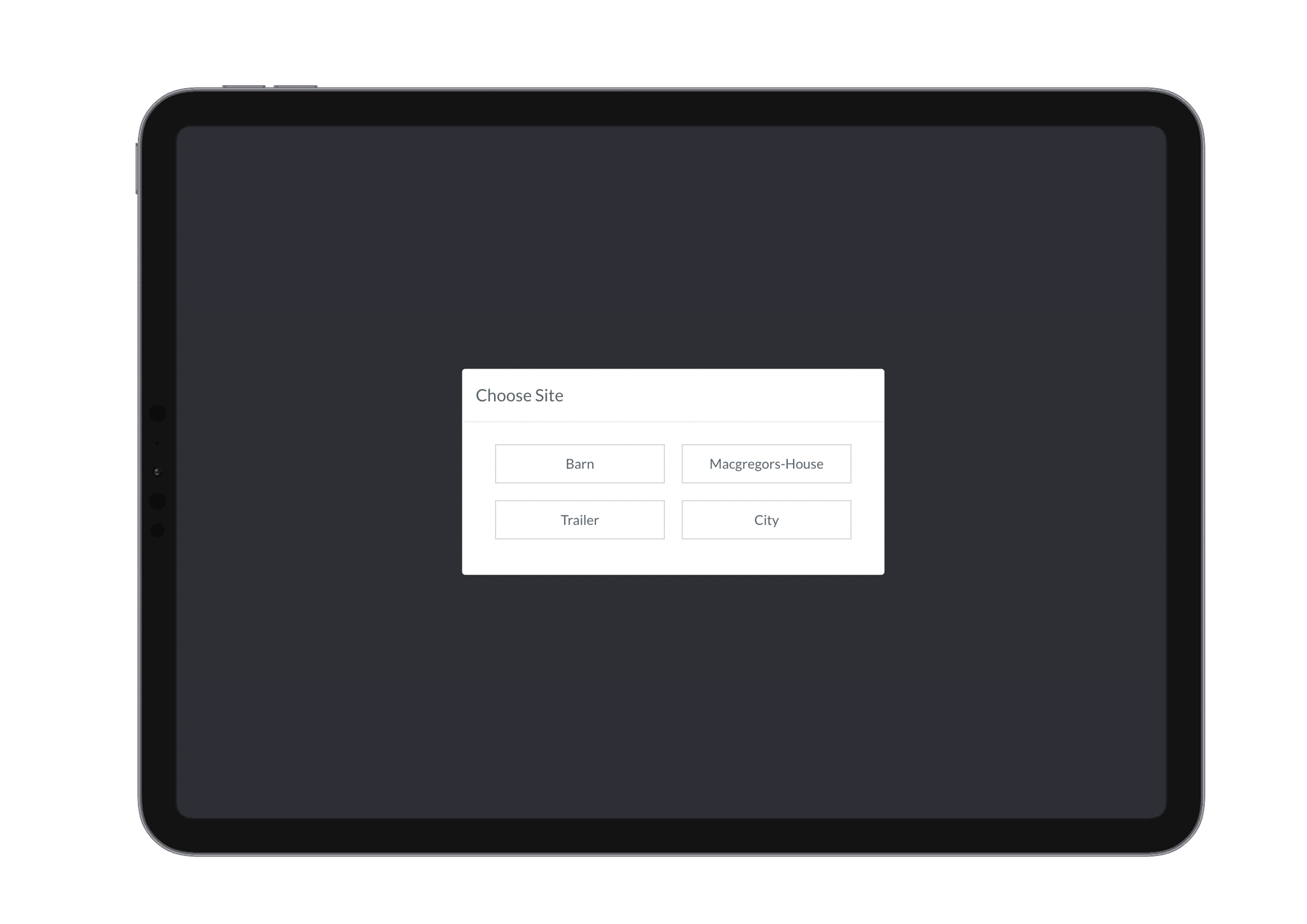
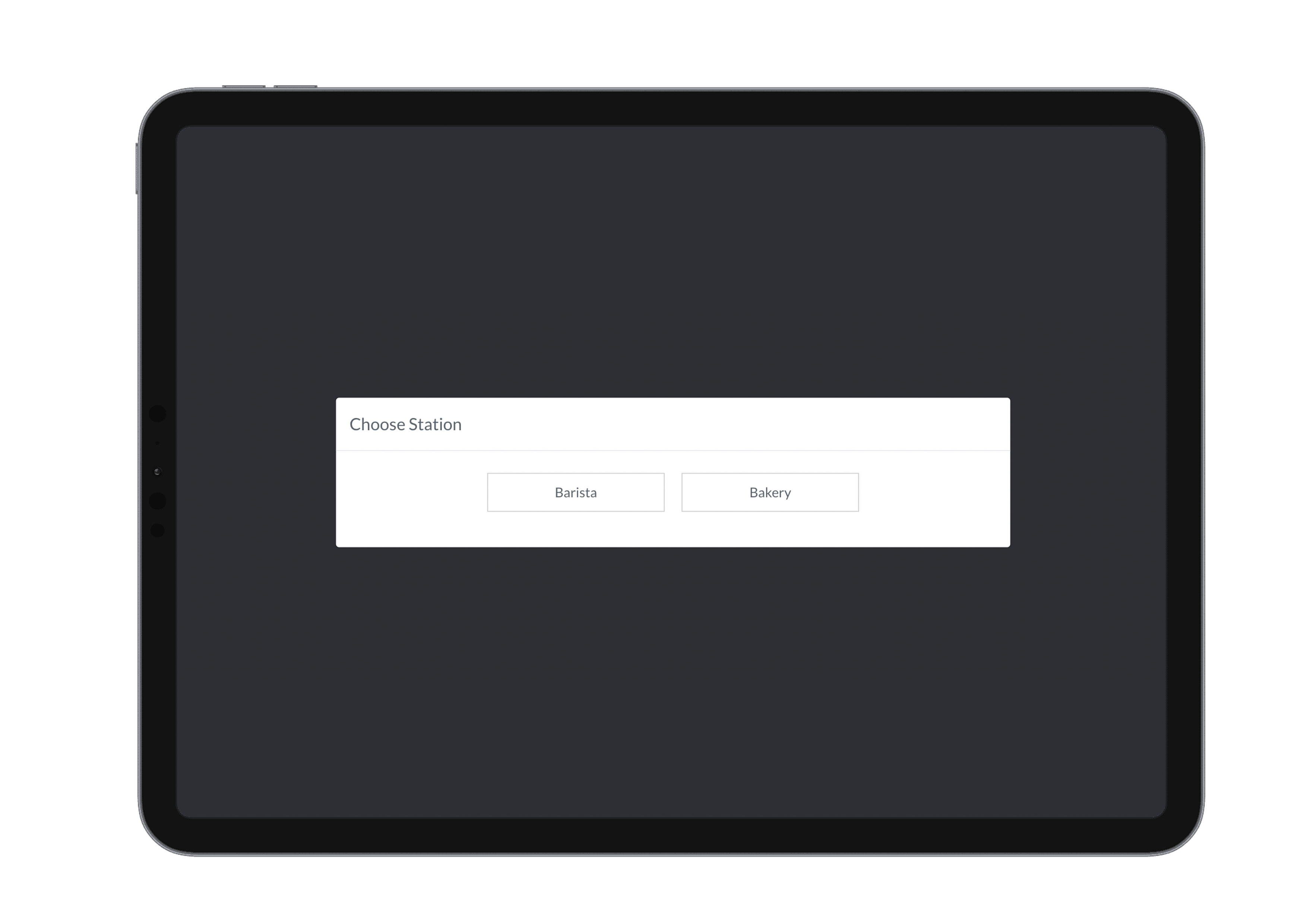
When logging a device into a station, a safeguard is in place to prevent multiple logins. Each station can only be accessed from one device at a time. If you're having trouble logging in, check whether the station is already logged in on another device.
See the Glossary for definitions of site and station.
Viewing Orders
Once logged in, you’ll be taken to the main KDS page.
Before being able to view current orders you must create a KDS station from bridge and check tracked categories to be displayed in the kds station. See STATIONS in bridge to find out more.
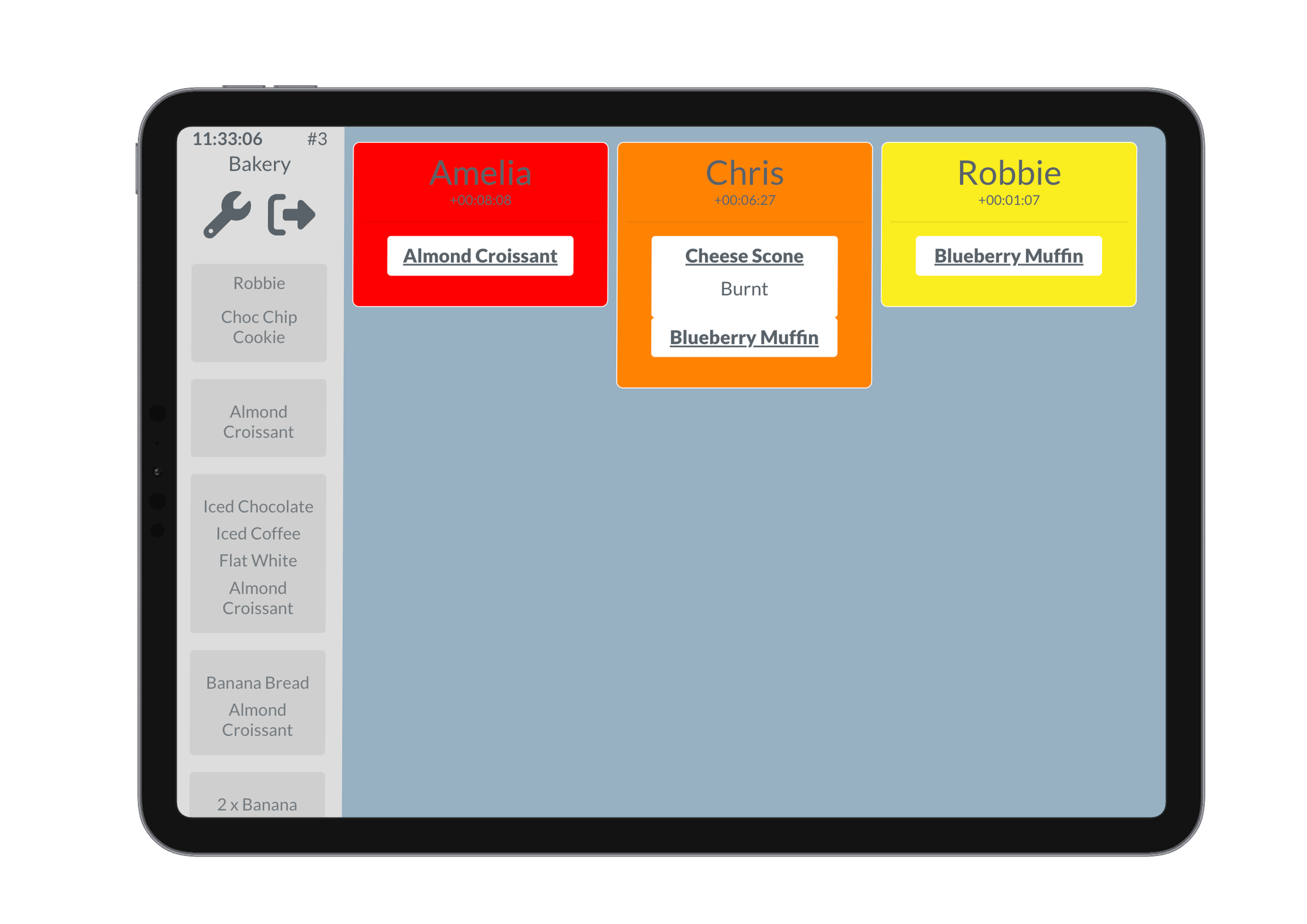
- The current time is displayed in the top-left corner.
- A counter shows how many orders are currently active or “untapped”.
- Orders are listed with:
- Table number or customer name as the heading
- A color indicator (yellow to red) to show wait time urgency
- Print button for sending a physical ticket to a connected printer
- List of items with bold, underlined product names and visible modifiers
You can:
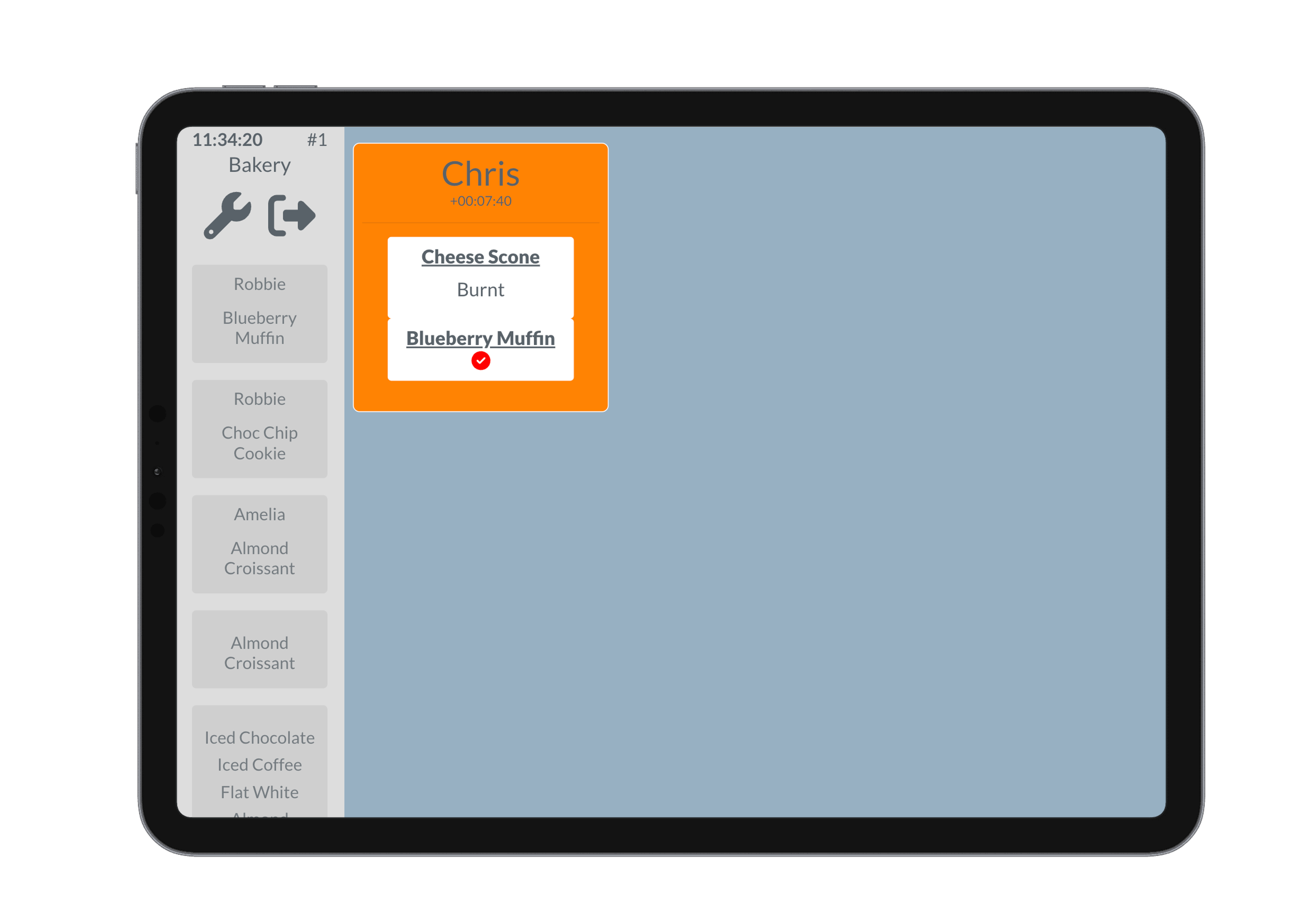
- Tap around the edge of a ticket to complete the full order
- Individually tap off finished items (✓ appears)
- Track partial completions, with untracked items shown with a line through them (e.g. coffee in bagel station)
Order Aging
Orders change color over time:
- Yellow = new
- Orange = mid-wait
- Red = overdue
These time thresholds can be configured in the KDS settings.
Check out settings Settings page for more details on configuring wait times.
Order History
The History section displays all past orders. Clicking on one reveals the complete ticket, including:
- All products
- Modifiers
- Status of each item (✓ if completed)
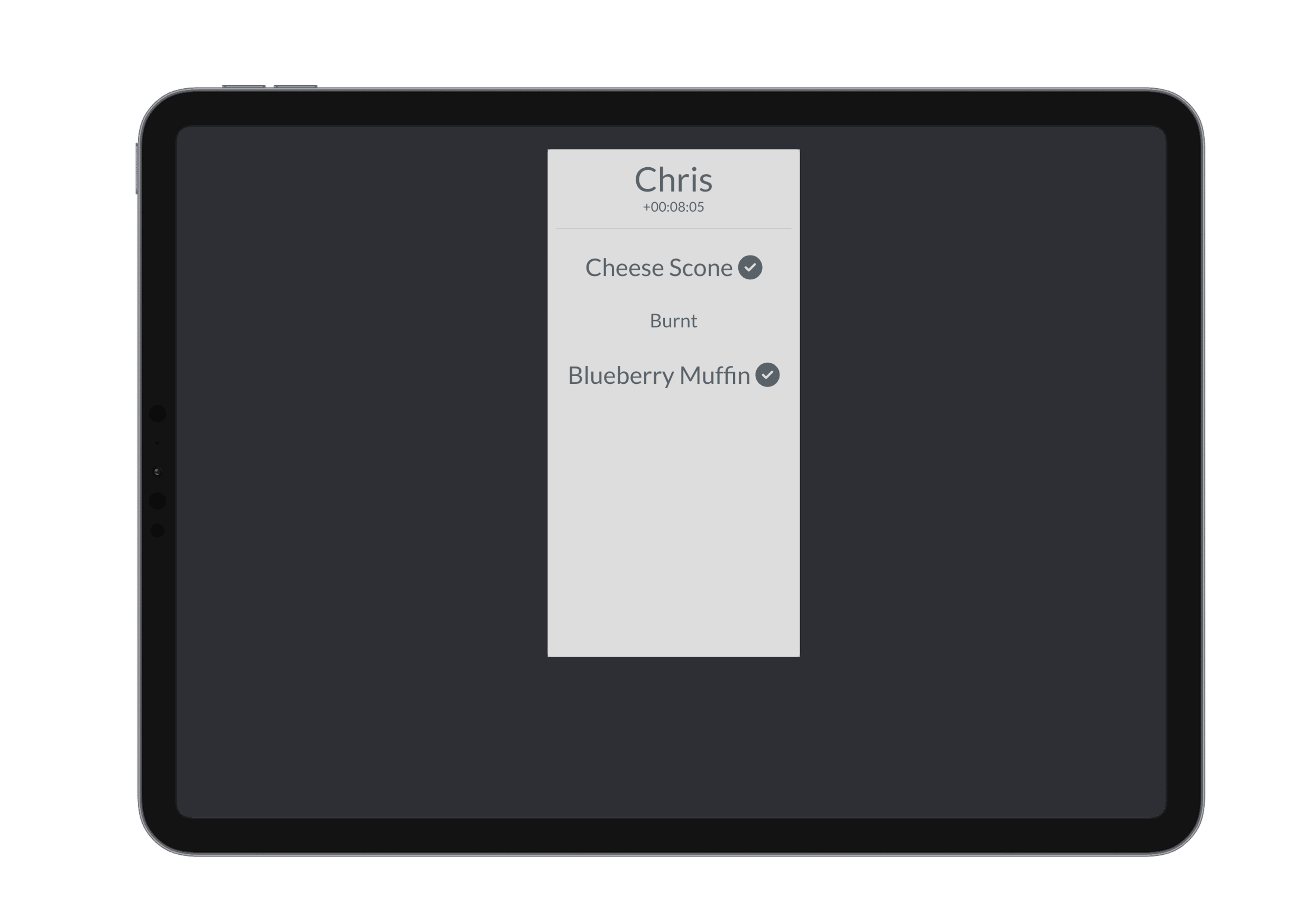
An order will have ticks to say it is completed
Note: Messaging within the KDS has been removed to reduce distractions and simplify the interface.