Bridge Settings
Customise your entire Beamy experience via the Settings panel in Bridge. From updating company information to configuring public holiday surcharges, managing floorplans, and adjusting regional settings—everything is centralised here.
Accessing Settings
- Click the spanner icon in the top-right to open settings.
- Use the tri-toggle to switch between light/dark themes.
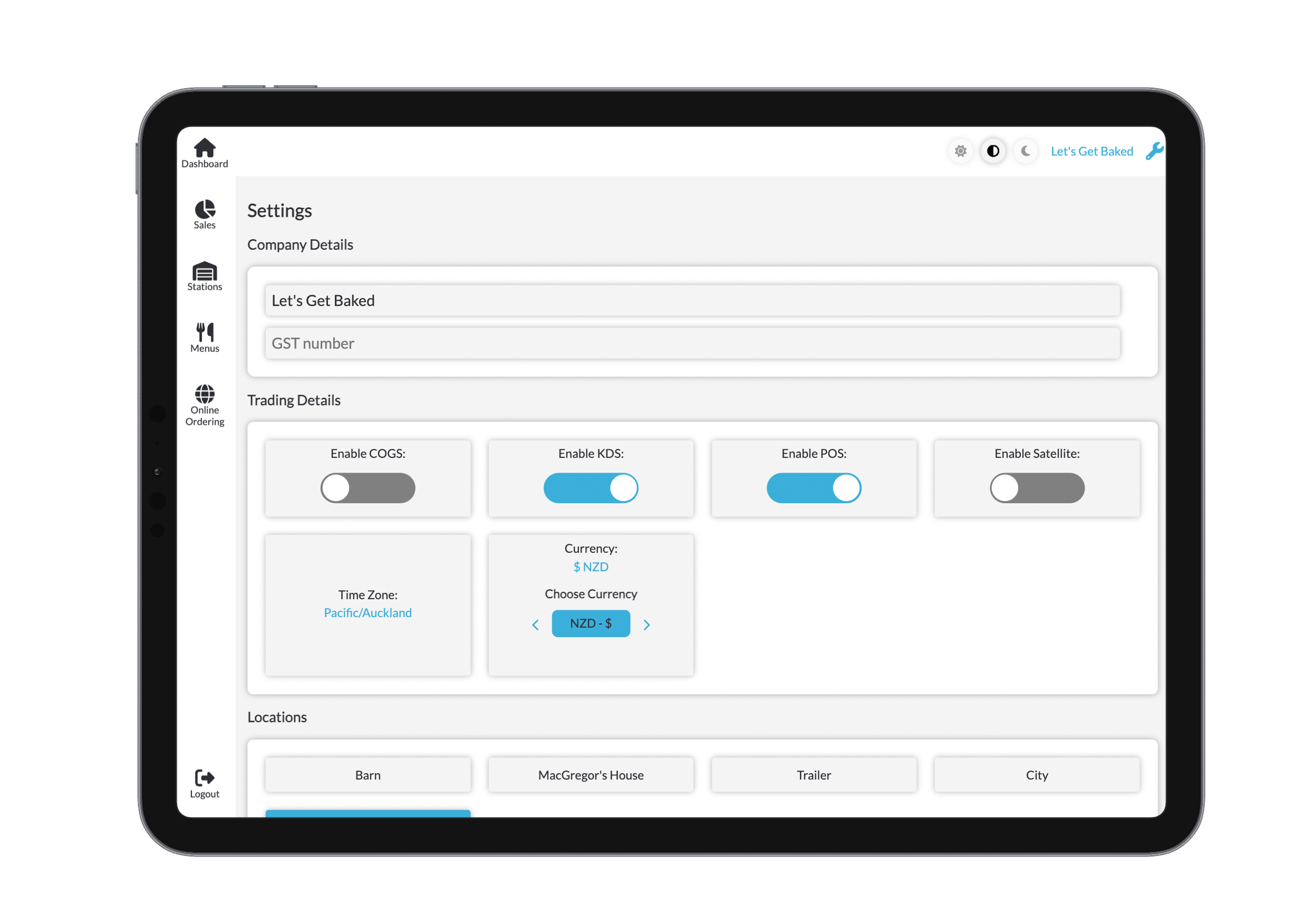
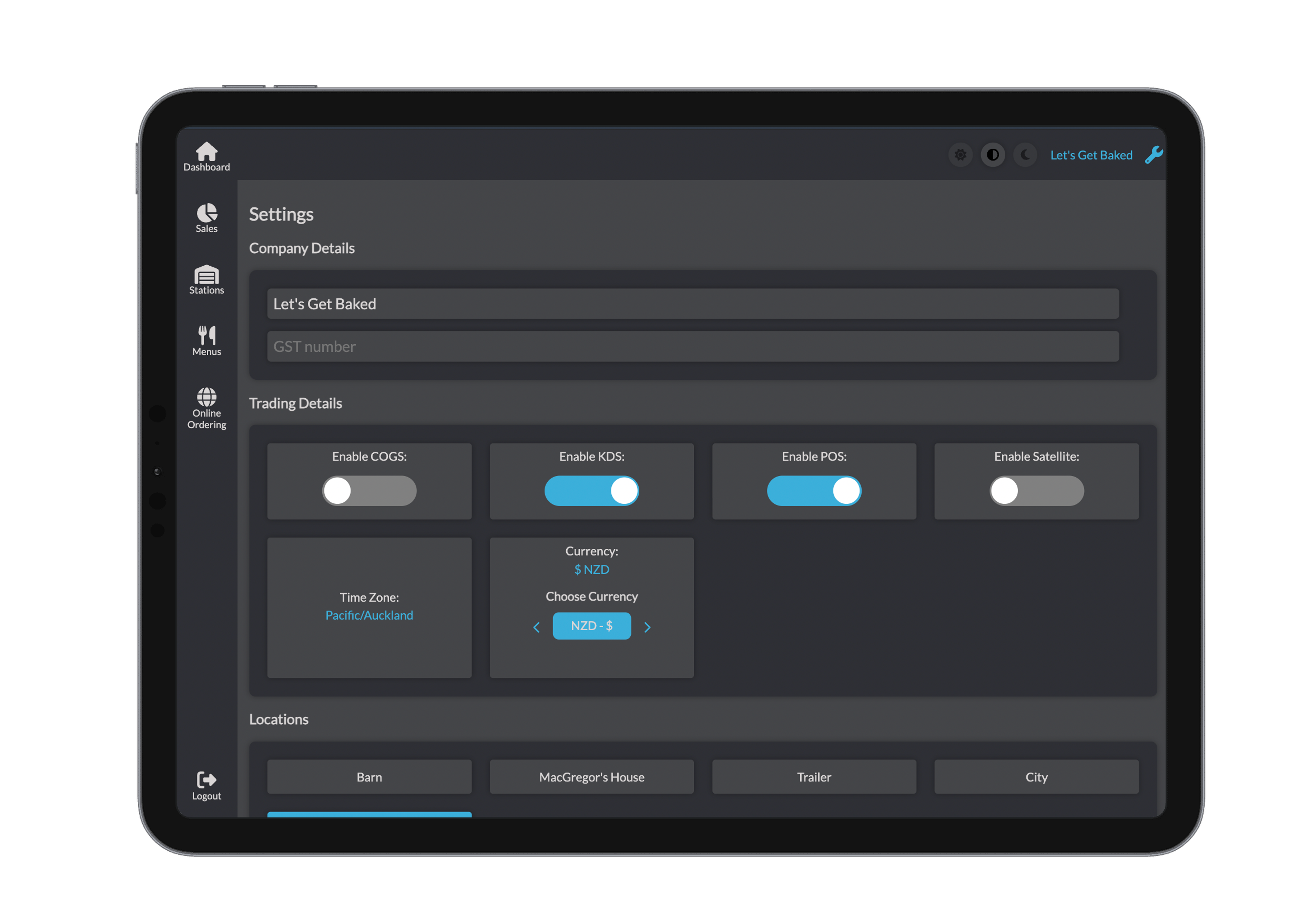
Company Details
Set your official company info, including:
- Company name
- GST number
Trading Details
Configure how your system behaves day-to-day:
- Toggle key Beamy features on/off
- Set your timezone and currency
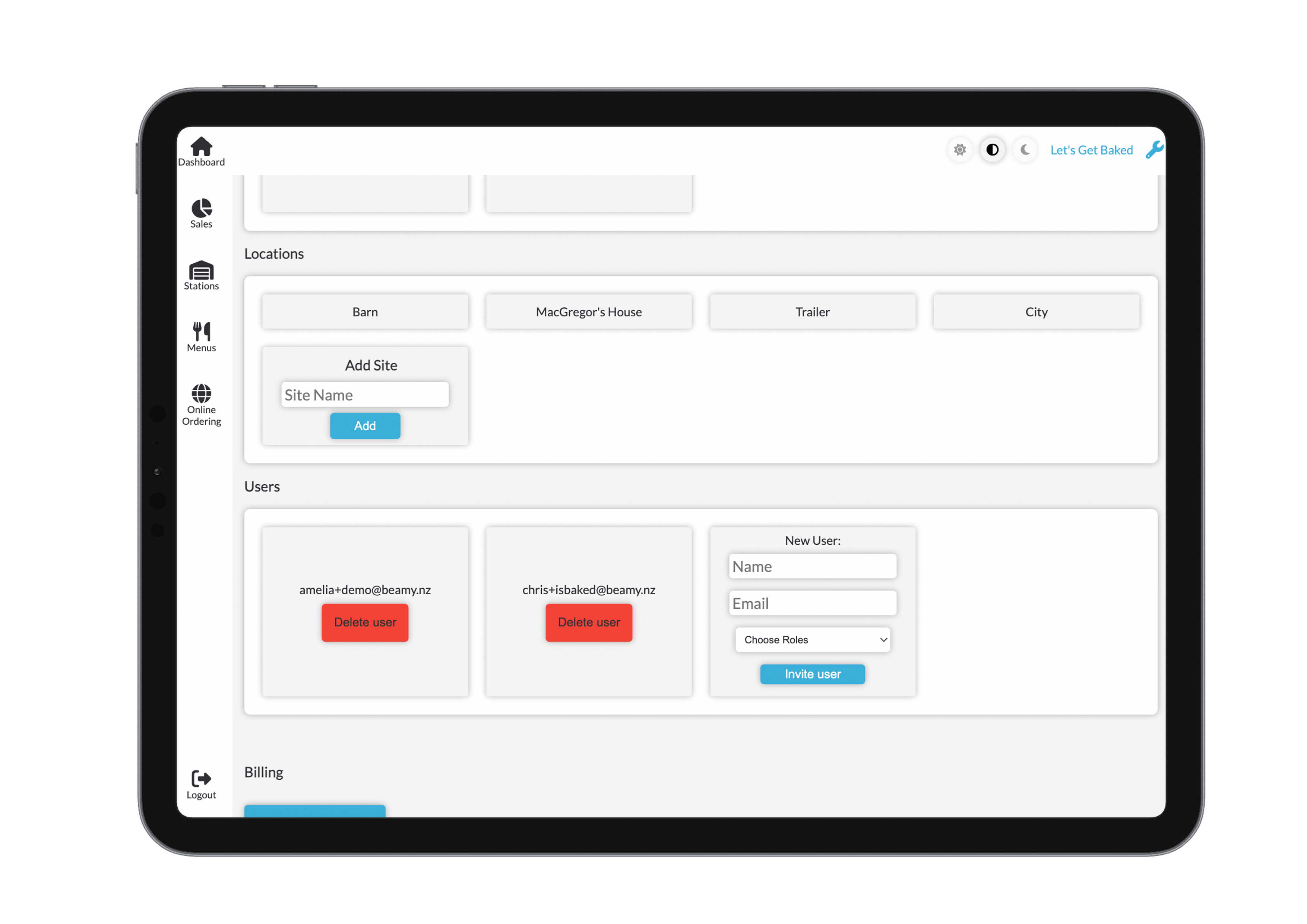
User Management
Delete a user by clicking the delete user red button Add a user by clicking the add user button an fill in the name and email as details choose a role for the new user

Location Management
Manage all your business locations from one place:
- View or create new locations
- Click a location to configure site-specific options like menus, operating hours, and floorplans
Operating Hours
Set detailed operating hours for each site:
- Configure hours for each day of the week
- Toggle open/closed
- Set opening and closing times
- Use "Set All Days" to quickly apply the same hours across the week
- Don’t forget to click Save after changes
Public Holidays
- Automatically populated with national and regional holidays
- Toggle surcharge settings on public holidays
- Customise:
- Surcharge rate
- Holiday hours
- View and adjust next year's holiday schedule
If a day is marked as closed, hours will not be shown on the register. ?????????
Site specific settings
Site specific settings can be accessed from settings (spanner), where there are all your toggles for the settings you may need. 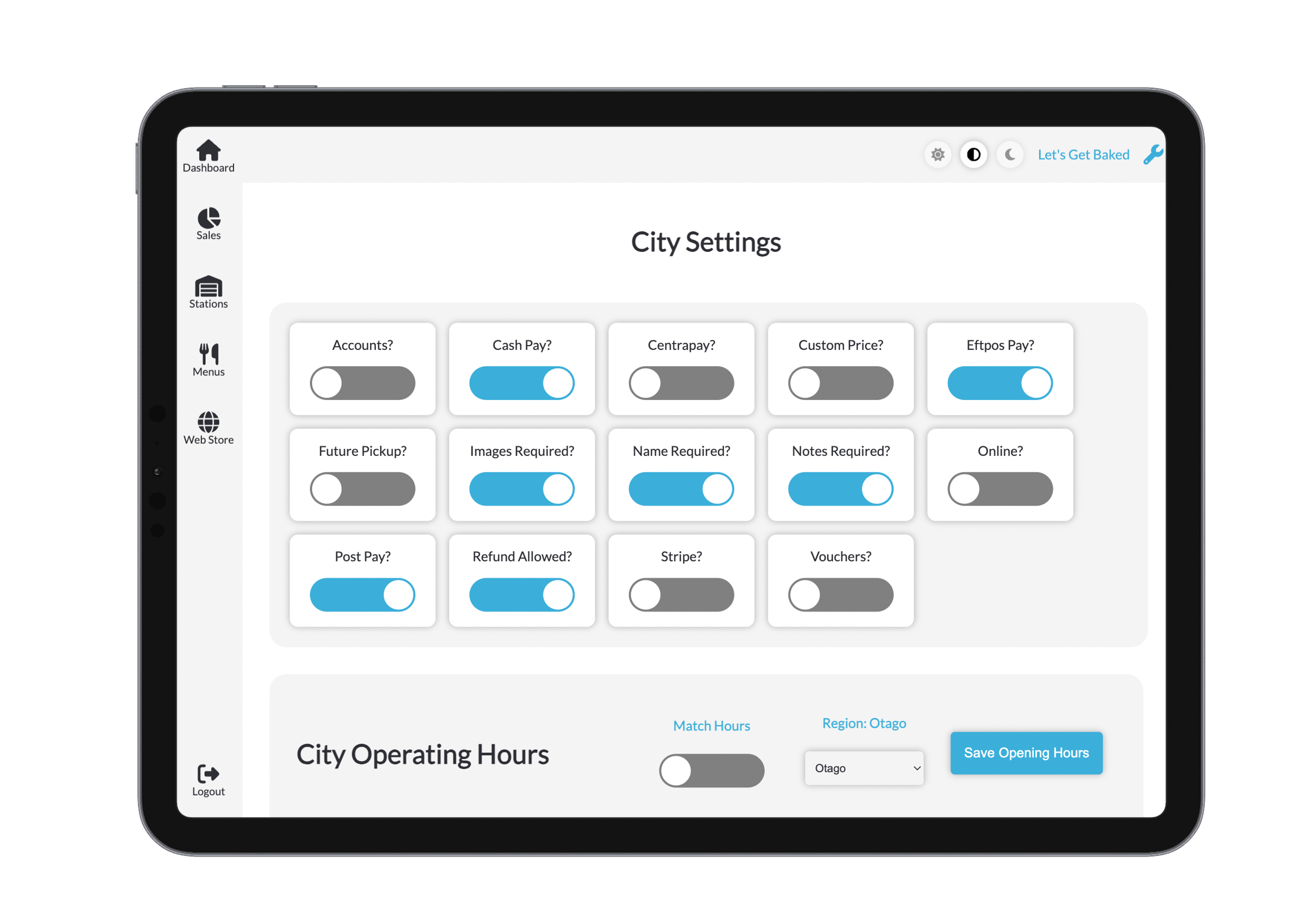
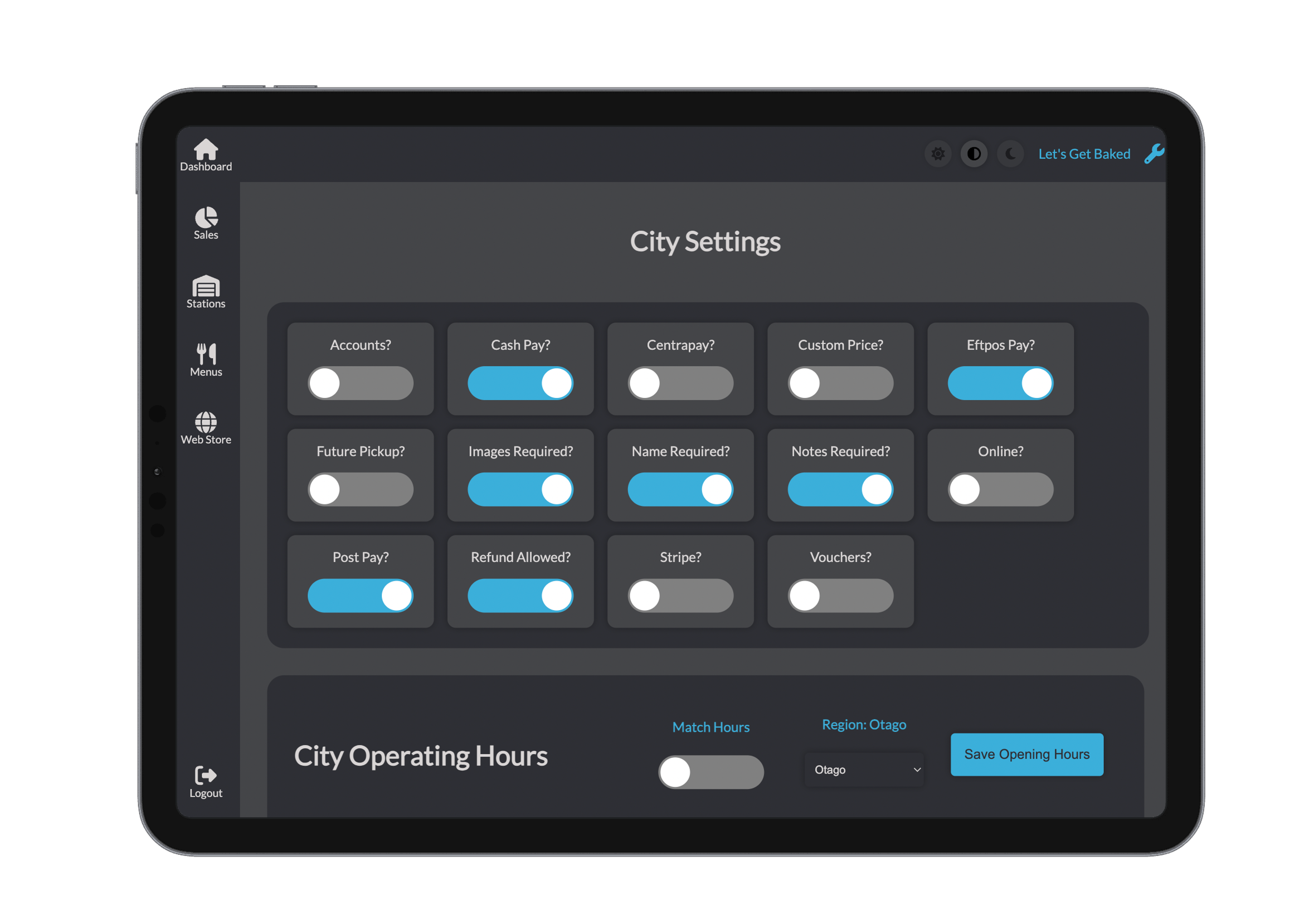
Here is a list of settings and what they are used for: ...
You can also view and edit the operating hours of the current site that has been selected. See OPHOURS
Billing
See the dedicated Billing page for full details.
From the settings panel, you can also:
- View pricing per site (based on number of stations)
- Add or update your payment method