Products
Managing products in Beamy involves setting up categories, configuring individual product details, and controlling availability across the POS and Web. This guide walks you through each step to help keep your menu organised, efficient, and easy to navigate.
Categories
Categories help structure your menu, making it easier for staff to locate products during service. To change the order in which categories appear on the POS, click the Reorder button and drag them into your preferred layout.
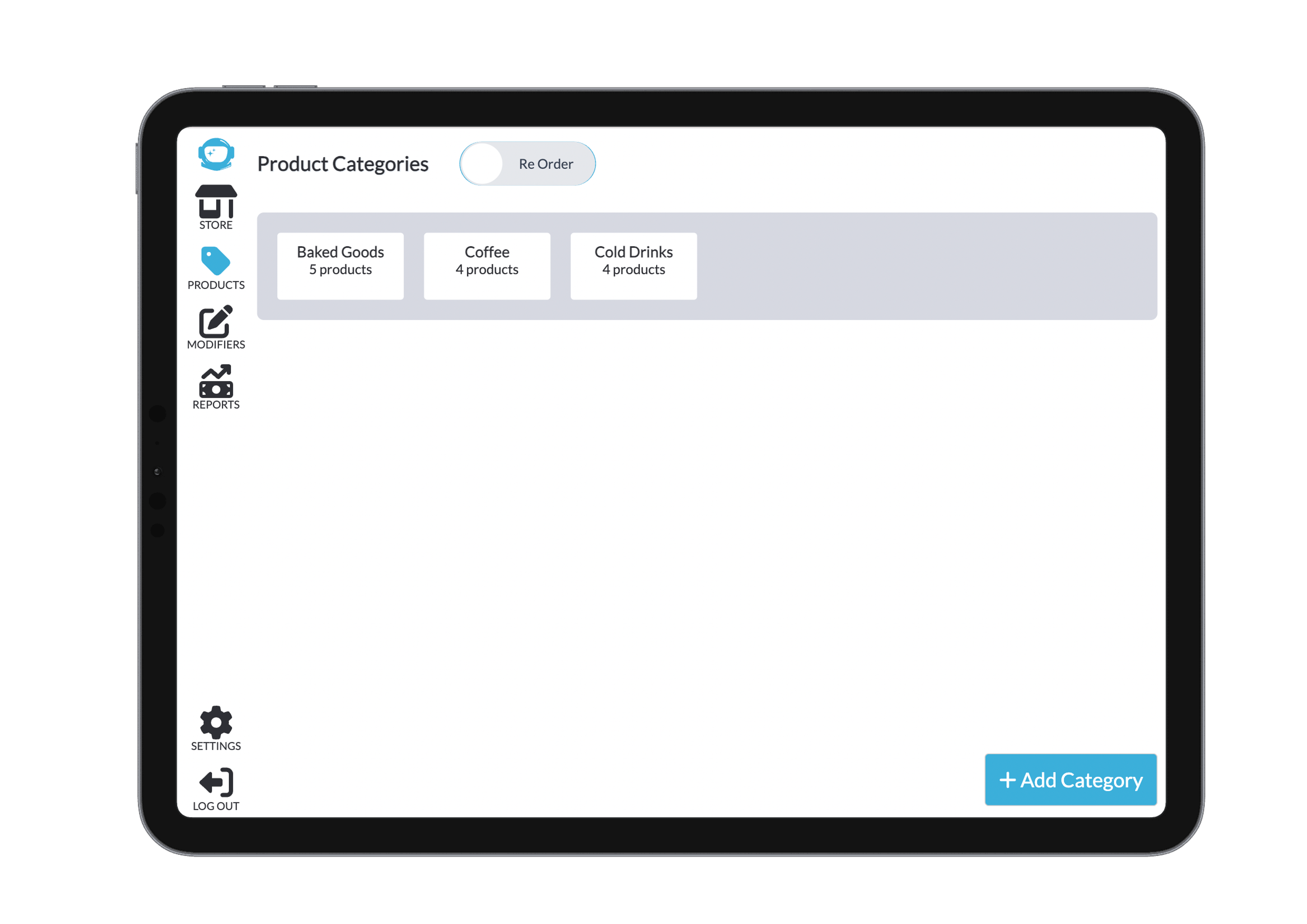
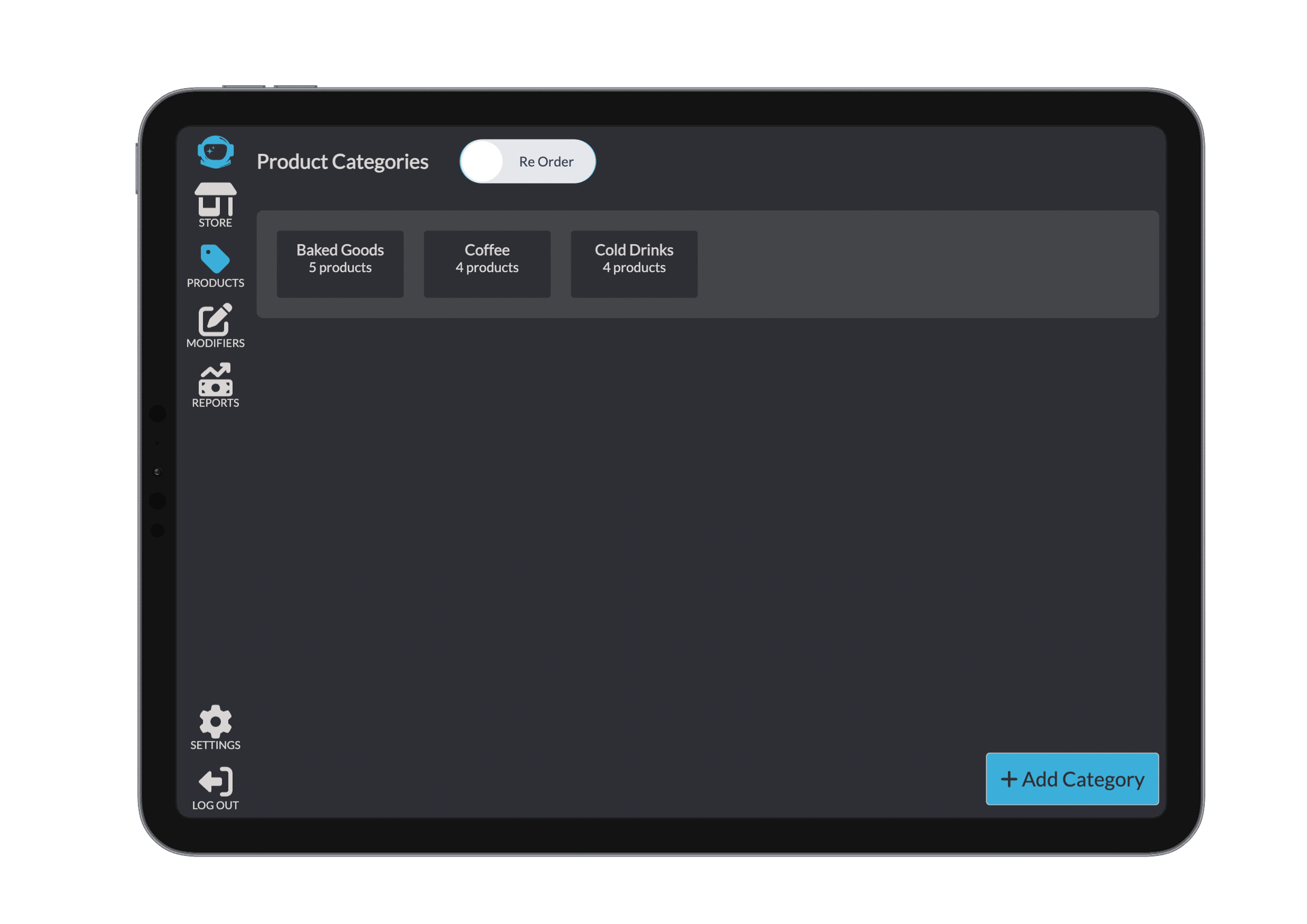
You can temporarily disable a category by toggling it off—this hides it from the POS without deleting it.
To manage a specific category, click on it to open a view of all products it contains.

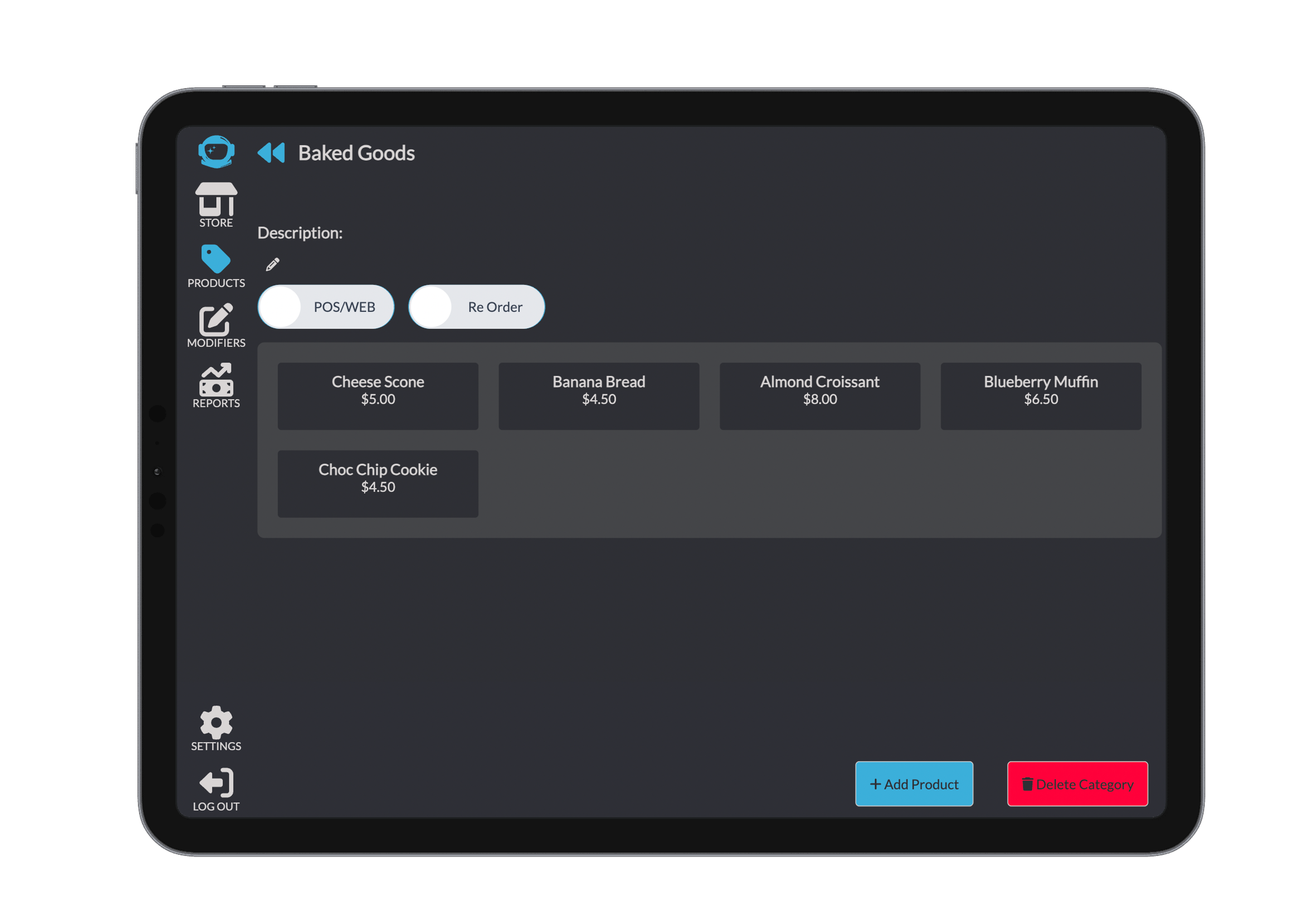
Within the category, you can reorder products just like categories, or choose to add new products and remove the entire category if needed. Use the Back button to return to the main category view.
Managing Products
Each product can be set to display on the POS only or on both POS and Web. The interface shows at a glance where each product is currently available.
To add a new product or edit an existing one, click on the product or select Add Product. This opens a detailed form where you can configure all aspects of the item.
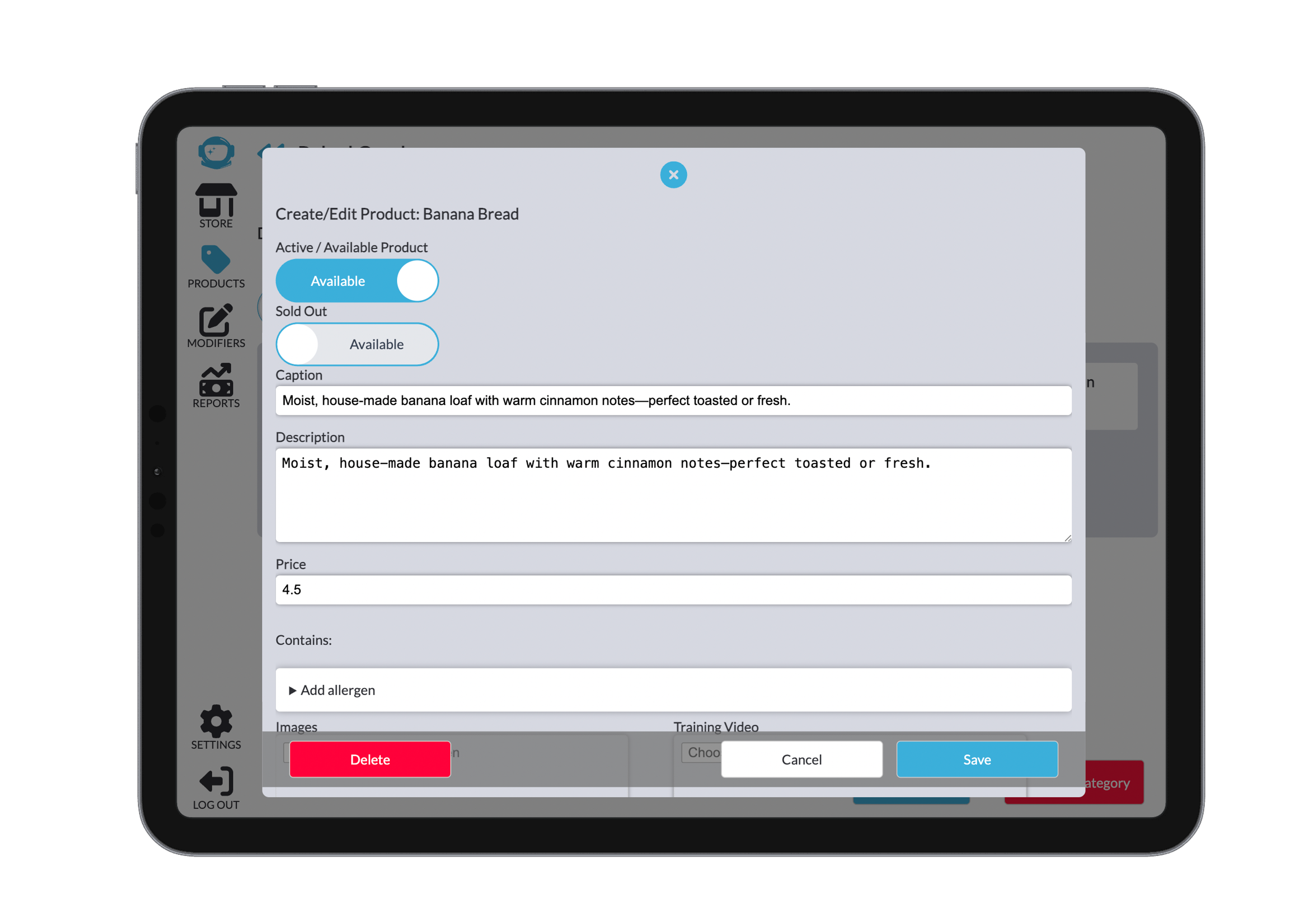
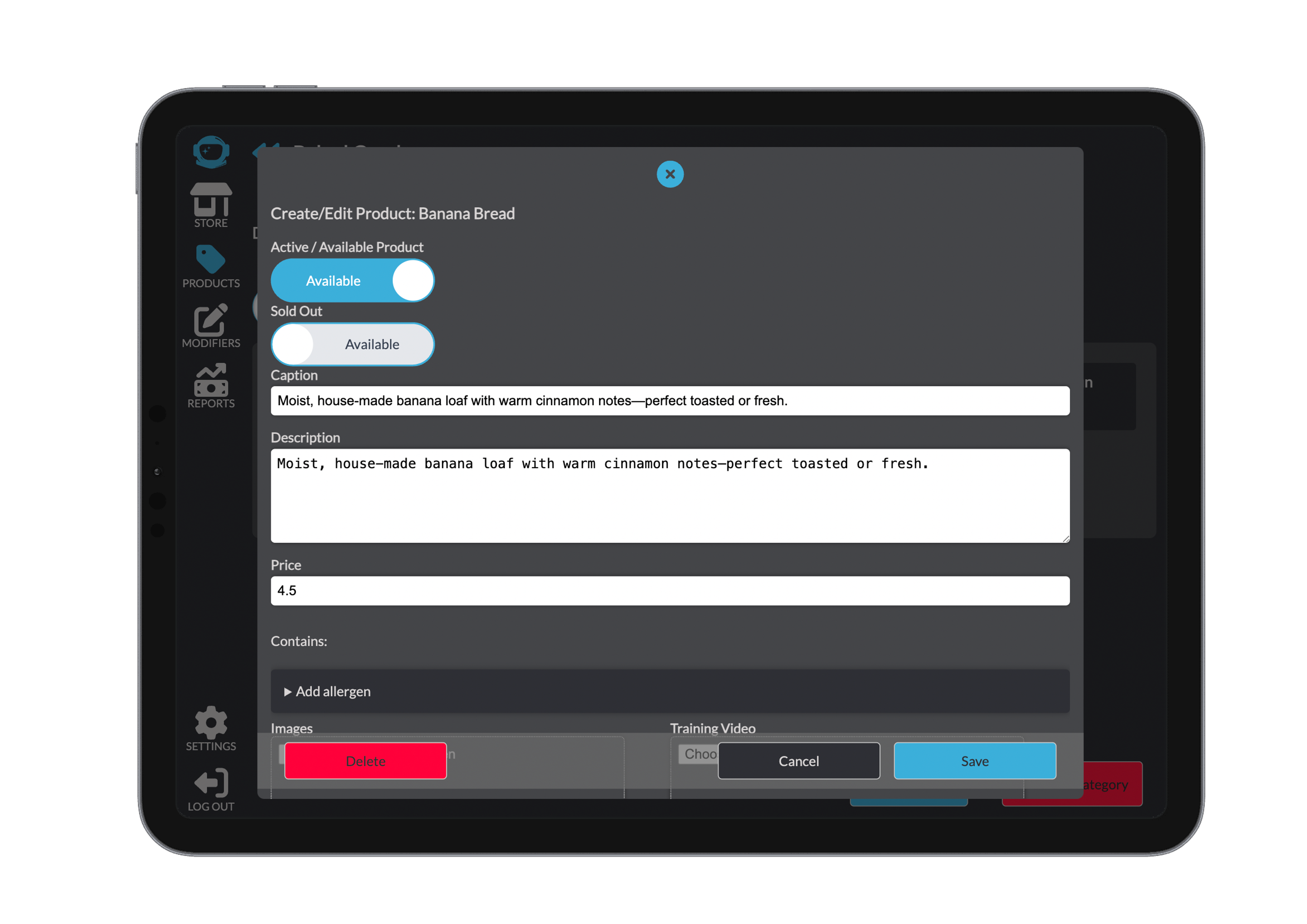
You can:
- Toggle product availability or mark it as sold out for the day
- Edit the product’s name, caption, description, and price
- Assign allergens by selecting from a pre-defined list
- Adjust visibility across POS and Web platforms
For a deeper walkthrough on adding a new product, see the Menu Manager page.