Kiosk
The Beamy Kiosk Mode transforms any POS station into a fully functional, customer-facing self-service kiosk, perfect for streamlining front-of-house operations and reducing staff load during busy hours.
Enabling Kiosk Mode
To activate Kiosk Mode on a POS terminal:
- Log into Bridge.
- Click on the Stations tab in the sidebar.
- A pop-up will display your available station types: POS, KDS, and Satellite. Select POS.
- Find the POS station you'd like to convert and click Edit.
- Toggle the "Use as kiosk" setting.
The station will now operate as a self-service kiosk.
How Kiosk Mode Works
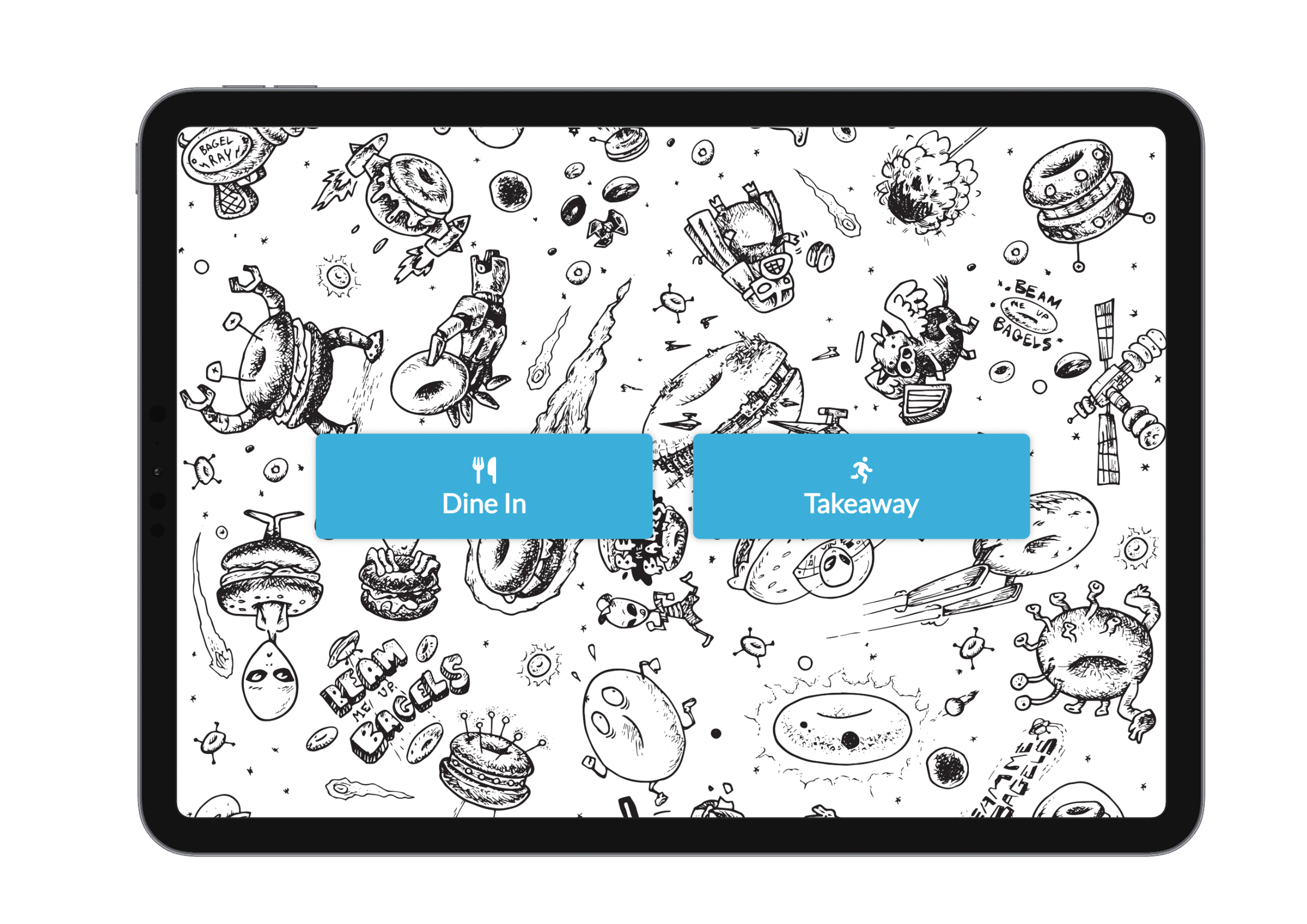
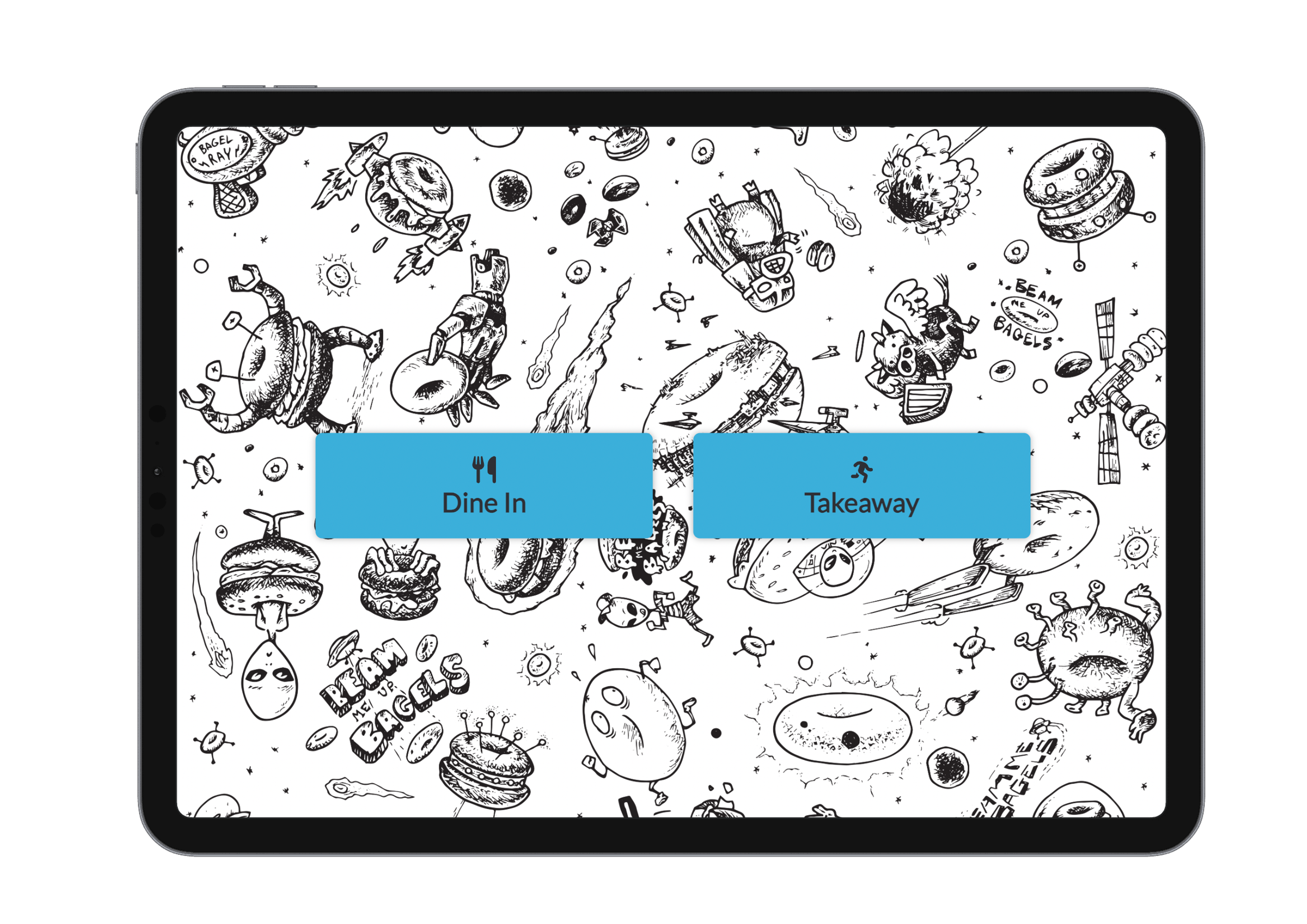
When launched, the kiosk skips the POS login screen and immediately prompts the customer to choose:
- Dine-In
- Takeaway
Customer Input:
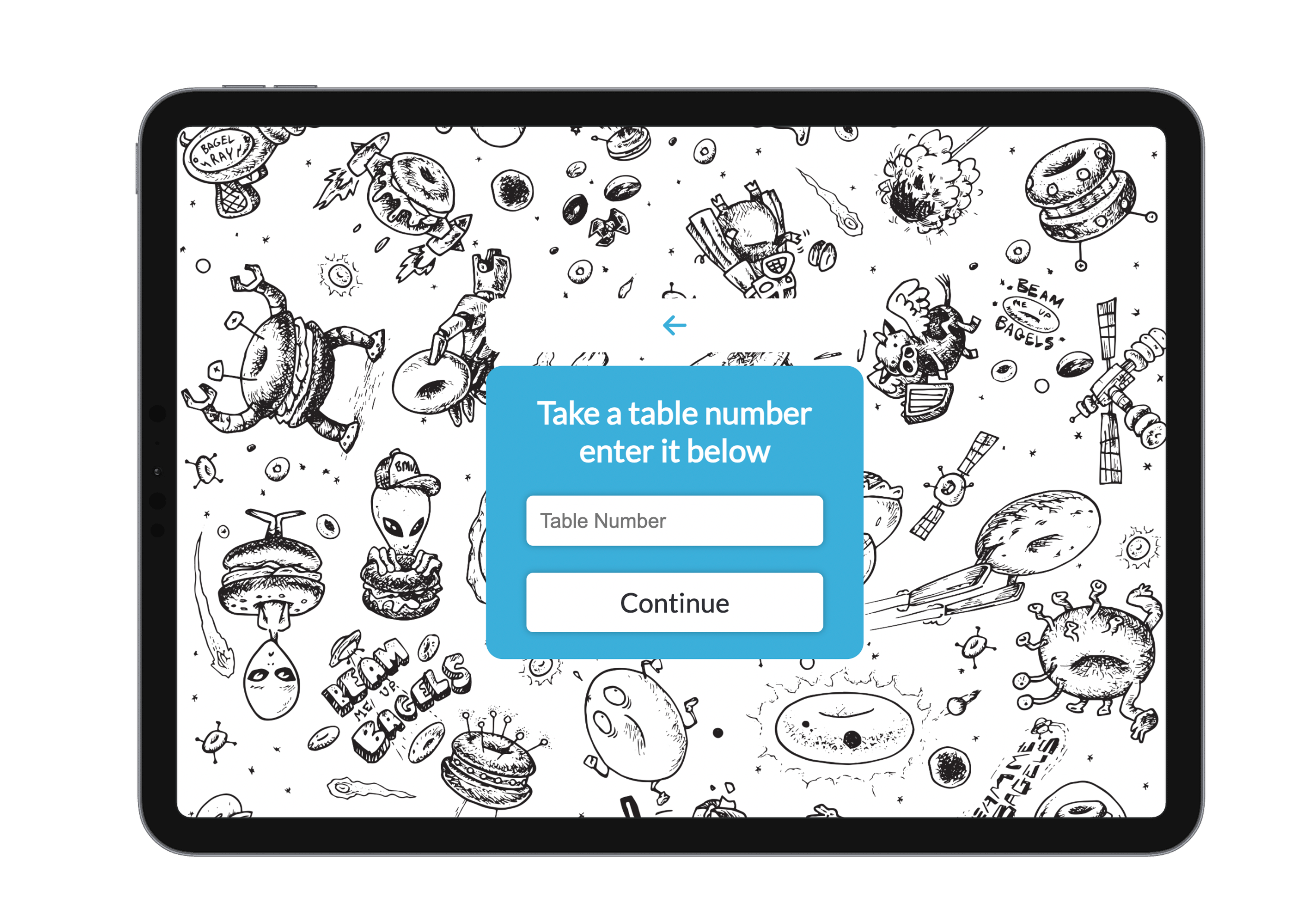
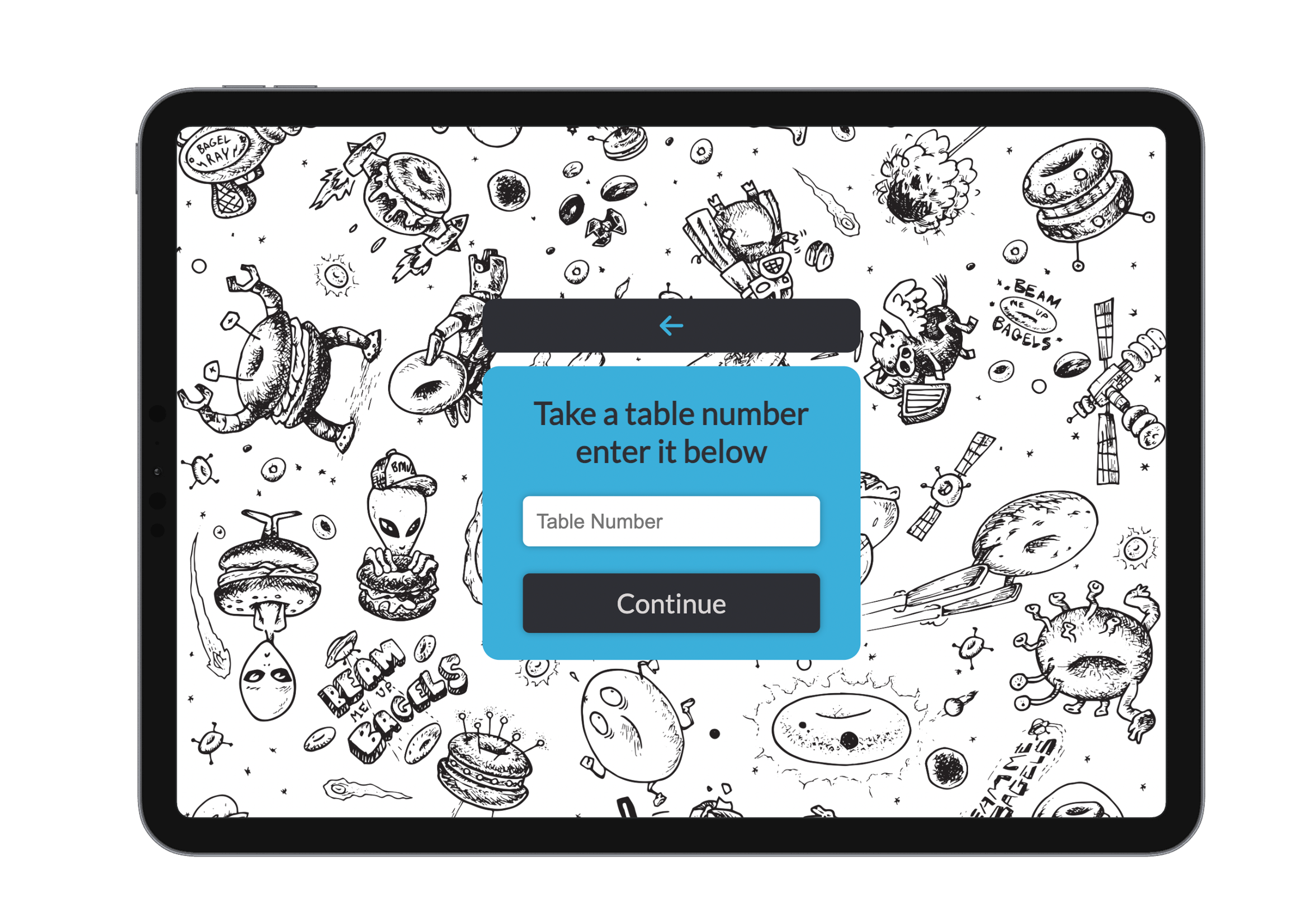
- Dine-In – Customers enter a table number, usually from a number card placed beside the kiosk.
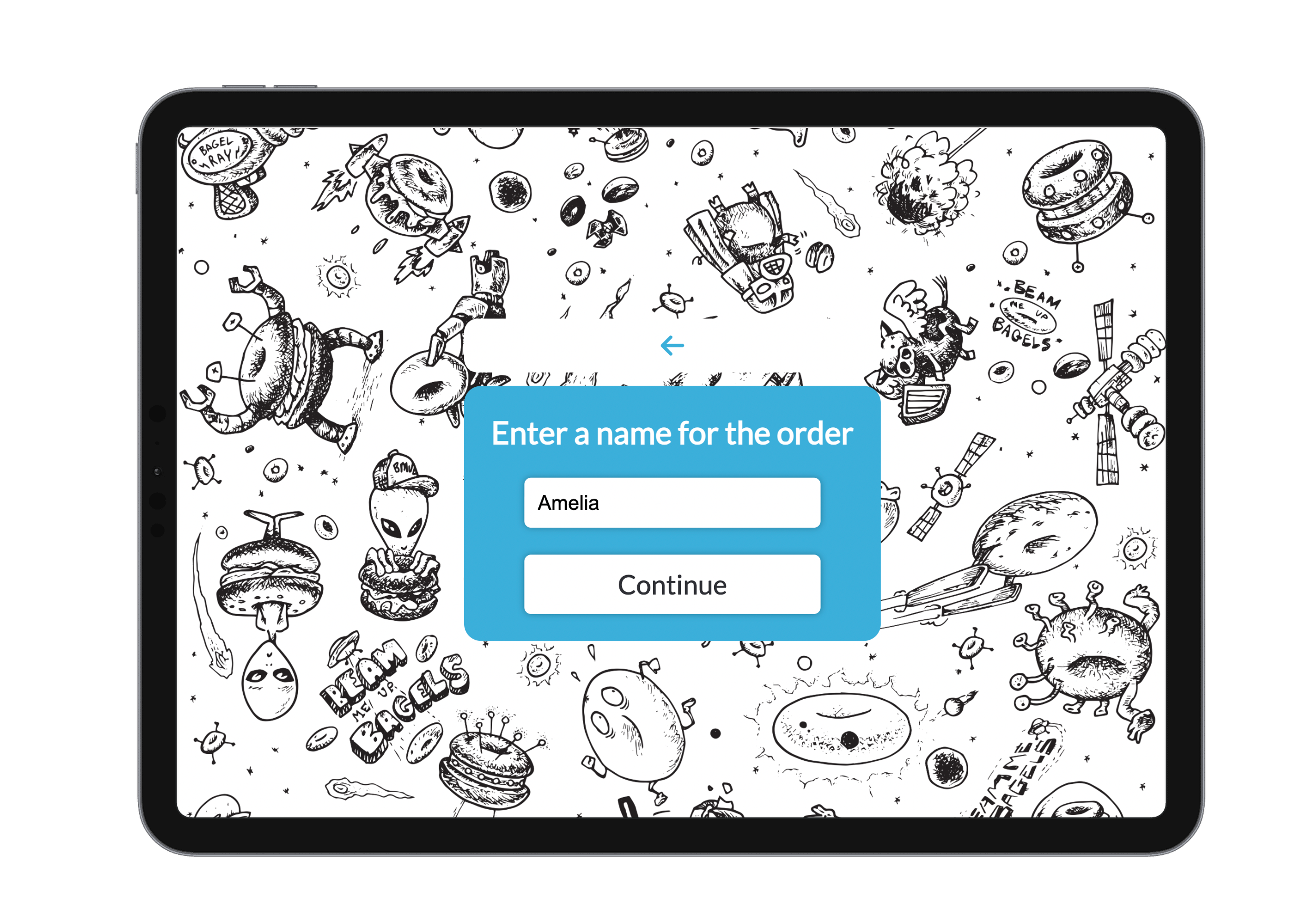
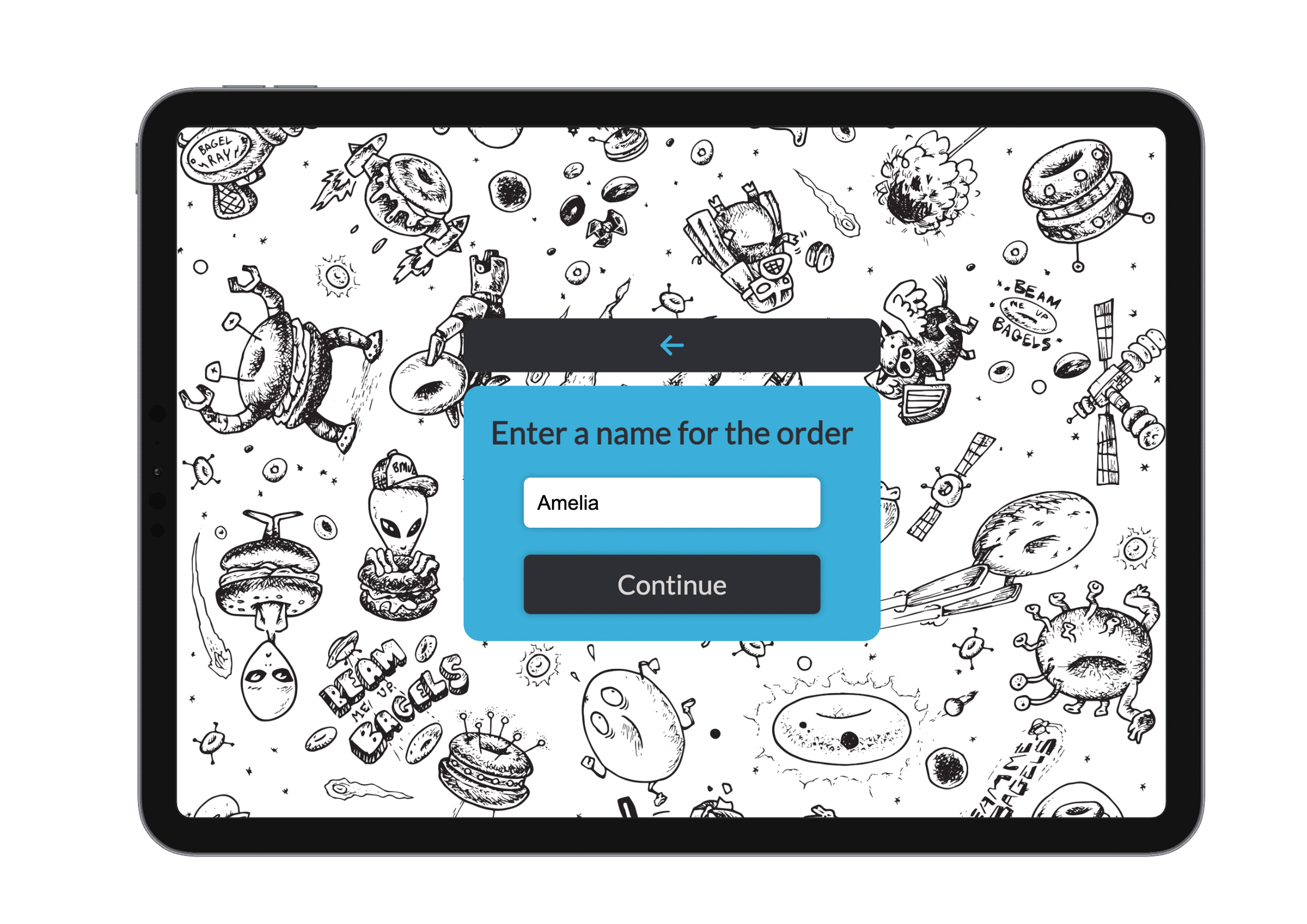
- Takeaway – Customers enter their name, which is later used to call out the order.
Once a selection is made, customers are taken to a simplified, intuitive order screen designed for self-service.
Ordering Flow
- Start Order
- Choose Dine-In or Takeaway
- Enter Table Number (Dine-In) or Name (Takeaway)
- Tap Continue to begin ordering
- Browse Menu
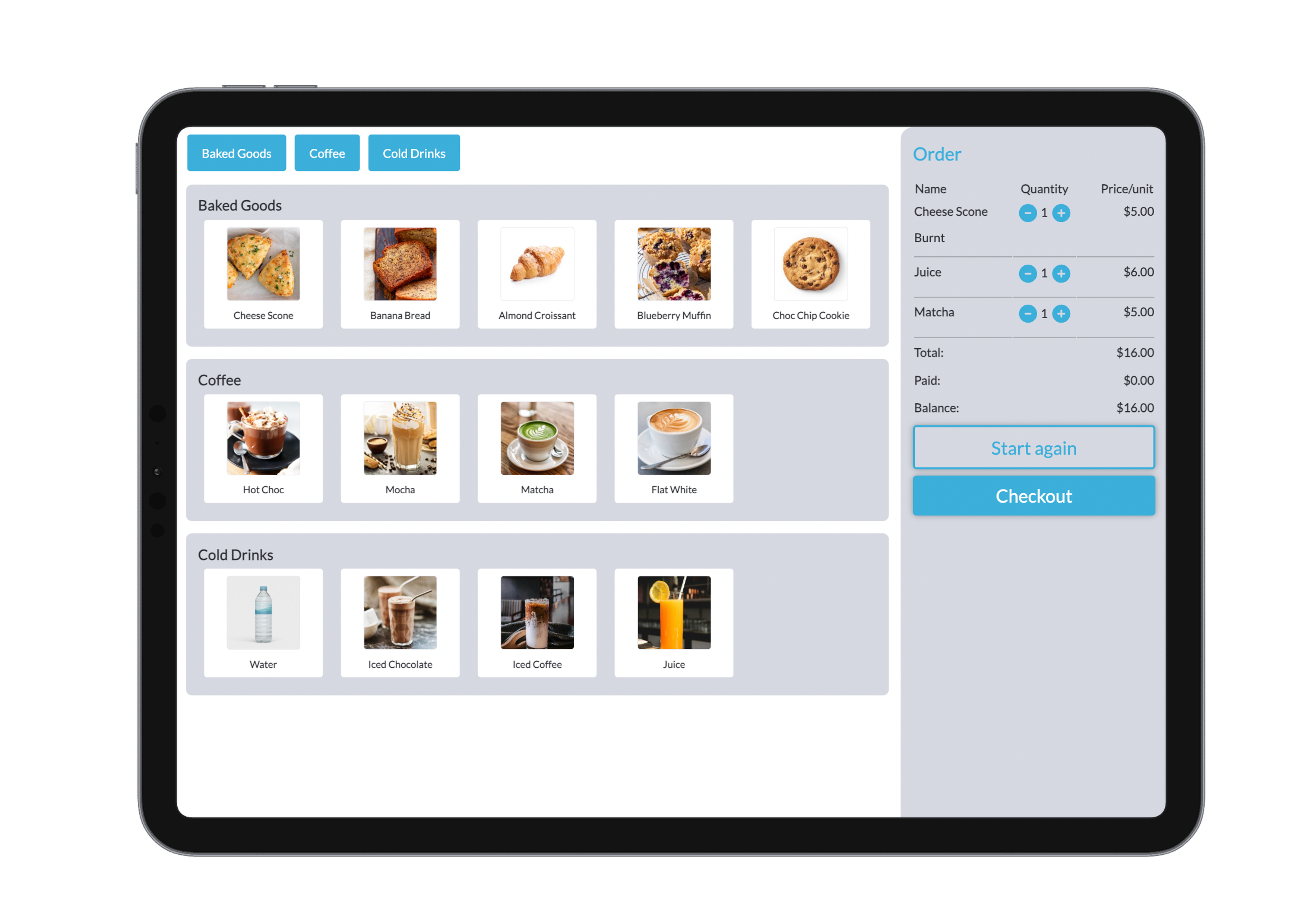
- Products are listed as configured in Bridge
- Tap a category from the top scroll bar to jump to specific sections


- Add Items
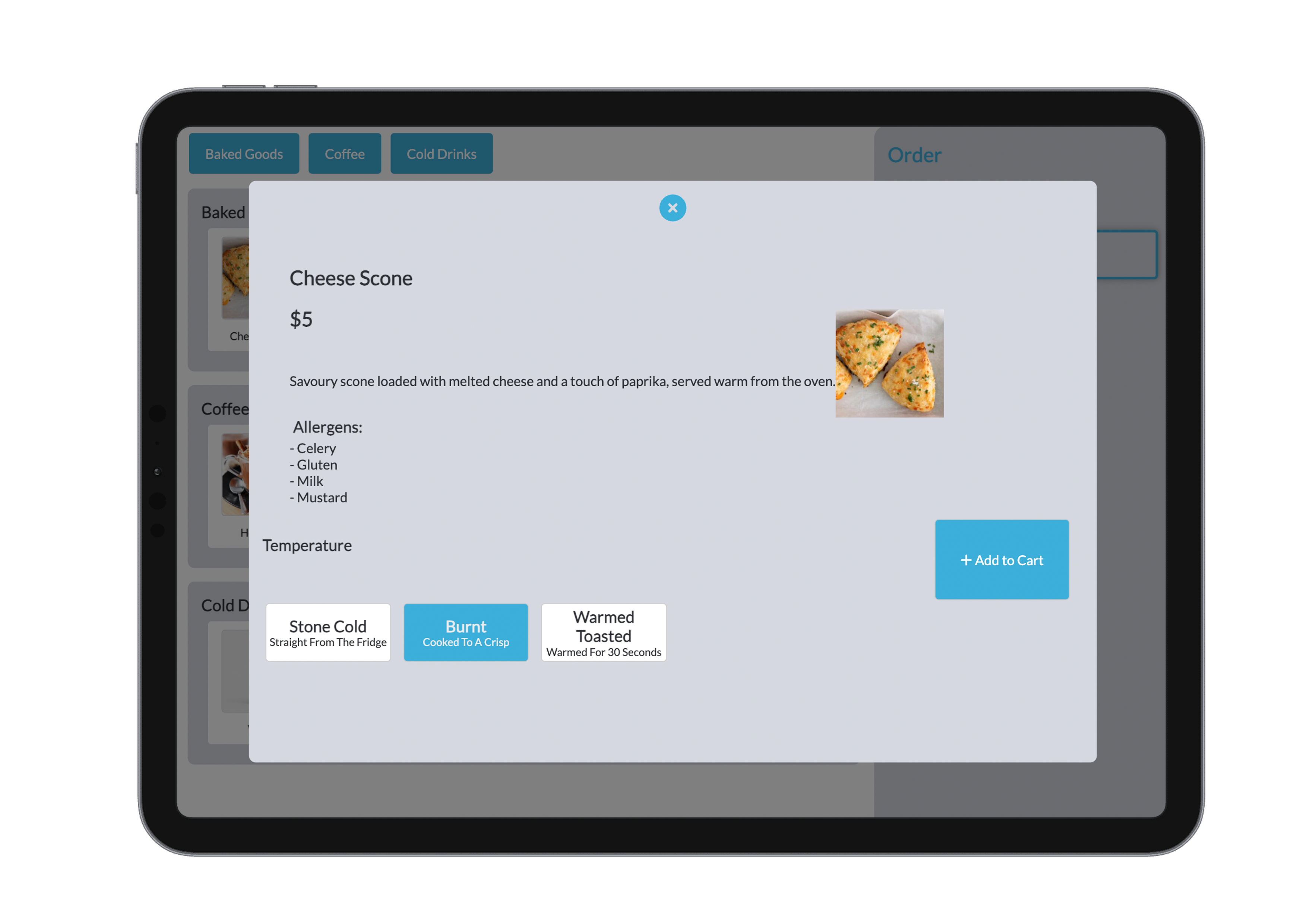
- Tap on a product to view modifiers
- Select required modifiers (if applicable)
- Tap Add to Cart
- The Add to Cart button remains disabled until required modifiers are selected
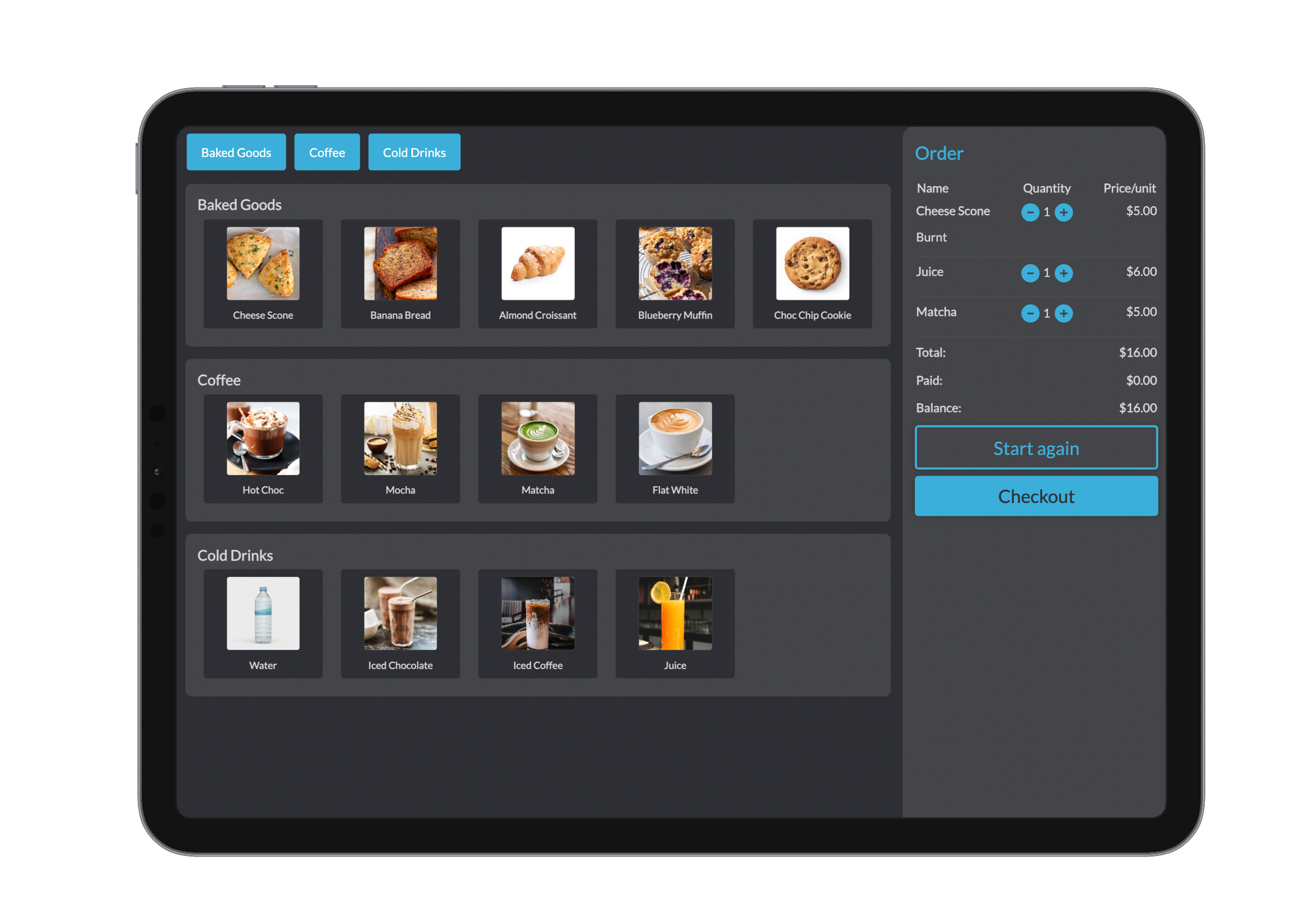
- Items will appear in the Order Summary panel on the right

- Manage Cart
- View items, modifiers, and prices
- Adjust quantities using + / – buttons
- See the Total, Amount Paid, and Balance Due at the bottom of the cart
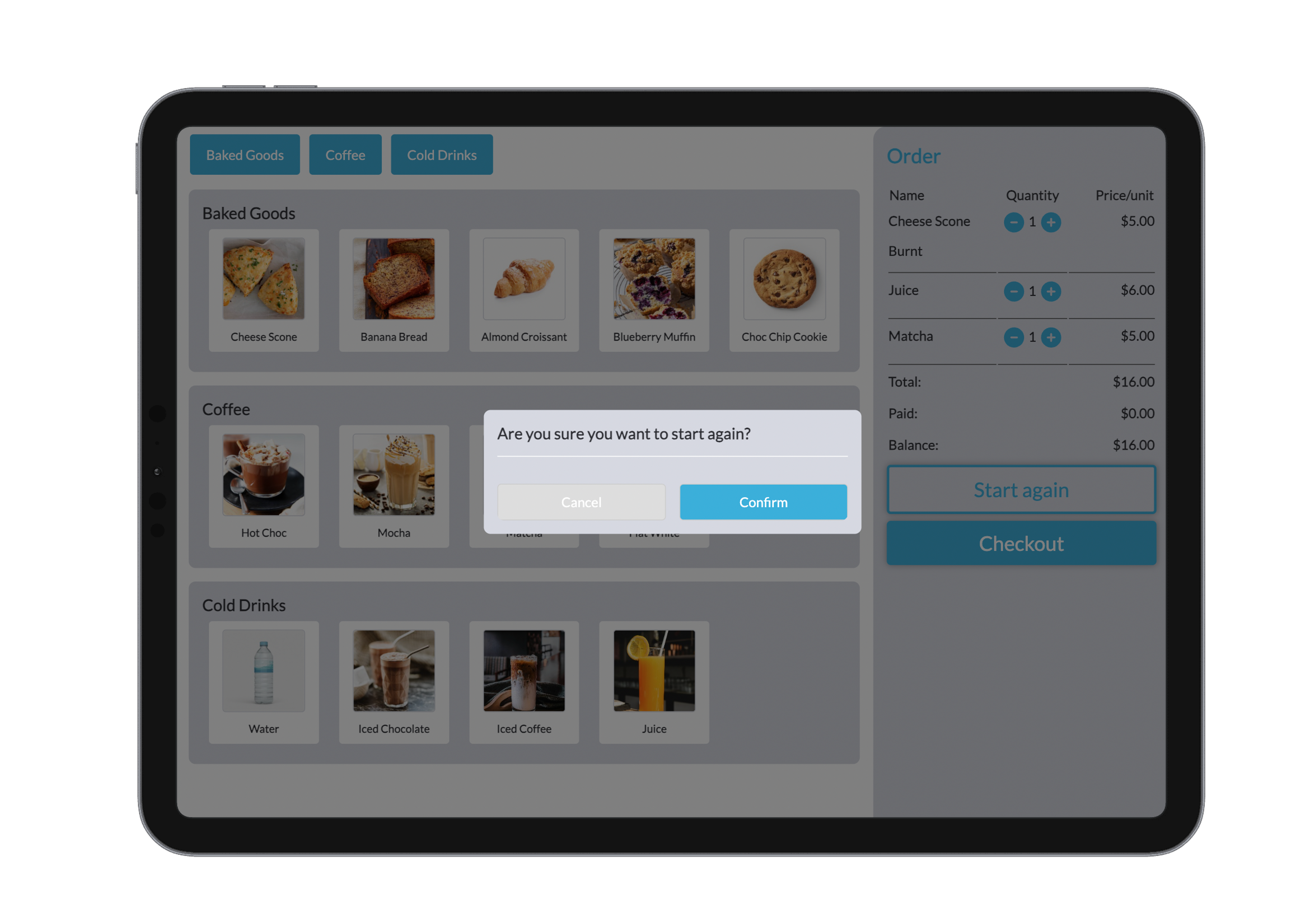
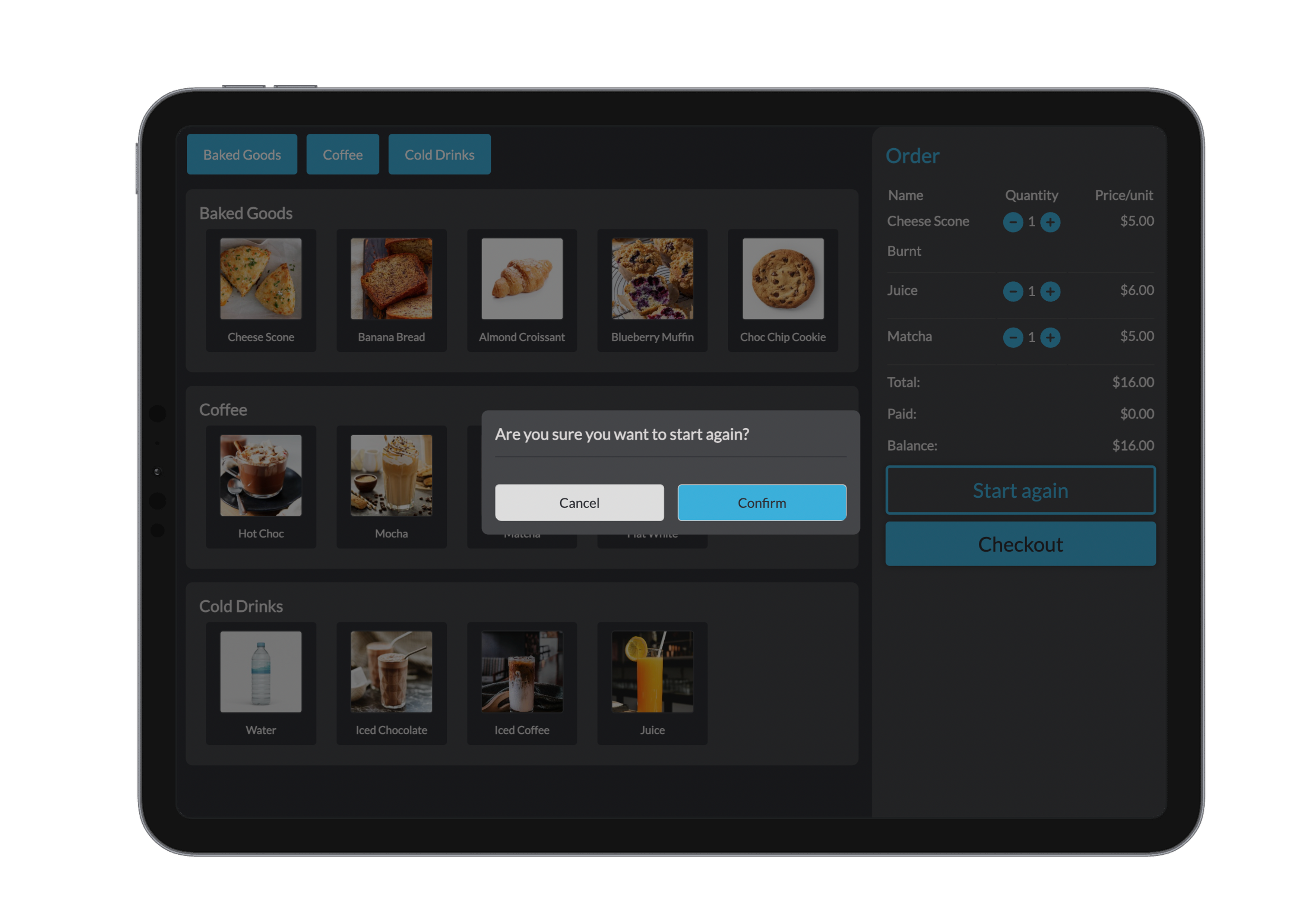
- Clicking start again will take you back to the beginning and will delete cart
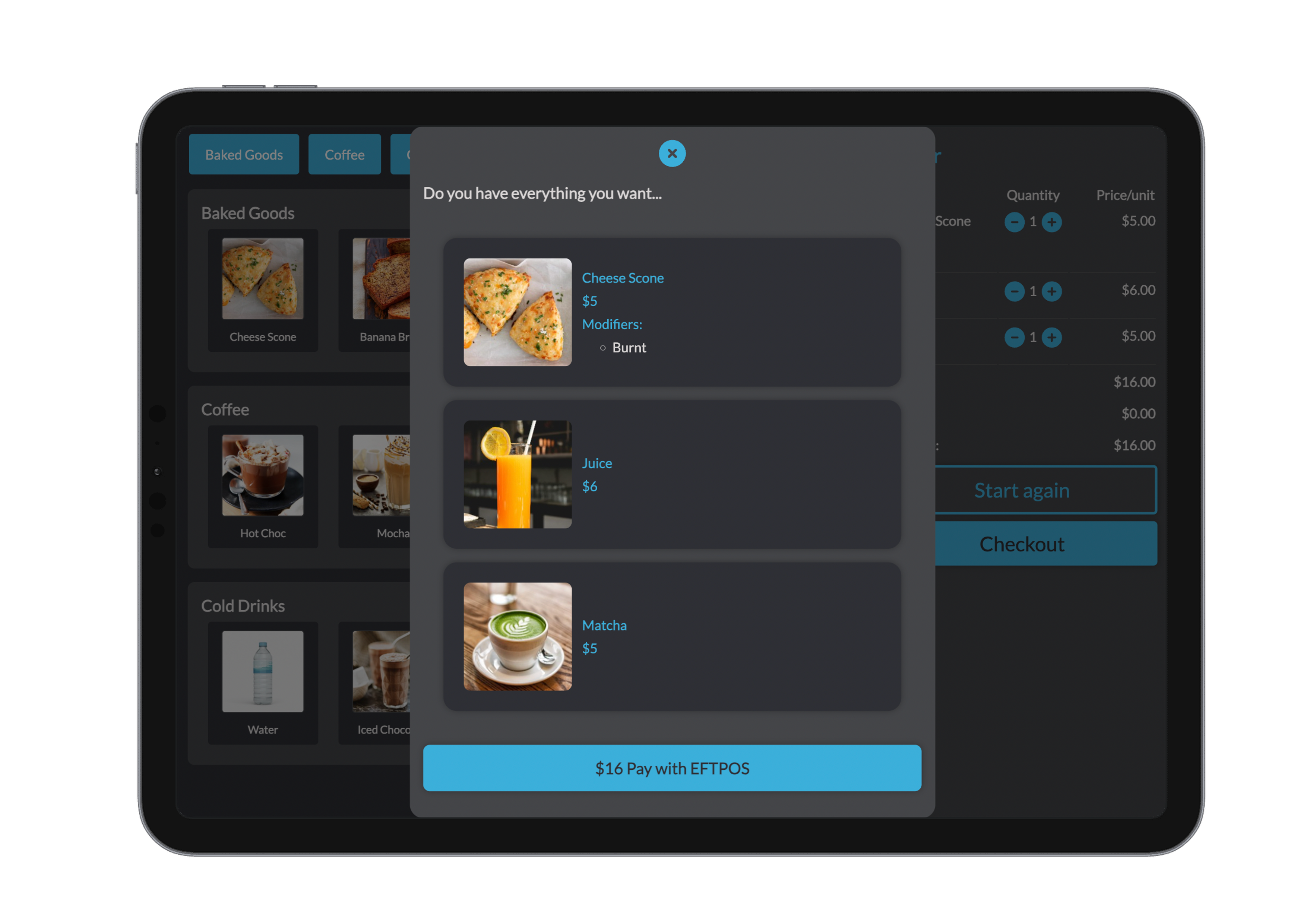
- Checkout
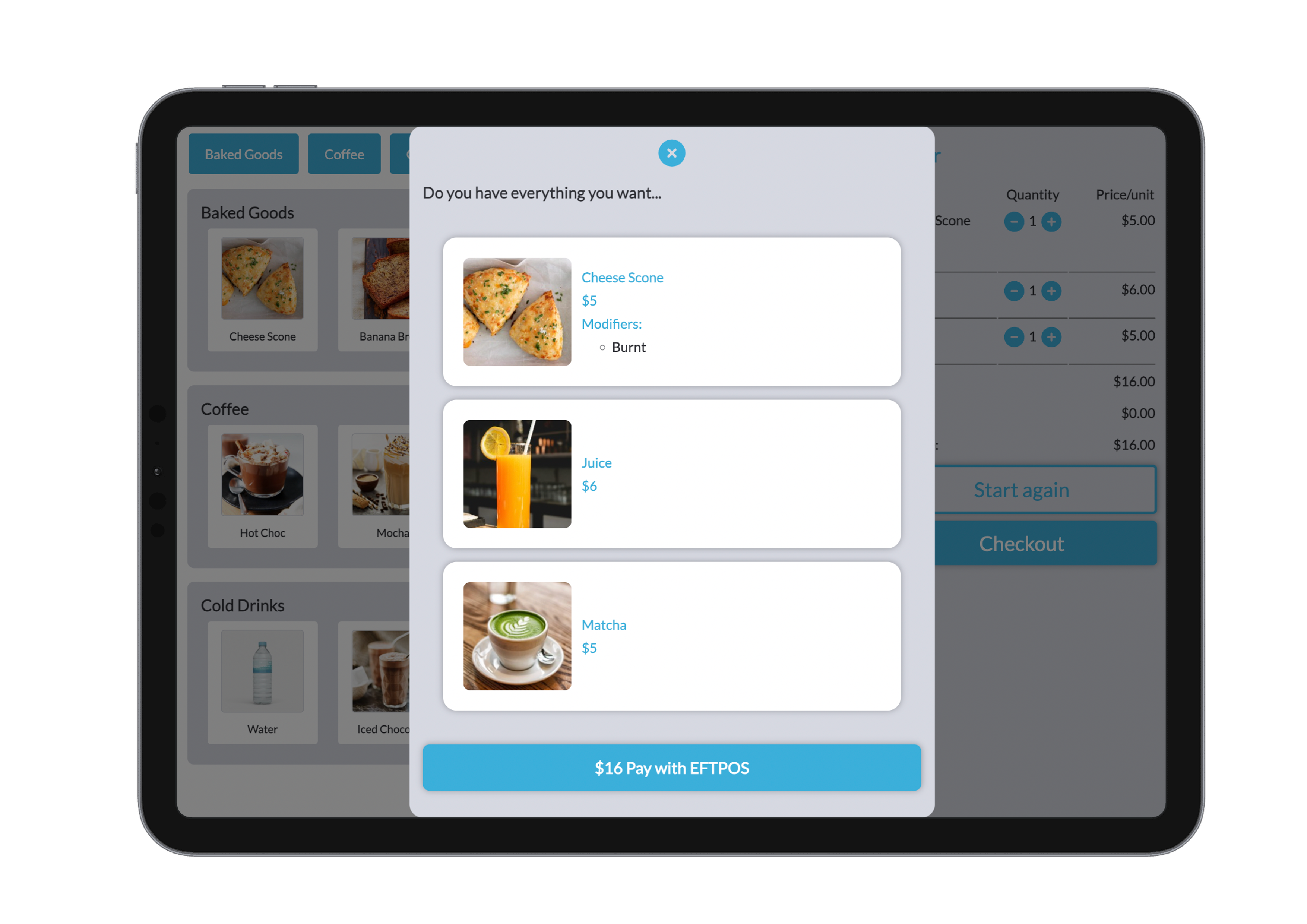
- Tap Checkout when ready
- A summary modal appears showing all items and modifiers
- Tap EFTPOS to initiate payment
- Note: Only card payments are accepted. Cash is disabled as the kiosk operates unattended.
Summary of Key Features
- Self-service interface optimised for quick navigation and ease of use
- Dine-in and Takeaway support
- Modifier enforcement ensures complete, accurate orders
- Real-time syncing with POS and Kitchen systems
- Secure payments via integrated EFTPOS (no staff involvement required)
Kiosk Mode is ideal for reducing wait times, improving customer flow, and freeing up staff to focus on service.
Settings
At this stage, there are no customisable settings specific to the Kiosk. It functions as a simplified version of the POS system, designed solely for order processing. Customers cannot change any settings that would affect your business operations, it's a straightforward, user-friendly ordering experience.