Modifiers
Modifiers allow you to customise orders by offering add-ons, removals, or substitutions. For example, customers may want to add cheese, remove an ingredient, or switch to a vegan option.
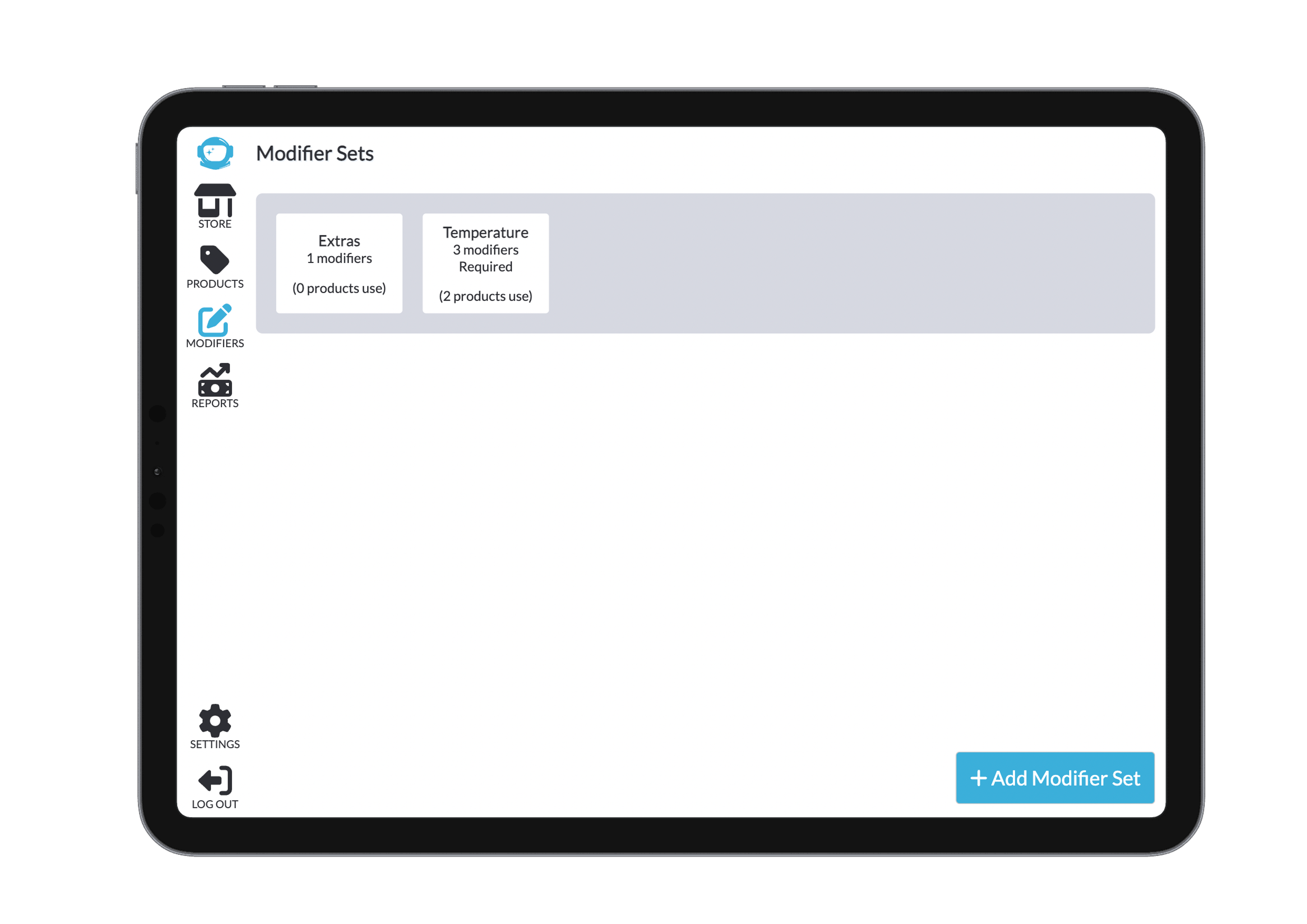
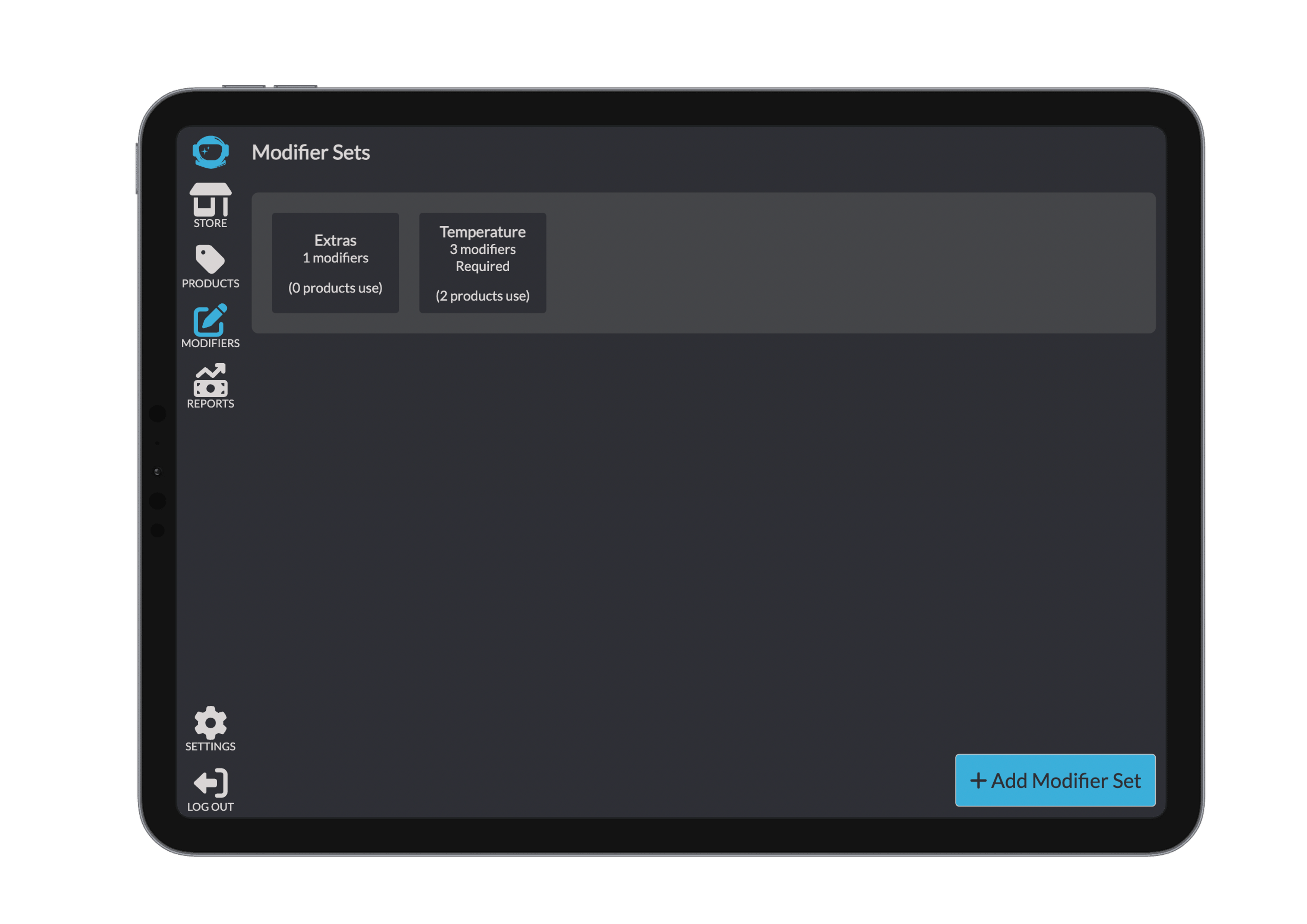
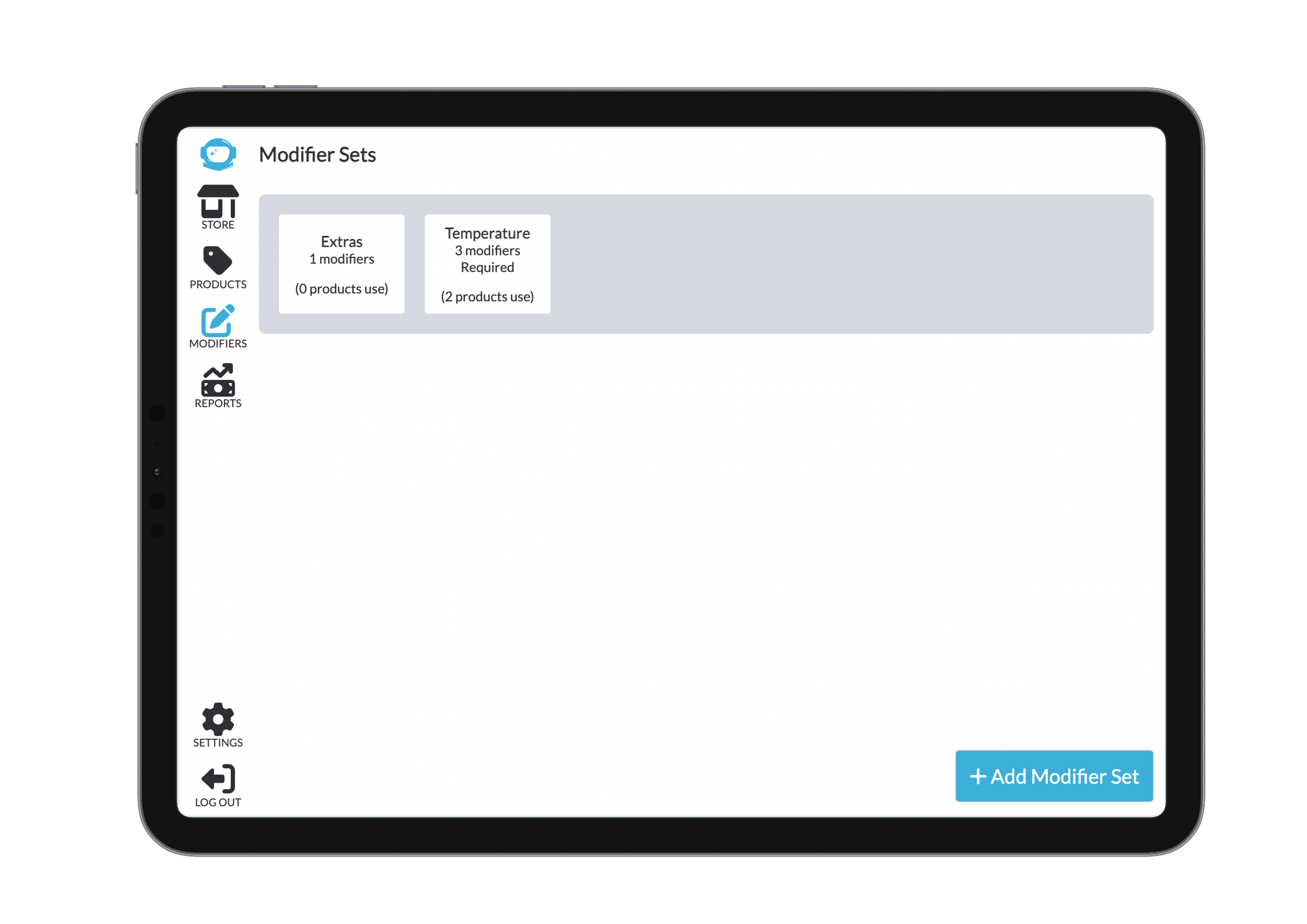
All modifier sets are listed in alphabetical order for easy navigation. Unlike categories, these sets cannot be reordered manually.
Modifier Sets
Clicking on a modifier set opens its full details and configuration options.
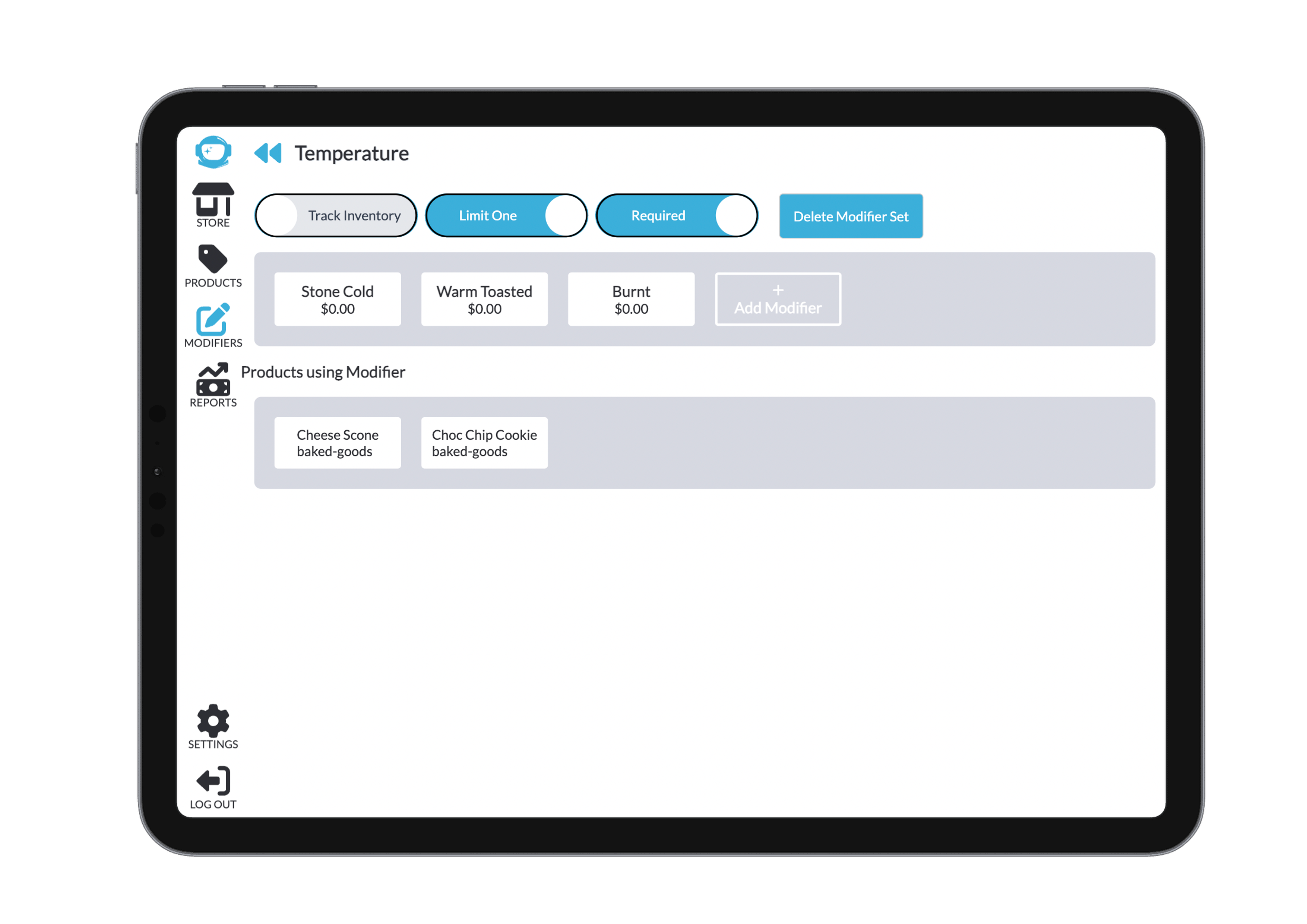
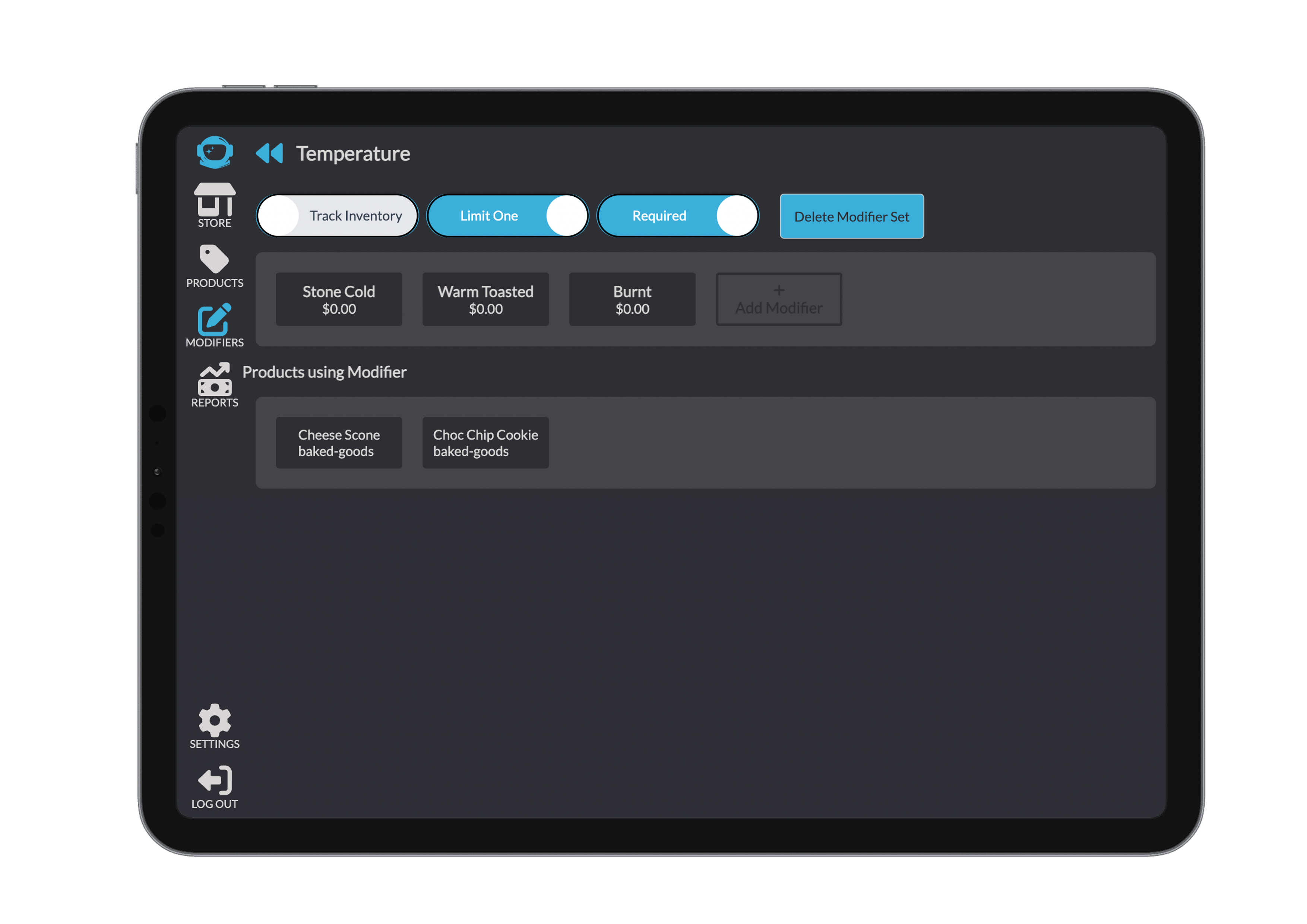
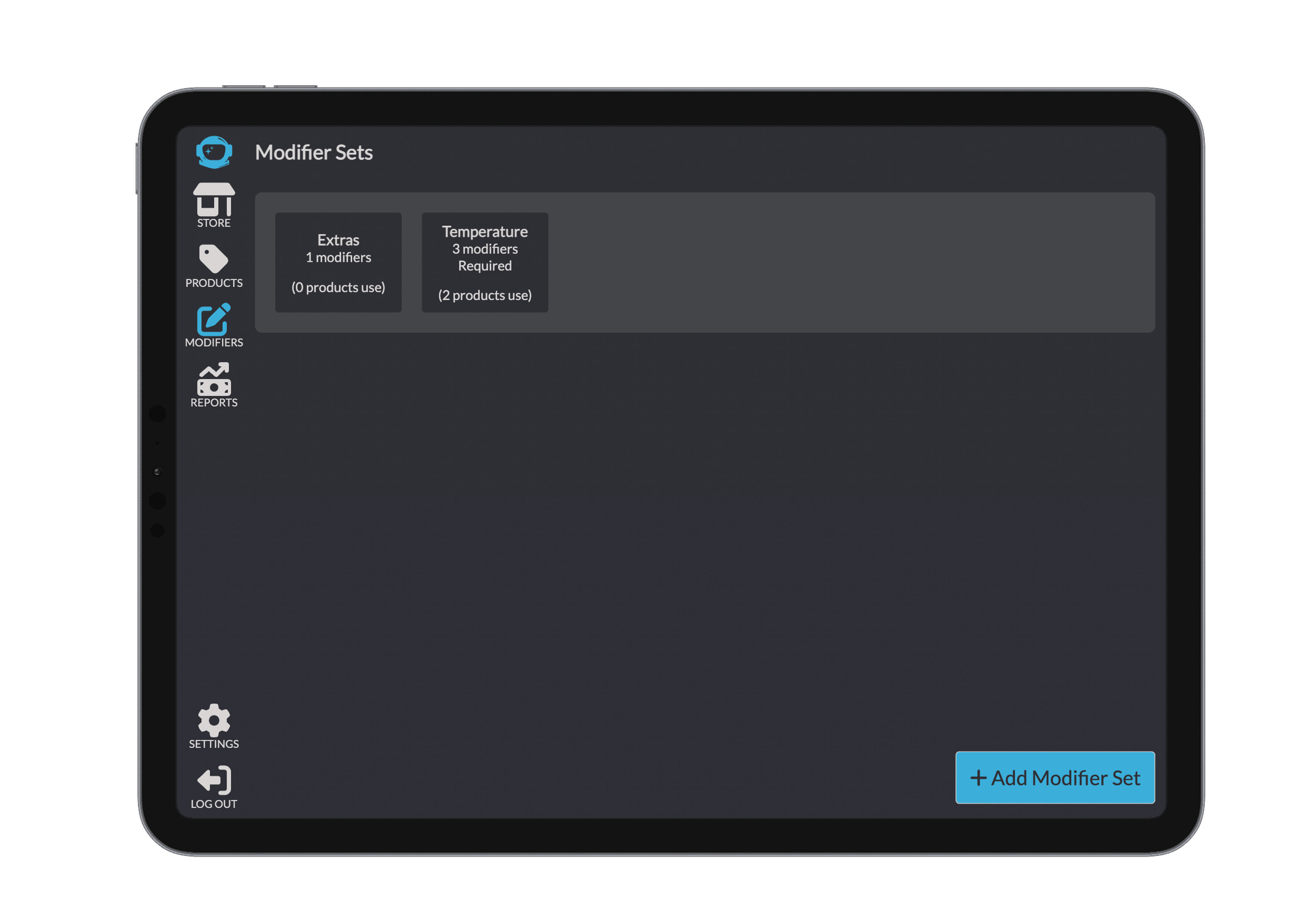
You can also delete the entire modifier set from this screen if it’s no longer needed. To add a new modifier set, use the button at the bottom right of the set screen.
Once you've entered the details, you can either save the new modifier, cancel the changes, or delete it entirely.
Modifiers in the Set
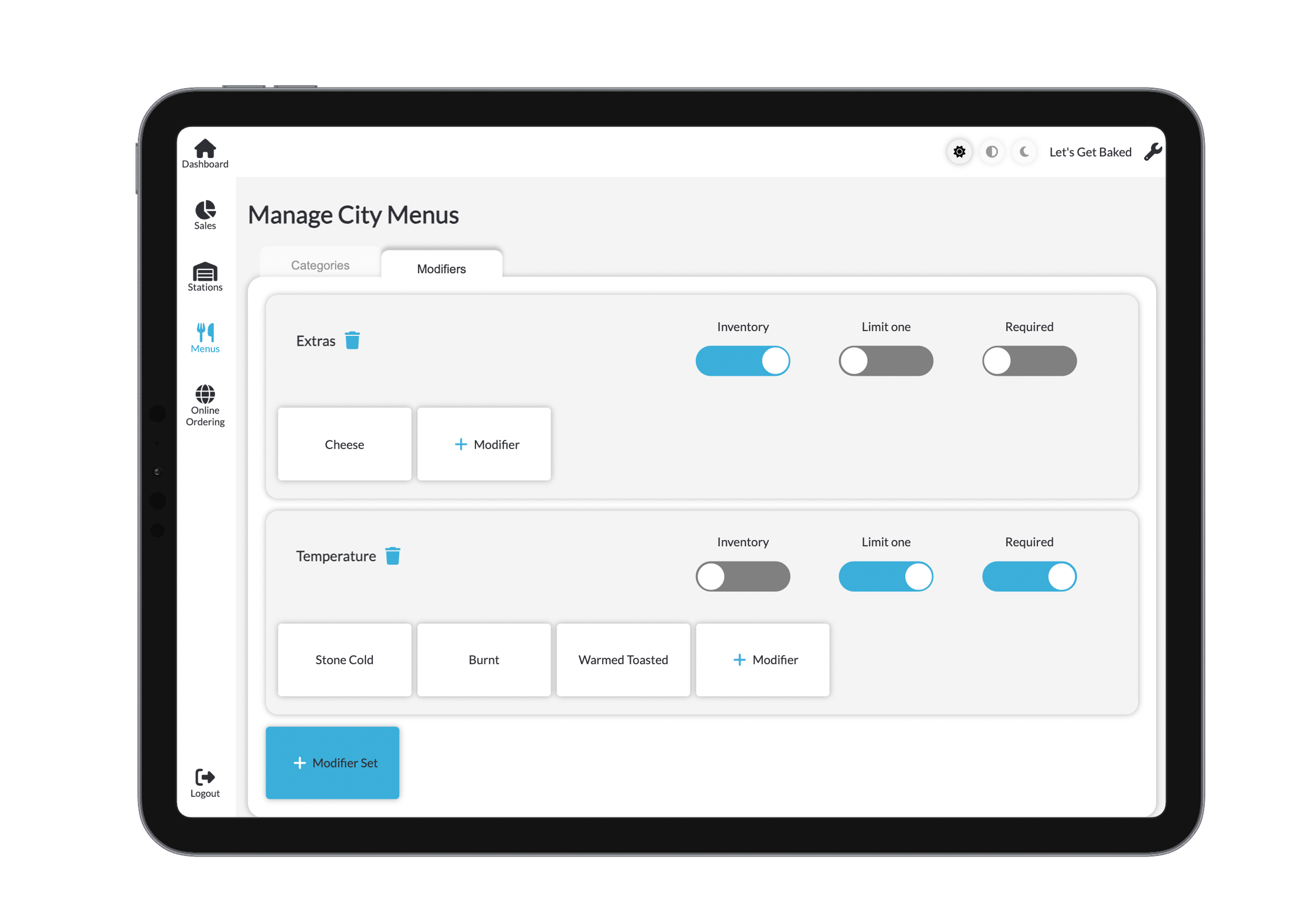
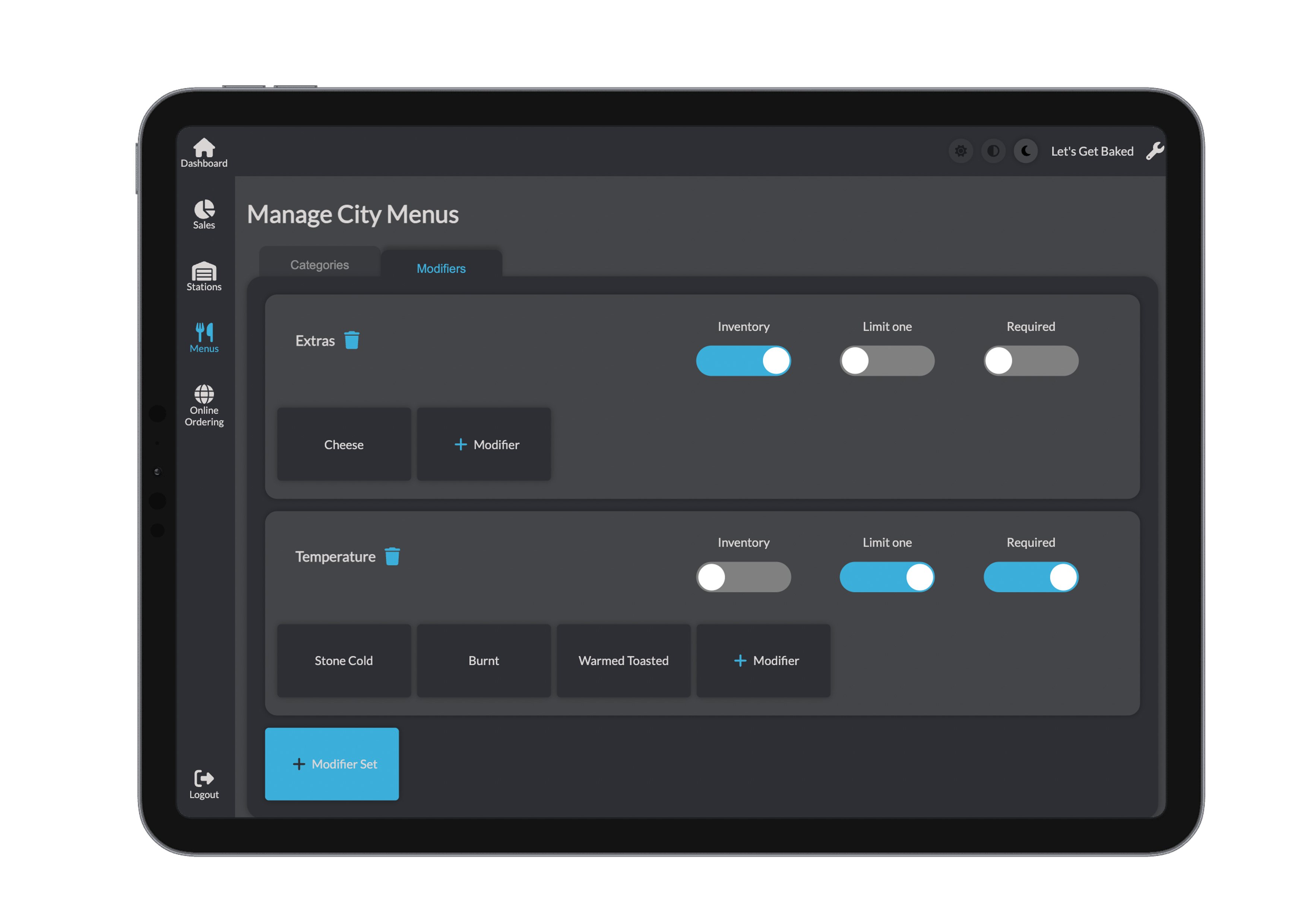
Each modifier in a set can be viewed and edited. For every modifier, you can specify the name, availability status, quantity, and price.
There are four toggle settings available for modifiers within a modifier set:
Track Inventory
When enabled, each modifier has a finite quantity that decreases as it is used in orders
(e.g., “Only 10 sesame bagels left”).Limit One
Restricts the product to only one modifier selection during purchase
(e.g., choosing a bagel flavour).Required
Ensures a modifier must be selected before the product can be added to the cart
(e.g., choosing the size of a coffee).Reorder
Allows modifiers within the set to be rearranged for display on the store page.
When this toggle is on, modifiers can be dragged into a new order, but they cannot be opened for editing.
To edit a modifier, make sure to switch this toggle off first.
Editing a modifier follows the same process — allowing you to update any field as needed.
Product Associations
At the bottom of each modifier set, you’ll see a list of all products that currently use that set. This makes it easy to see which products are linked and to update or remove the association.
You can click on any product in the list to review and adjust whether the modifier set is active for that product. 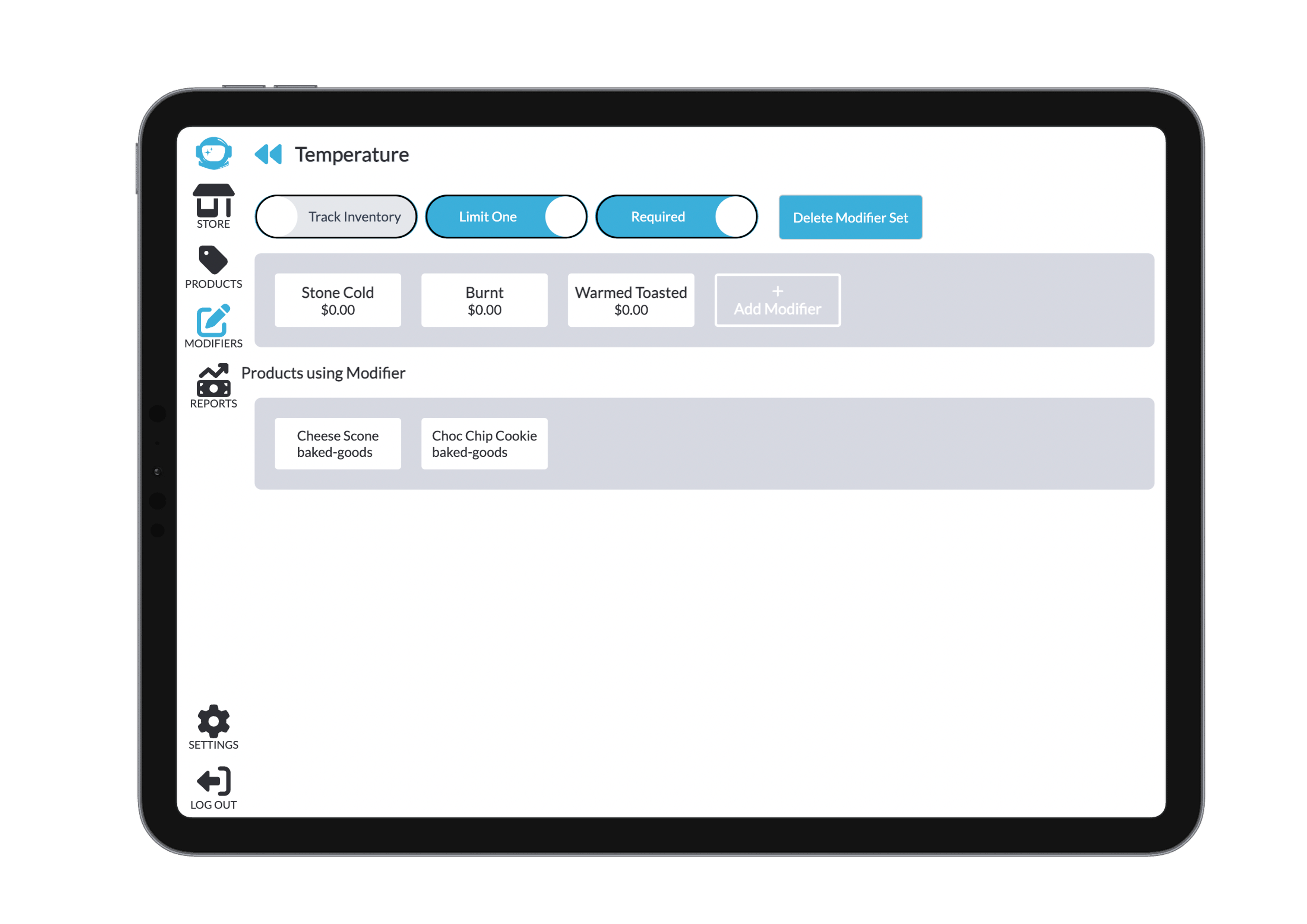
Managing Modifer from Bridge
In the Menu section you can edit the modifier sets and modifiers.
Within each set, there are several toggles available to control how the modifiers behave:
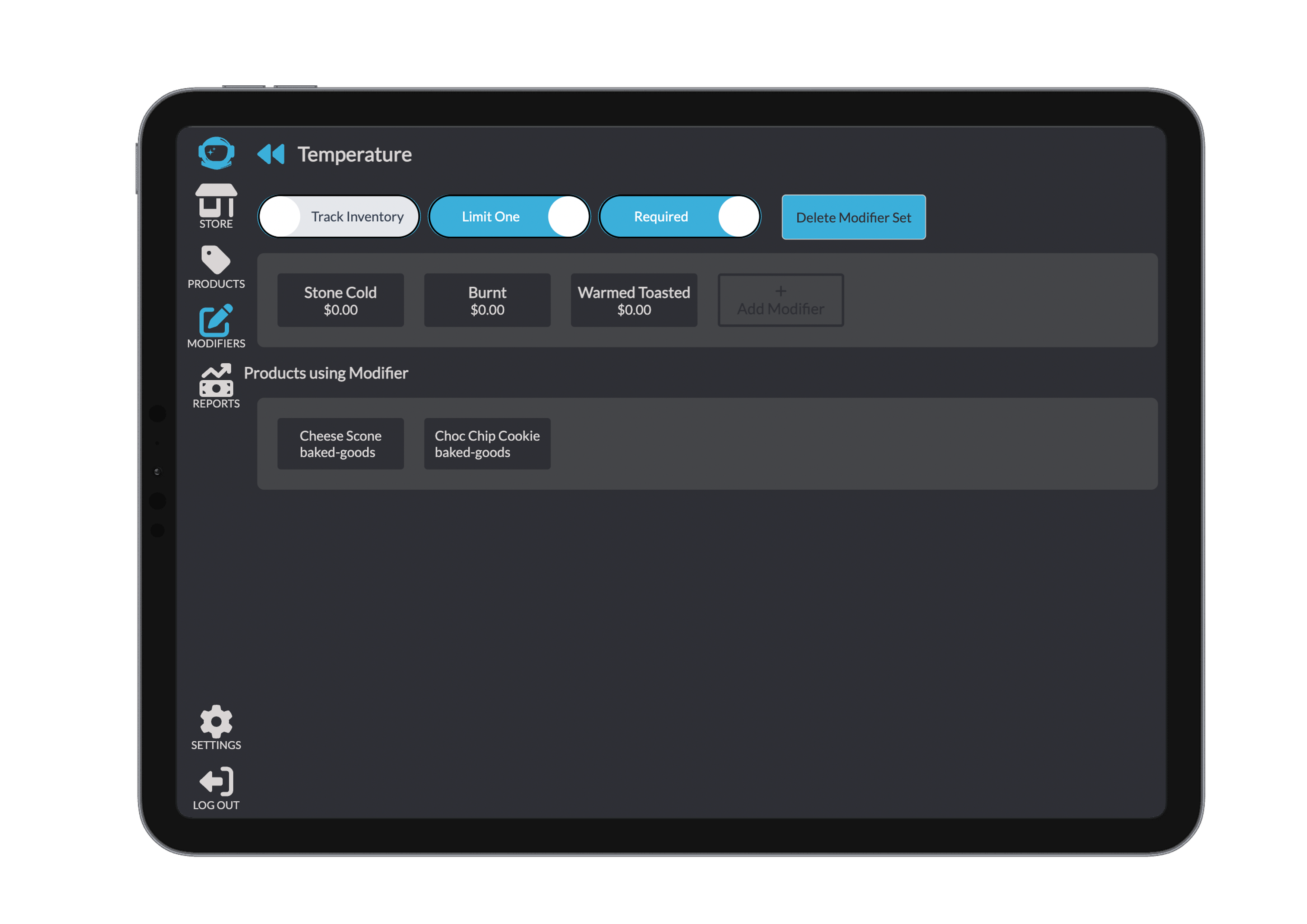
The Track Inventory toggle enables you to track the quantity of each individual modifier. This is useful for items like specific bagel types or add-ons that have limited stock.
The Limit One toggle ensures that customers can only choose one modifier from the set — for example, allowing them to choose just one bagel flavour.
The Required toggle makes the modifier set mandatory during ordering. This means the customer must choose an option before completing the transaction.