POS Settings
POS Settings gives you the tools to customise how your store operates—from visual preferences to checkout workflows and payment configurations.
Display Theme
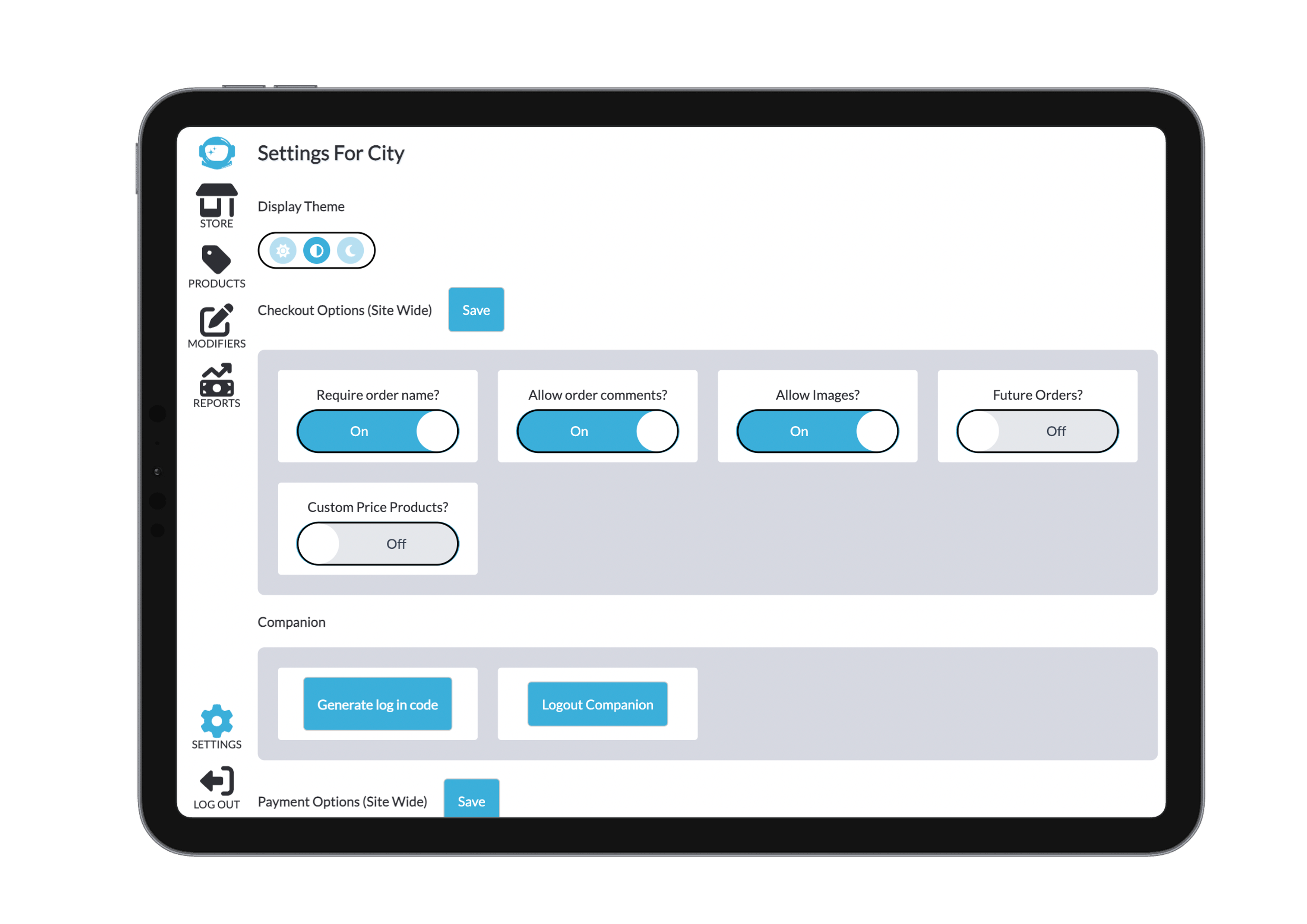
You can toggle between display themes to suit your environment or personal preference. There are three modes:
- Light mode, represented by a sun icon
- Dark mode, shown with a moon icon
- System default, displayed with a half-circle icon, which uses your device’s current theme setting
Checkout Options
Checkout settings are site-wide and determine what’s required when orders are processed. You can toggle options like order requirements or future ordering (commonly used for catering). Again, make sure to Save your changes before exiting.
Companion
The Companion App can be linked to your POS via a generated code. Simply log in using the code provided on-screen. You can also log out using the same process when the Companion is no longer needed. Since customers have a large part of the companion it is not possible to log out from the companion itself to keep the actions limited. To log out you must be logged in to the connected POS similar to loggin in.
Payment Options
These settings control which payment options appear at checkout and are also site-wide. To add or change payment methods beyond what’s shown here, go to the Bridge system. As always, click Save to confirm any updates.


Discounts
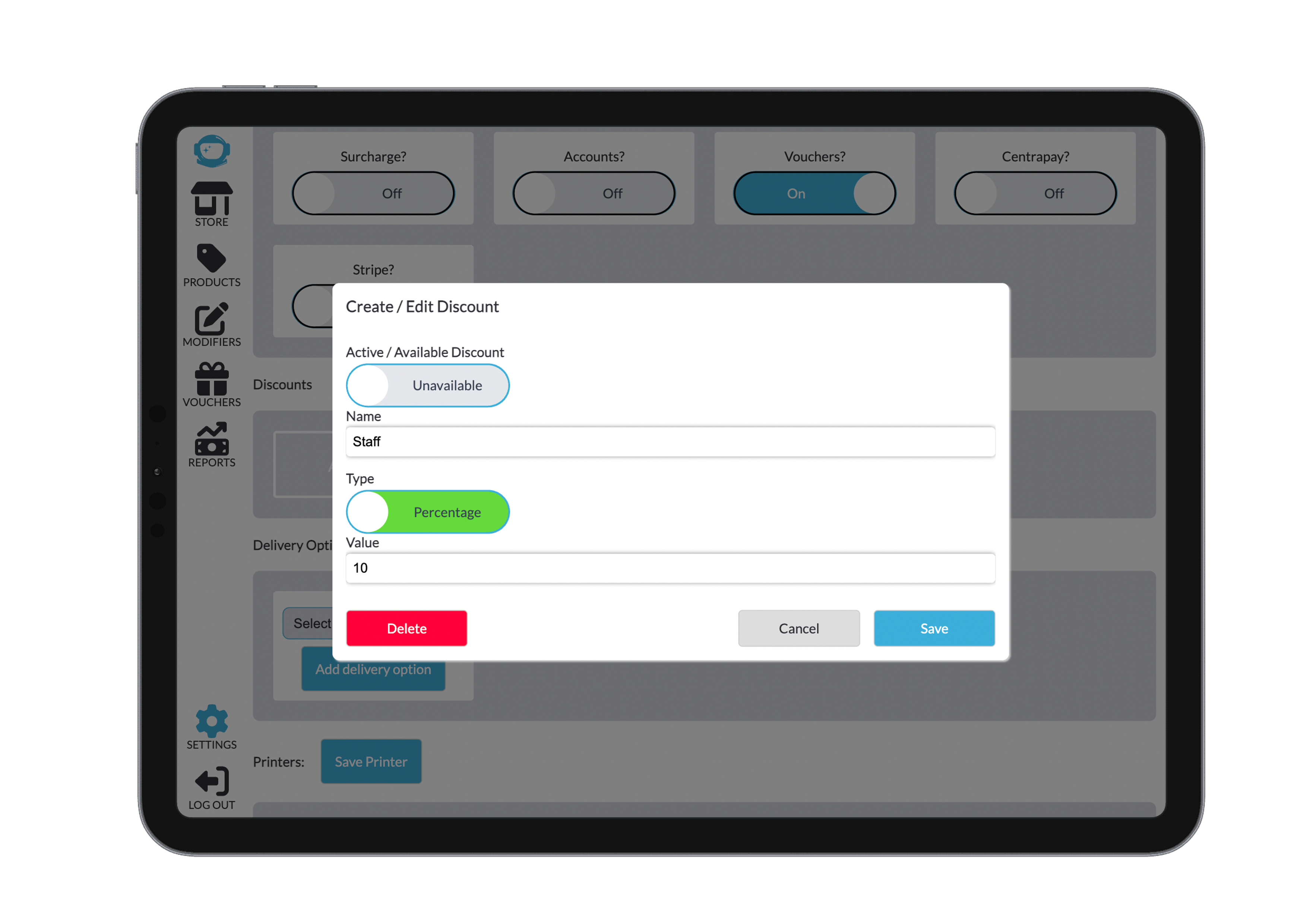
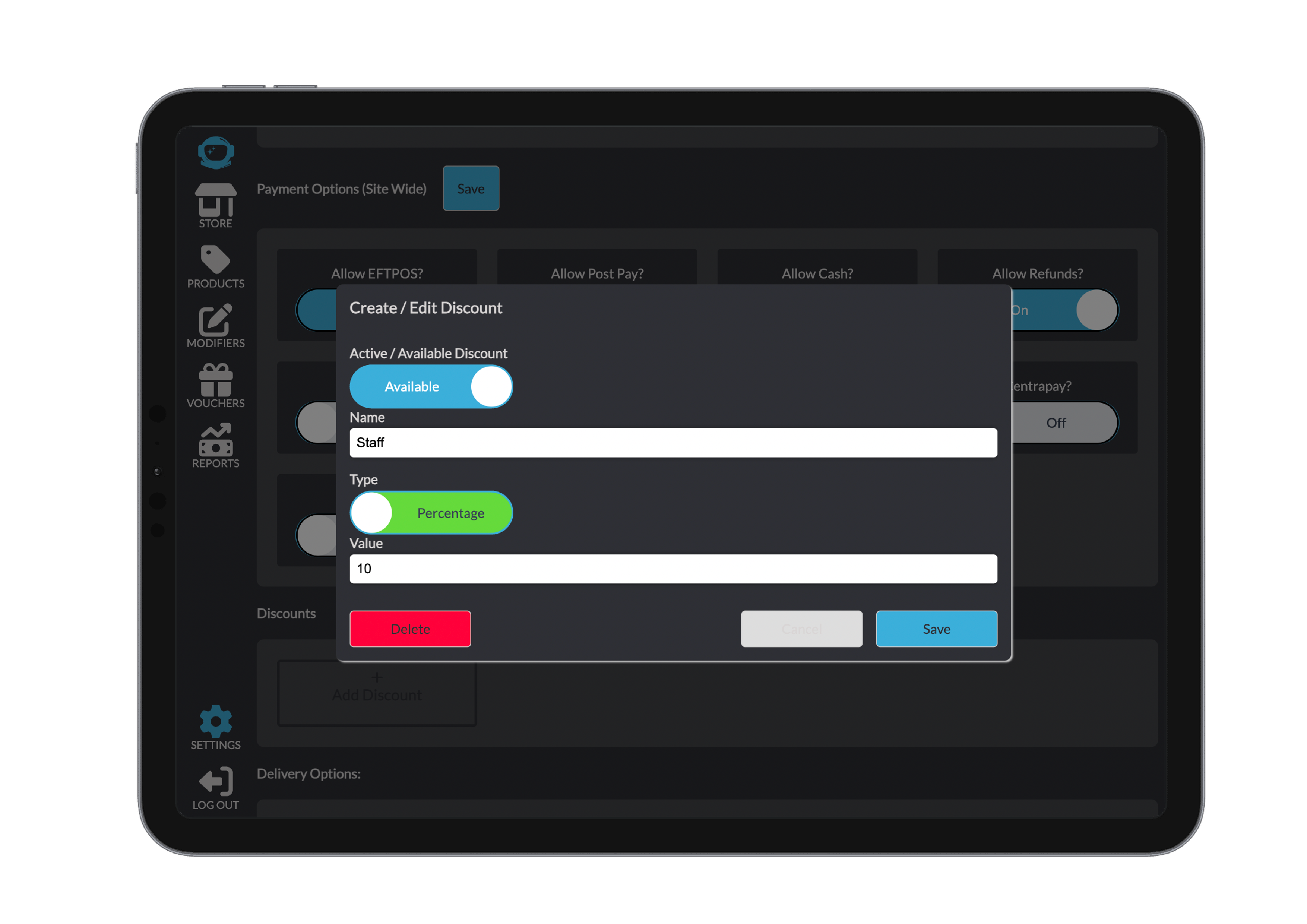
Creating discounts is straightforward. You can activate or deactivate them, give each a custom name, and choose between a percentage discount or a fixed dollar value. Based on your selection, enter the amount. After setup, you can Save, Cancel, or Delete the discount.
Delivery Options
These settings refer to order type options like Dine-In or Takeaway, not delivery addresses or drop-off points. This choice is required when finalising each order.
Printers
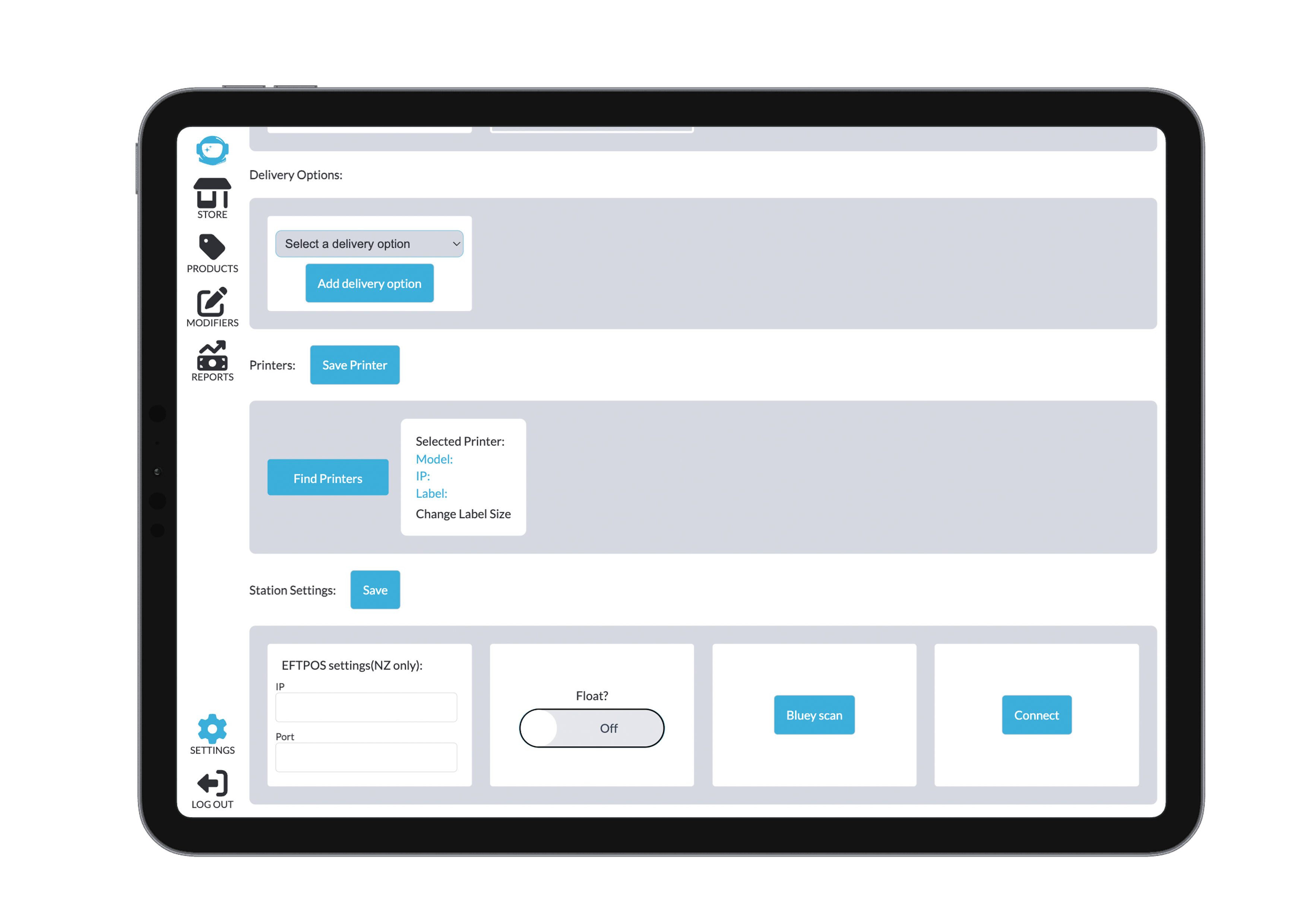
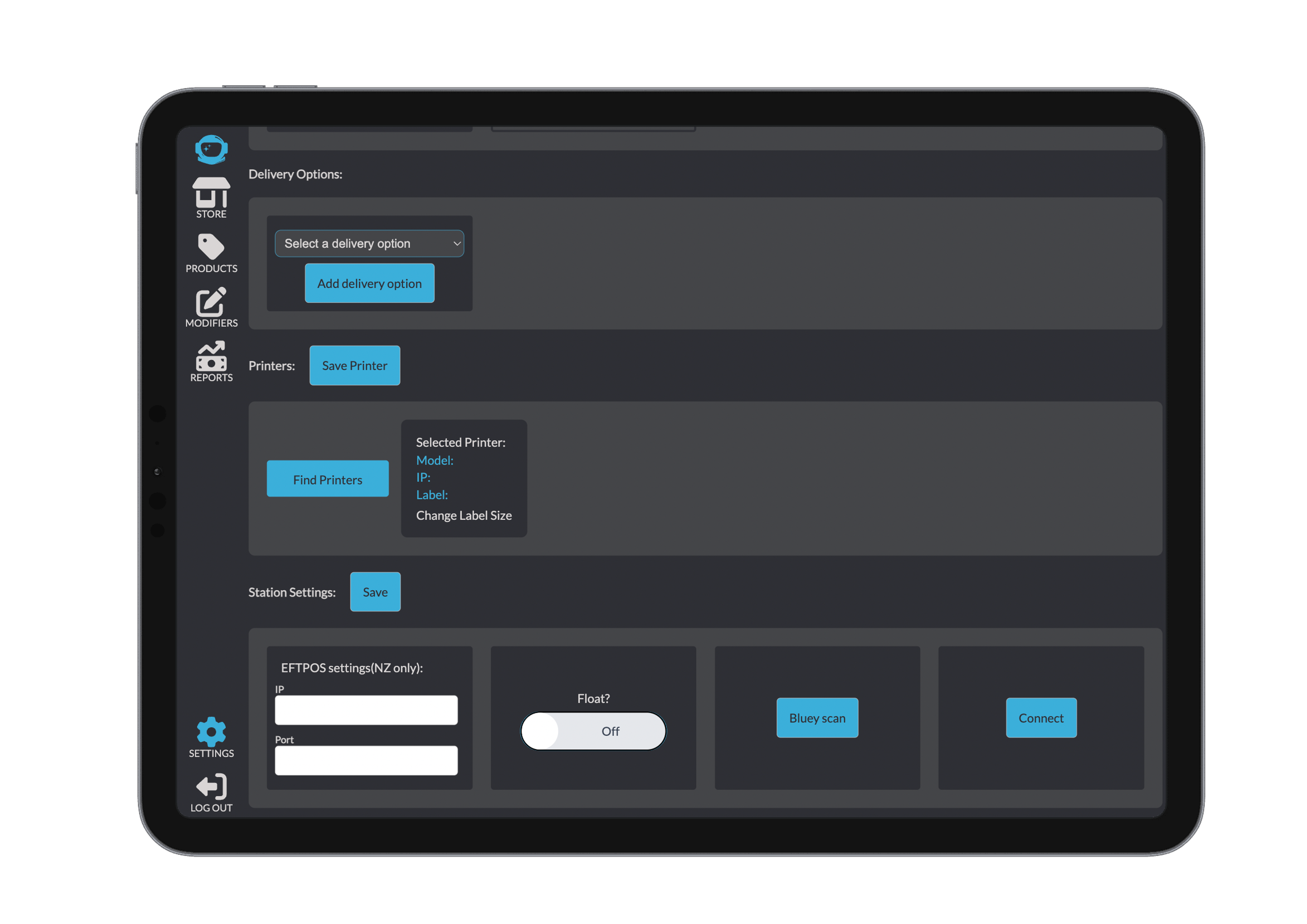
Printer setup is stored in local storage, so note that logging out may disconnect your printer—even though it’s technically still saved. Use the Find Printers button to reconnect. Your printer and device must be on the same Wi-Fi network, and you should double-check that the label size is set correctly.
Station Settings
Ensure your EFTPOS setup is correct by entering the IP address and port number, which can be found directly on the EFTPOS terminal. This is crucial for connectivity and should be handled with the physical hardware nearby. The Bluey Scan is a Bluetooth scanner used for stripe—if you don’t use it, this setting can be ignored.